

Configuration
The Cloud Connector software is secured and does allow for the deployment of apps (i.e. war files). Therefore we need to use the Java Agent mechanism to load the agent with a configuration file.
The configuration file is a simple properties file, the full list of supported configuration keys and values is detailed in the table below.
Monitoring User
In order to use the SCC api to collect monitoring data you must create a user for the PowerConnect Java agent to use to connect to the API. This should be done in the LDAP system and the user should be mapped to the sccmonitoring montioring role.
Example configuration file
The following configuration file enables jmx, ljstrace log, http access log, health, subaccount and backend performance monitoring.
Note - all values must be surrounded in double quotes
powerconnect.properties
sap_system_name="CC1"
instance_id="primary"
license_key="xxx"
scc_monitoring_user="powerconnect"
scc_monitoring_password="***"
splunk_hec_url="http://localhost:8088"
splunk_hec_key="123-456-789"
jmx_enabled="true"
ljstrace_monitoring_enabled="true"
httpaccess_monitoring_enabled="true"
scc_health_monitoring_enabled="true"
scc_subaccounts_monitoring_enabled="true"
scc_backend_performance_monitoring_enabled="true"
Linux
To configure the PowerConnect Java Cloud Connector agent on a Linux environment perform the following steps:
-
Login to the target server as the user who runs the SAP Cloud Connector software
-
Create a configuration file for the PowerConnect Java agent e.g.
touch /opt/powerconnect/powerconnect.properties -
Add the license key and Splunk HEC details to the configuration file and enable any additional monitoring you require
-
When using the go.sh script to manage SAP Cloud Connector:
-
Set the SAP_JAVA_OPTS environment variable to include the Java Agent flag and point it to the location of the PowerConnect Java package and configuration file e.g.
export SAP_JAVA_OPTS=-javaagent:/opt/powerconnect/powerconnect-java-cloud-connector.jar=/opt/powerconnect/powerconnect.properties
This variable can also be added to the SAP Cloud Connector user’s profile so it is set automatically -
Stop SAP Cloud Connector
-
Start SAP Cloud Connector
./go.sh
-
-
When using systemd or System V to manage SAP Cloud Connector:
-
Create or update the extension file scc_daemon_extension.sh in /opt/sap/scc
-
Add the following line to the scc_daemon_extension.sh file making sure the paths to the agent and config file are correct:
export JAVA_TOOL_OPTIONS="-javaagent:/opt/powerconnect/powerconnect-java-cloud-connector.jar=/opt/powerconnect/powerconnect.properties" -
Re-install the daemon so the changes are updated and survive upgrades:
-
For System V init distributions:
/opt/sap/scc/daemon.sh reinstall -
For systemd distributions:
/opt/sap/scc/daemon.sh reinstallSystemd
-
-
Restart SAP Cloud Connector
-
For System V init distributions:
service scc_daemon restart -
For systemd distributions:
systemctl restart scc_daemon
-
-
-
In the log directory you should see sap_powerconnect_java.log has been created
-
In your target plaform you should now see SAP Cloud Connector events
Windows
To configure the PowerConnect Java Cloud Connector agent on a Windows environment perform the following steps:
-
Login to the target server as the user who runs the SAP Cloud Connector software
-
Create a configuration file for the PowerConnect Java agent e.g.
e:\powerconnect\powerconnect.properties -
Add the license key and Splunk HEC details to the configuration file and enable any additional monitoring you require
-
If you use go.bat to start Cloud Connector do the following
-
Open the Command Prompt
-
Set the SAP_JAVA_OPTS environment variable to include the Java Agent flag and point it to the location of the PowerConnect Java package and configuration file e.g.
set SAP_JAVA_OPTS=-javaagent:e:\powerconnect\powerconnect-java-cloud-connector.jar=e:\powerconnect\powerconnect.properties
This variable can also be added to the SAP Cloud Connector user’s profile so it is set automatically -
Stop SAP Cloud Connector
-
Start SAP Cloud Connector
go.bat
-
-
If you start or stop SAP Cloud Connector as a Windows Service do the following
-
Browse to the Cloud Connector installation folder
-
Edit the file props.ini in notepad or similar editor
-
Set the -javaagent flag to include the location of the PowerConnect Java package and the configuration file e.g
-javaagent:e:\powerconnect\powerconnect-java-cloud-connector.jar=e:\powerconnect\powerconnect.properties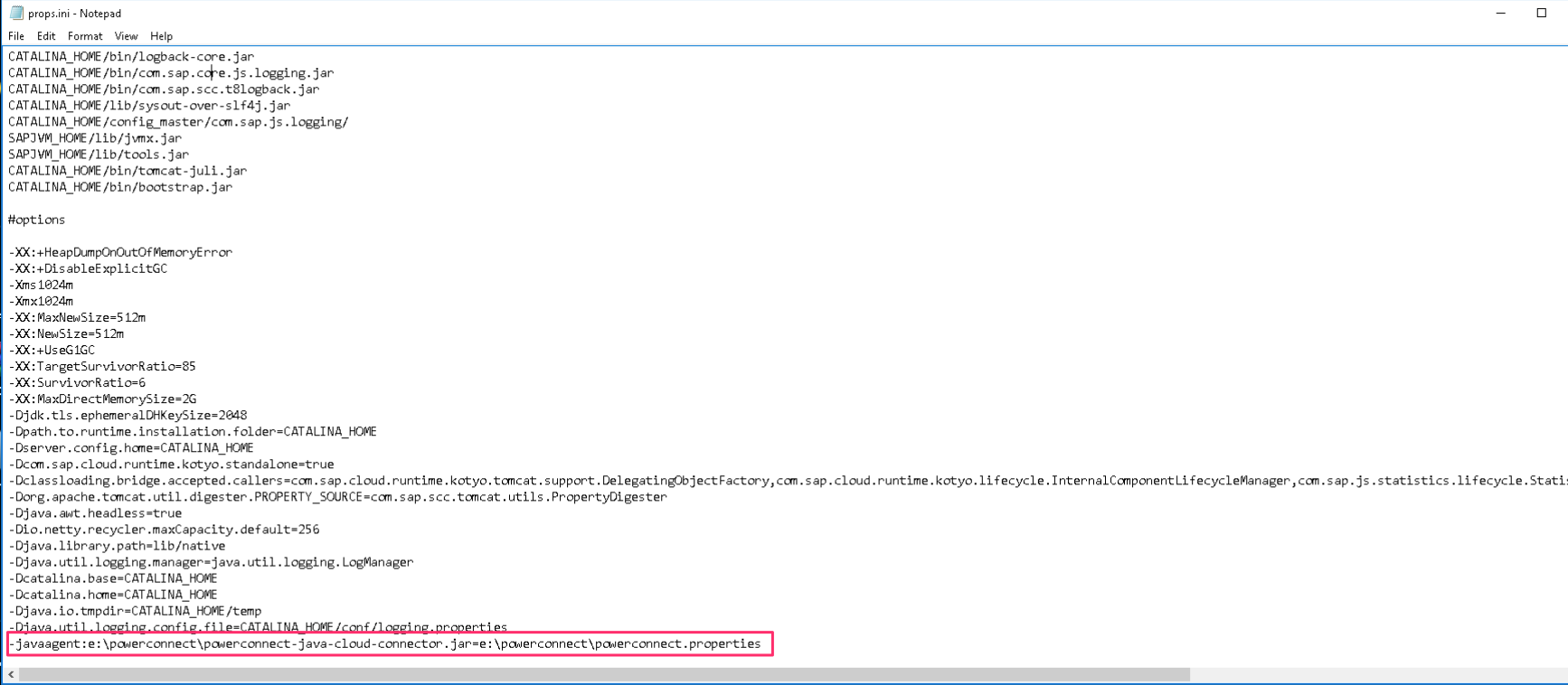
-
Restart the Cloud Connector service
-
-
In the Cloud Connector log directory you should see sap_powerconnect_java.log has been created
-
In your target plaform you should now see SAP Cloud Connector events
Supported Configuration Keys and Values
Identity
|
Property Name |
Default Value |
Required |
Description |
|---|---|---|---|
|
sap_system_name |
SCC |
No |
System identifier sent with every event and mapped to the |
|
instance_id |
primary |
No |
Instance identifier sent with every event. Used to distinguish instances in HA configurations (e.g. primary and shadow) |
|
license_key |
|
Yes |
The license key for the PowerConnect Java agent to function |
JVM / Host Metrics
|
Property Name |
Default Value |
Required |
Description |
|---|---|---|---|
|
jmx_enabled |
true |
No |
Enable JMX metrics collection |
|
jmx_interval |
60000 |
No |
JMX metrics collection frequency in milliseconds |
|
jmx_mbeans |
java.lang:type=OperatingSystem;java.lang:type=Threading;java.lang:type=Memory;java.lang:type=ClassLoading;java.lang:type=Runtime |
No |
JMX beans to collect, separated by a semicolon. By default the agent collects OS, Thread, Heap, ClassLoading and Runtime metrics |
|
thread_monitoring_enabled |
false |
No |
Enable thread state and stack trace collection |
|
thread_monitoring_interval |
60000 |
No |
Thread state collection frequency in milliseconds |
|
disk_monitoring_enabled |
false |
No |
Enable disk metrics collection |
|
disk_monitoring_interval |
60000 |
No |
Disk metrics collection frequency in milliseconds |
|
network_monitoring_enabled |
false |
No |
Enable network metrics collection |
|
network_monitoring_interval |
60000 |
No |
Network metrics collection frequency in milliseconds |
Log Files
|
Property Name |
Default Value |
Required |
Description |
|---|---|---|---|
|
ljstrace_monitoring_enabled |
false |
No |
Enable ljstrace log collection |
|
ljstrace_monitoring_directory |
./log |
No |
Directory where ljstrace logs are being written |
|
ljstrace_monitoring_header |
time,severity,logger,thread,connection_id,text |
No |
ljstrace log header |
|
ljstrace_monitoring_filefilter |
ljs_trace.log |
No |
ljstrace log filename pattern |
|
httpaccess_monitoring_enabled |
false |
No |
Enable http access log collection |
|
httpaccess_monitoring_directory |
./log |
No |
Directory where http access logs are being written |
|
httpaccess_monitoring_header |
ip,thread_name,user,timestamp,request_uri,status,bytes_sent,response_time |
No |
http access log header |
|
httpaccess_monitoring_filefilter |
localhost_http_access_.*\.log$ |
No |
http access log filename pattern |
SCC Monitoring API Connection
|
Property Name |
Default Value |
Required |
Description |
|---|---|---|---|
|
scc_monitoring_host |
localhost |
No |
Host of the SAP Cloud Connector monitoring API |
|
scc_monitoring_port |
8443 |
No |
Port of the SAP Cloud Connector monitoring API |
|
scc_monitoring_protocol |
https |
No |
Protocol used to reach the monitoring API ( |
|
scc_monitoring_user |
|
Conditional |
Username for the SCC monitoring API. Required when any |
|
scc_monitoring_password |
|
Conditional |
Password for the SCC monitoring API. Required when any |
SCC Monitoring Extractors
Note - certain functionality is dependent on the version of Cloud Connector. Please check the documentation here - https://help.sap.com/docs/connectivity/sap-btp-connectivity-cf/monitoring-apis - for the latest information.
|
Property Name |
Default Value |
Required |
Description |
|---|---|---|---|
|
scc_health_monitoring_enabled |
false |
No |
Enable SCC health-check polling (up/down state) |
|
scc_health_monitoring_interval |
60000 |
No |
SCC health-check polling frequency in milliseconds |
|
scc_subaccounts_monitoring_enabled |
false |
No |
Enable collection of configured subaccounts from the SCC monitoring API |
|
scc_subaccounts_monitoring_interval |
300000 |
No |
Subaccounts collection frequency in milliseconds |
|
scc_backend_connections_monitoring_enabled |
false |
No |
Enable collection of open backend connections per subaccount |
|
scc_backend_connections_monitoring_interval |
300000 |
No |
Backend-connections collection frequency in milliseconds |
|
scc_backend_performance_monitoring_enabled |
false |
No |
Enable collection of backend performance metrics (request counts, response times) |
|
scc_backend_performance_monitoring_interval |
300000 |
No |
Backend-performance collection frequency in milliseconds |
|
scc_top_time_consumers_monitoring_enabled |
false |
No |
Enable collection of top time-consuming requests per subaccount |
|
scc_top_time_consumers_monitoring_interval |
300000 |
No |
Top-time-consumers collection frequency in milliseconds |
|
scc_memory_status_monitoring_enabled |
false |
No |
Enable collection of SCC host memory status |
|
scc_memory_status_monitoring_interval |
60000 |
No |
Memory-status collection frequency in milliseconds |
|
scc_disk_status_monitoring_enabled |
false |
No |
Enable collection of SCC host disk status |
|
scc_disk_status_monitoring_interval |
60000 |
No |
Disk-status collection frequency in milliseconds |
|
scc_cpu_status_monitoring_enabled |
false |
No |
Enable collection of SCC host CPU status |
|
scc_cpu_status_monitoring_interval |
60000 |
No |
CPU-status collection frequency in milliseconds |
|
scc_certificate_status_monitoring_enabled |
false |
No |
Enable collection of SCC certificate expiry/status |
|
scc_certificate_status_monitoring_interval |
300000 |
No |
Certificate-status collection frequency in milliseconds |
|
scc_usage_monitoring_enabled |
false |
No |
Enable collection of SCC usage statistics |
|
scc_usage_monitoring_interval |
300000 |
No |
Usage collection frequency in milliseconds |
|
scc_alerts_monitoring_enabled |
false |
No |
Enable collection of SCC alerts |
|
scc_alerts_monitoring_interval |
60000 |
No |
Alerts collection frequency in milliseconds |
|
scc_master_role_monitoring_enabled |
false |
No |
Enable collection of SCC master/shadow role state (HA) |
|
scc_master_role_monitoring_interval |
60000 |
No |
Master-role collection frequency in milliseconds |