

Overview
The PowerConnect Java agent can be installed as a standalone agent on a SAP HANA Database host to monitor operating system metrics (cpu, memory, disk etc.) as well as SAP HANA audit logs and trace logs.
Hardware Requirements
-
x86 64-bit chip architecture
-
1 CPU cores at 2GHz or greater
-
512 MB RAM
-
A 64-bit Linux distribution
Software Requirements
-
A 64 bit Linux distribution running SAP HANA
-
Java 11 (SAPMachine, OpenJDK or Oracle)
Network Requirements
-
HTTP or HTTPS outbound on port 8088 to connect to the Splunk HTTP Event Collector (Splunk on premises or Splunk Cloud)
Pre-Installation Steps
-
Login to the SAP HANA database server
Create Installation Folder
-
Create a directory where the PowerConnect for SAP HANA agent software will be installed
sudo mkdir /opt/powerconnect
-
The agent should run as the SAP HANA database OS user so it is able to access log files inside the SAP HANA installation folder
-
Make sure the SAP HANA OS user has full ownership of the PowerConnect directory (in the example below SAP HANA is running as hd5adm and is part of the sapsys group)
sudo chown -R hd5adm:sapsys /opt/powerconnect
Install Java
-
Install Java 11 (SapMachine, OpenJDK or Oracle)
sudo zypper install java-11-openjdk-devel
Create a database user (for audit logs only)
-
Create a database user for the PowerConnect (skip this step if you do not want to collect audit logs)
-
Connect to the HANA database using hdbsql
hdbsql -n localhost:<insert hana port> -i 00 -u SYSTEM -
Create a user (for example powerconect)
CREATE USER powerconnect PASSWORD <insert password>; -
Grant the user permissions to read the audit logs
GRANT AUDIT READ TO powerconnect; -
Connect to the database using the powerconnect user to verify
hdbsql -n localhost:35015 -i 00 -u powerconnect
Download the HANA JDBC Driver
-
Download the latest SAP HANA Database JDBC Driver - https://tools.hana.ondemand.com/additional/ngdbc-latest.jar
-
Copy it to the HANA machine for use during the installation
Installation Steps
-
Obtain the PowerConnect for SAP HANA DB package tarball file from your local distributor
-
Copy the tarball file to the SAP HANA DB host
scp powerconnect-hana-db-x.tgz <target-server>:/tmp
-
Login to the target server as the SAP HANA DB OS user
-
Unpack the package to the PowerConnect folder
tar -zxvf powerconnect-hana-db-x.tgz -C /opt/powerconnect
-
Switch to the PowerConnect folder
cd /opt/powerconnect
-
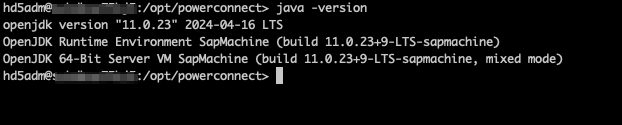
Make sure the java command runs and java is available on the path
java -version
-
Copy the SAP HANA Database JDBC driver named ngdbc-latest.jar you downloaded to the lib folder
cp /tmp/ngdbc-latest.jar /opt/powerconnect/lib
-
Make sure start script is executable
chmod +x bin/powerconnect.sh
-
The agent is now installed, follow the configuration steps to configure the agent