

→ This action must be performed in your productive client as the Business Configuration (BC) Set contains client-dependent data.
-
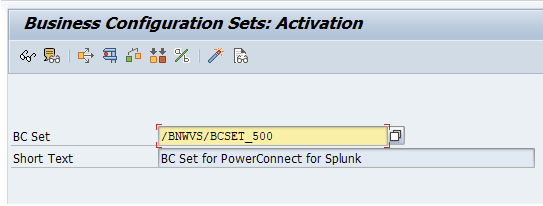
Call transaction SCPR20.
-
In the field “BC Set” enter “/BNWVS/BCSET_500” and press enter.
-
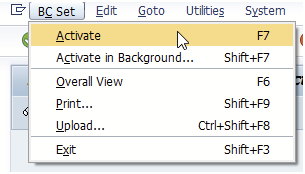
Choose “BC Set → Activate” in the menu to process the activation.
-
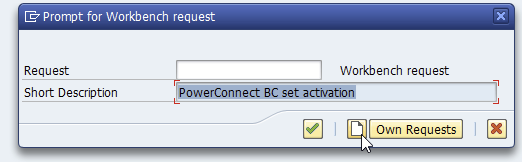
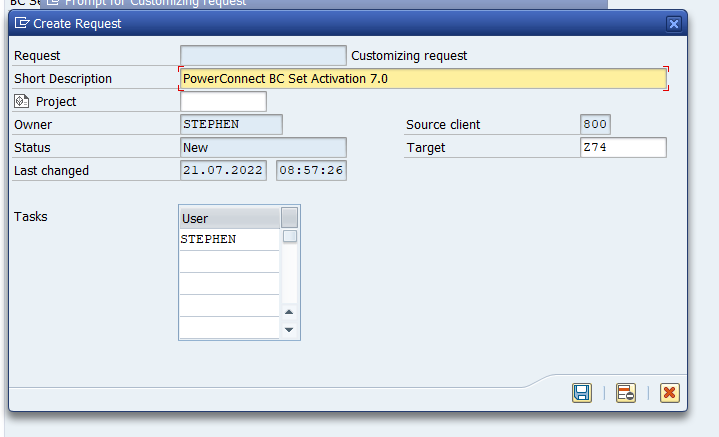
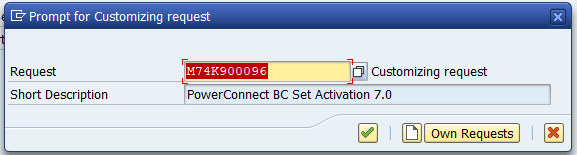
Create a customizing request to process the activation.
→ Caution: If the transport was not requested, check if settings in SCC4 allow this action.
→ Import the transport into DEV and in any subsequent system from there.
Click on Save
Click on Continue
Click on Continue Activation
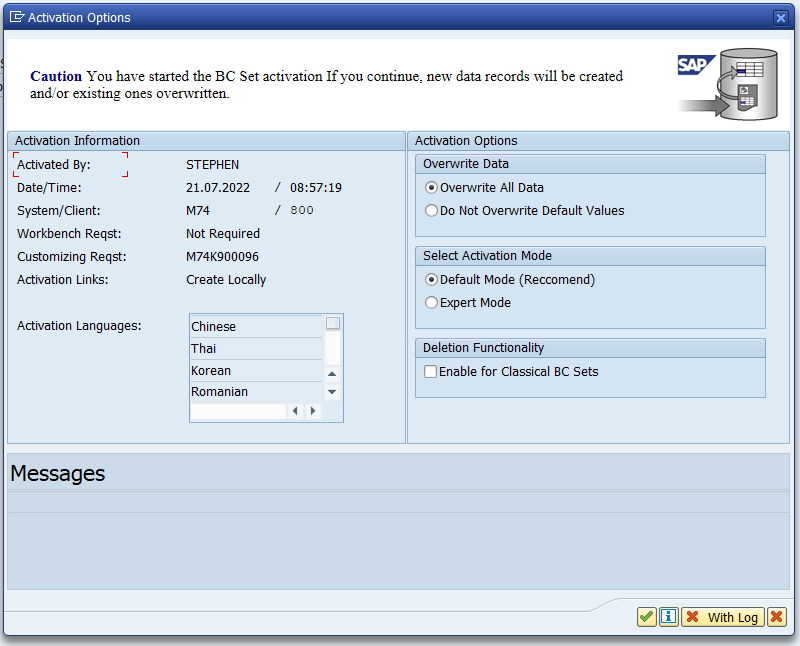

-
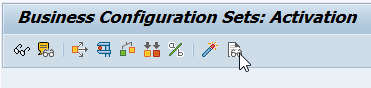
Check the logs for successful execution by clicking on the glasses.
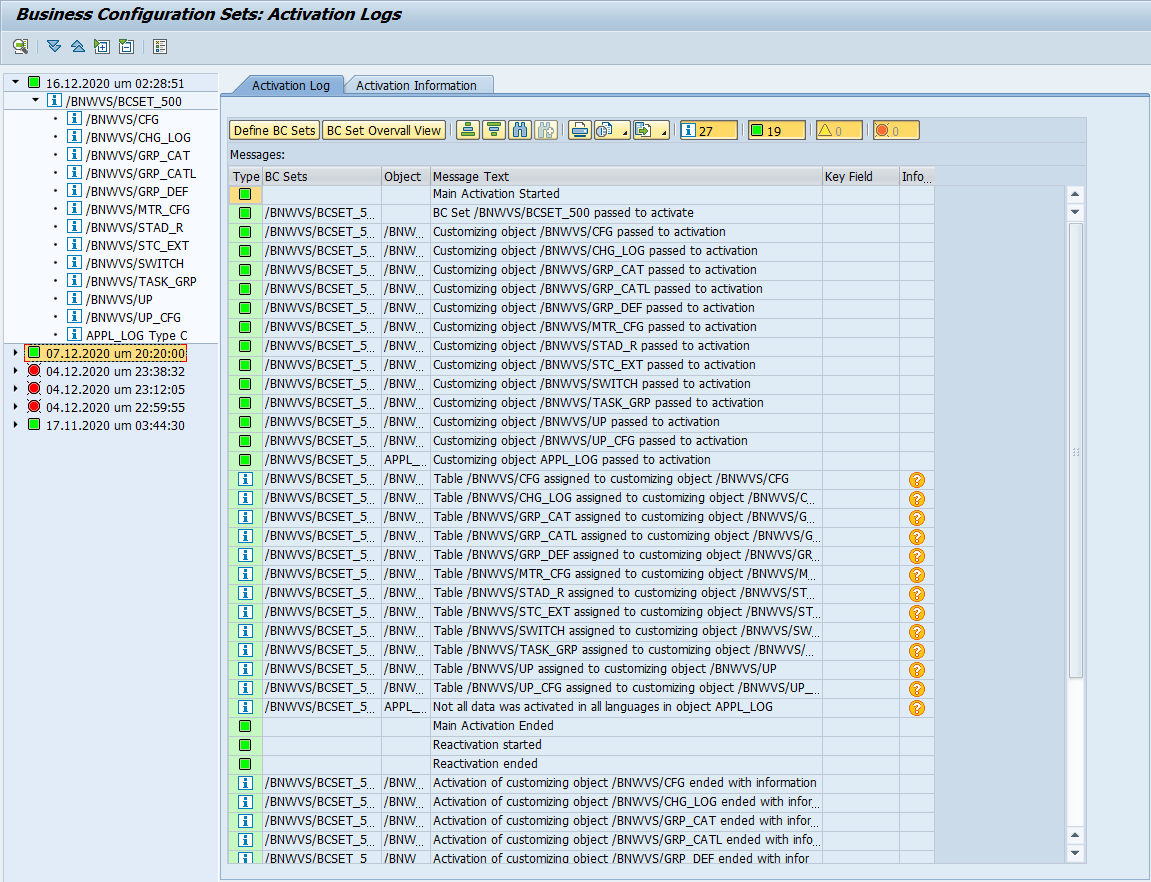
If BC Set was not imported successfully, beside the logs, you will get a notice when starting the PowerConnect for Splunk application using transaction “/BNWVS/MAIN”.
Next step is to import the PowerConnect roles to your productive client.