Objectives:
-
Uninstall the PowerConnect ABAP agent from SAP system.
Reason:
In a few cases it might be necessary to remove the PowerConnect agent from your SAP system again. These might be due to
-
An upgrade with a huge version gap happens and it is quicker or cleaner to reinstall PowerConnect.
-
You need to make tests which require to delete the PowerConnect addon.
-
PowerConnect is not being used any longer.
General Advice:
Please read these instructions carefully and give attention to every detail. Missing any single step could result in problems later on.
Prerequisites and Preparation:
-
Local system access in client where PowerConnect is installed and client 000
-
Review documentation prior to completing uninstall process.
Procedure
Stop PowerConnect Batch Jobs
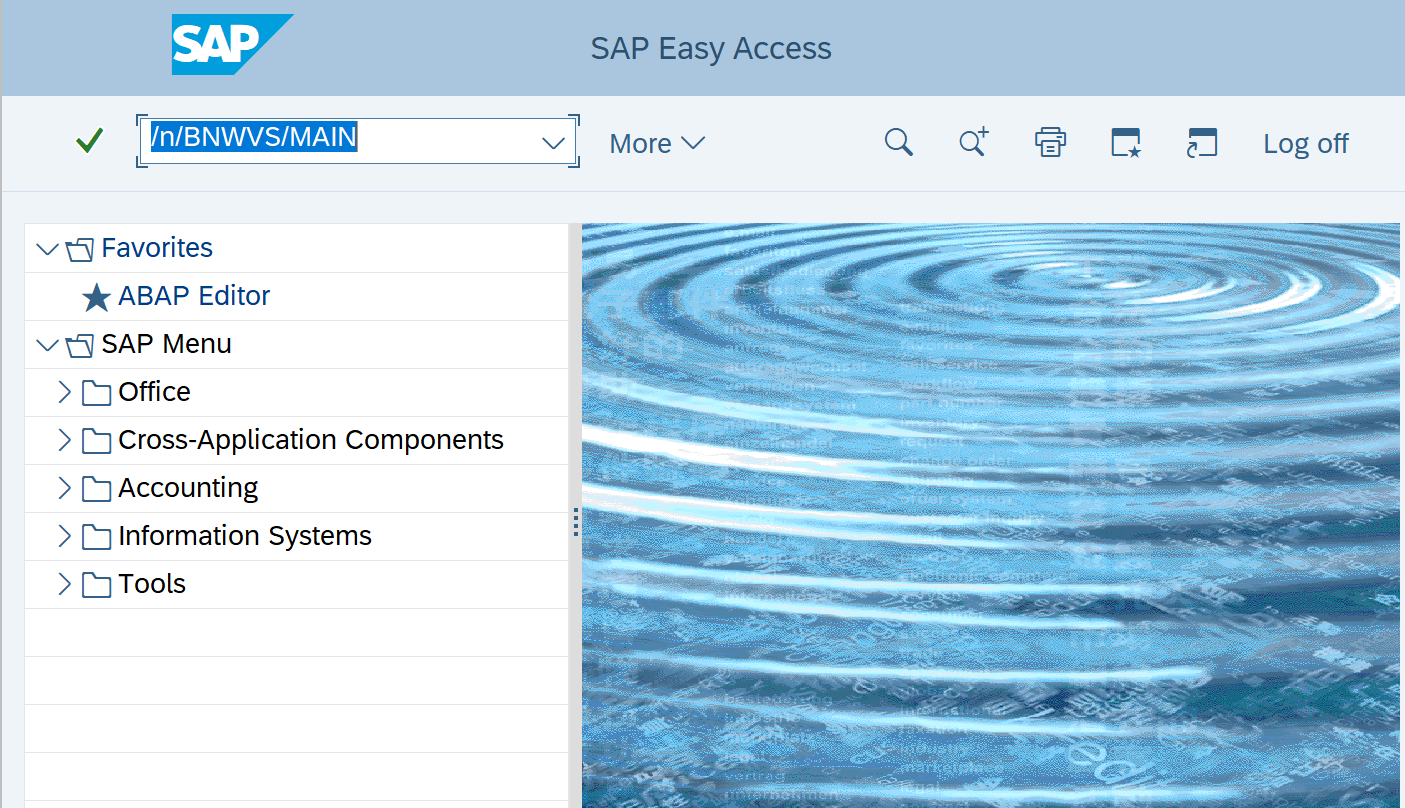
Log into the PowerConnect admin console using transaction /n/BNWVS/MAIN in the client where PowerConnect batch jobs are running.
Stop running processes:
-
Start transaction /BNWVS/MAIN to invoke PowerConnect for SAP ABAP.
-
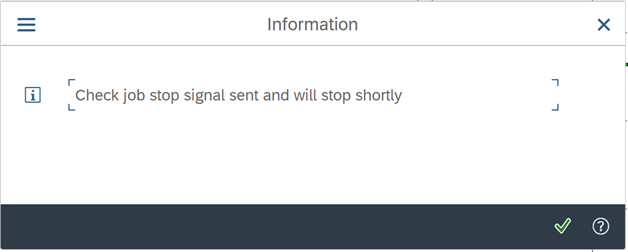
First stop the Check Job by clicking on the Stop Check Job button. Confirm the following dialog.

-
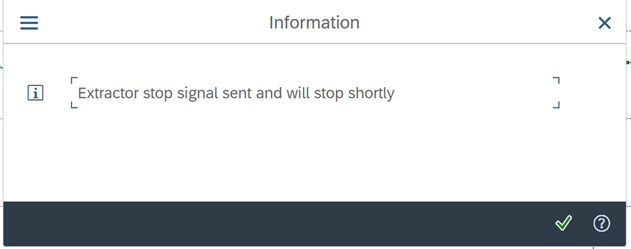
Stop the collector process by clicking the corresponding button.

-
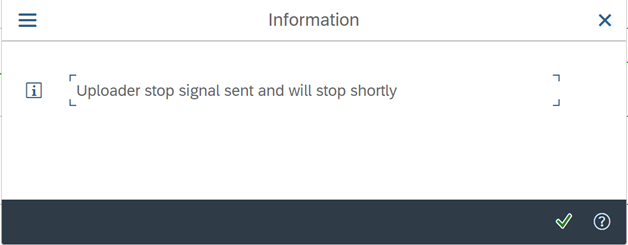
Finally stop the uploader by clicking Toggle Uploader.

-
Press refresh to check if jobs are actually stopped.

-
If all batch processes are stopped, release corresponding transports in transaction SE01.
Delete PowerConnect Roles
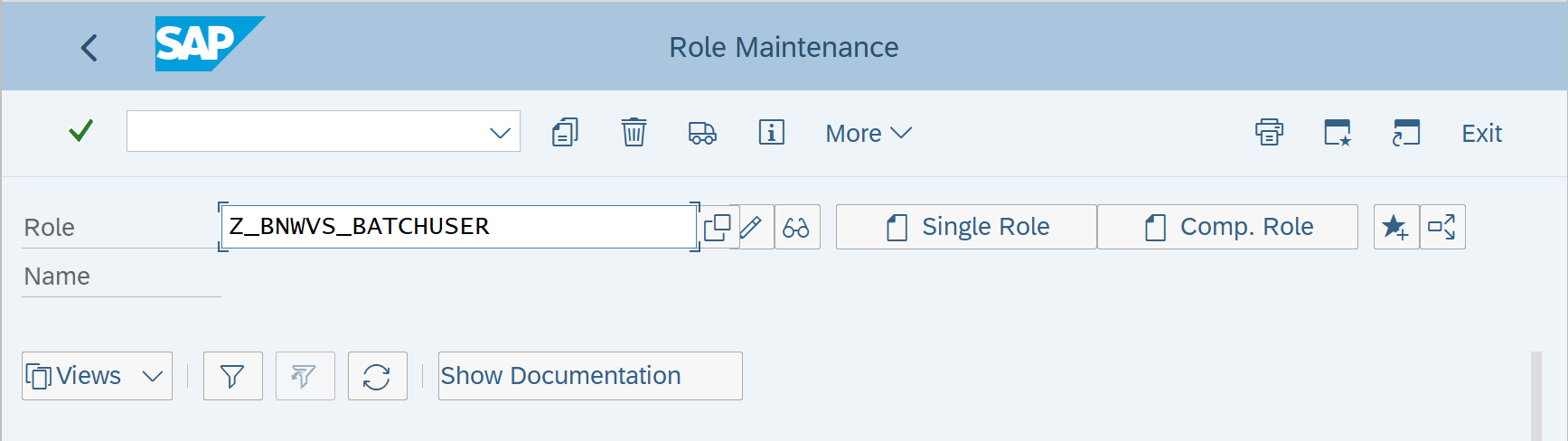
Delete Roles using transaction PFCG. The roles that should be deleted are:
-
Z_BNWVS_BATCHUSER
-
Z_BNWVS_ADMIN_CHANGE
-
Z_BNWVS_ADMIN_DISPLAY (if exists)
-
Z_BNWVS_ADMIN_CONTROL
Complete the actions below for each of the roles:
-
Search for the specific role.
-
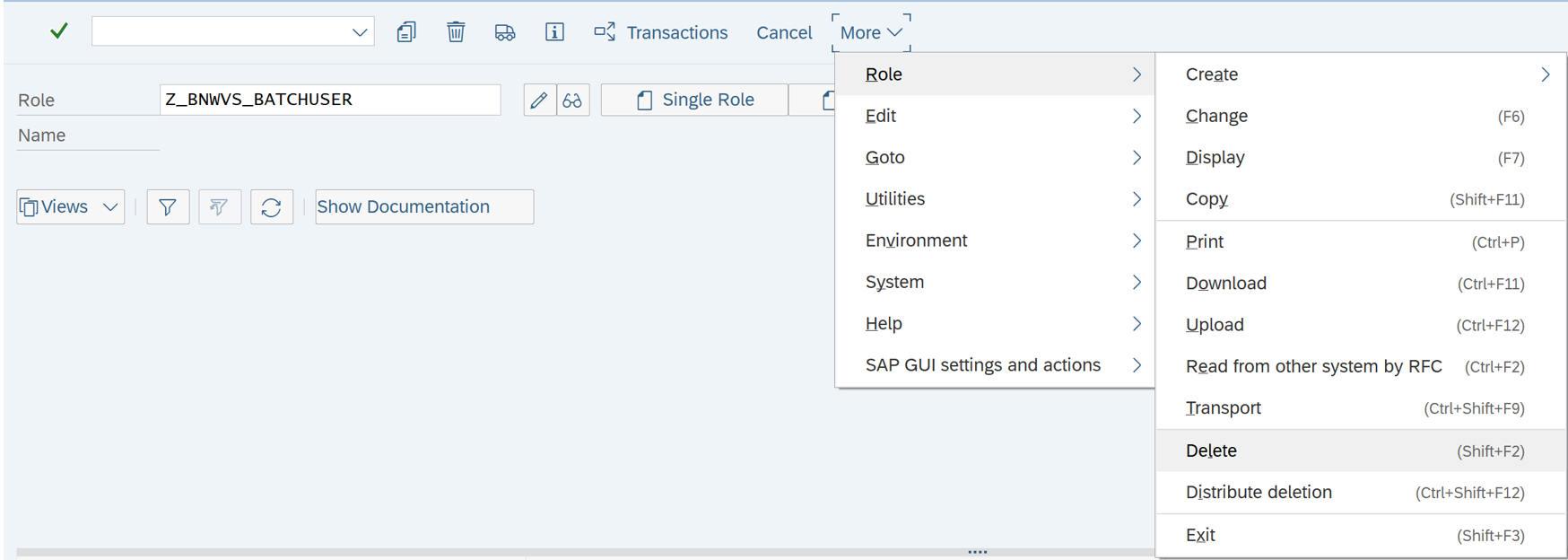
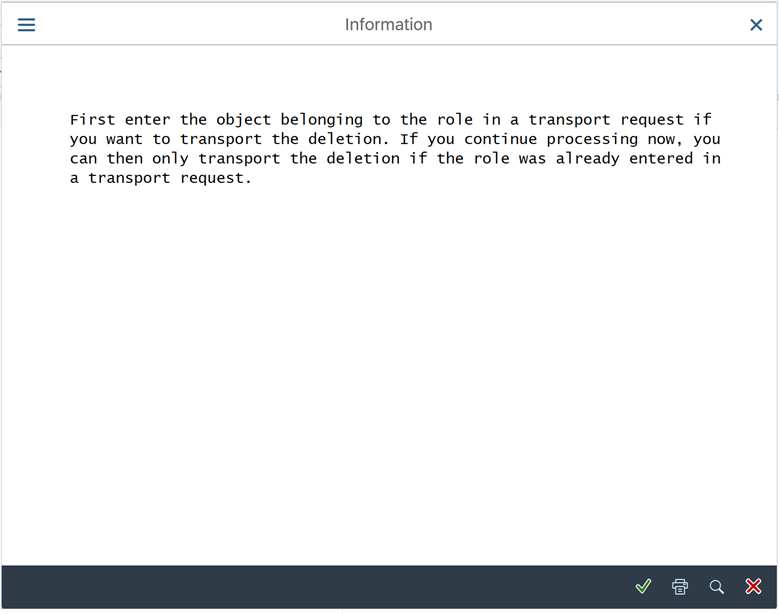
Use menu item More → Role → Delete.
-
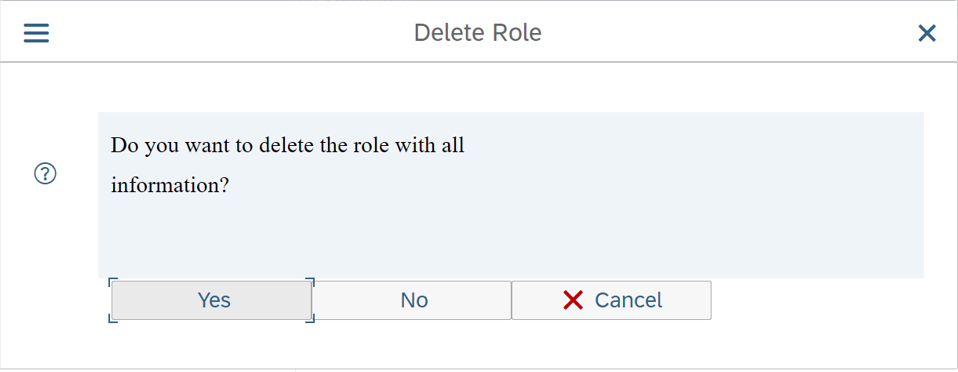
Confirm the following dialog window with yes.
Delete Authorization Objects
To remove the authorization objects associated with the PowerConnect application, please import the following transports in the order below in the managed system:
-
Authorization object transport - to remove the authorization object and class.
-
Package transport - to remove the ZNBNWVS package.
Importing these transports will remove all authorizations associated with the PowerConnect application from the environment.
Uninstall Process
Log into Client 000 and execute the SAINT t-code.
Go to Uninstallable Components, and highlight the row with the BNWVS add-on.
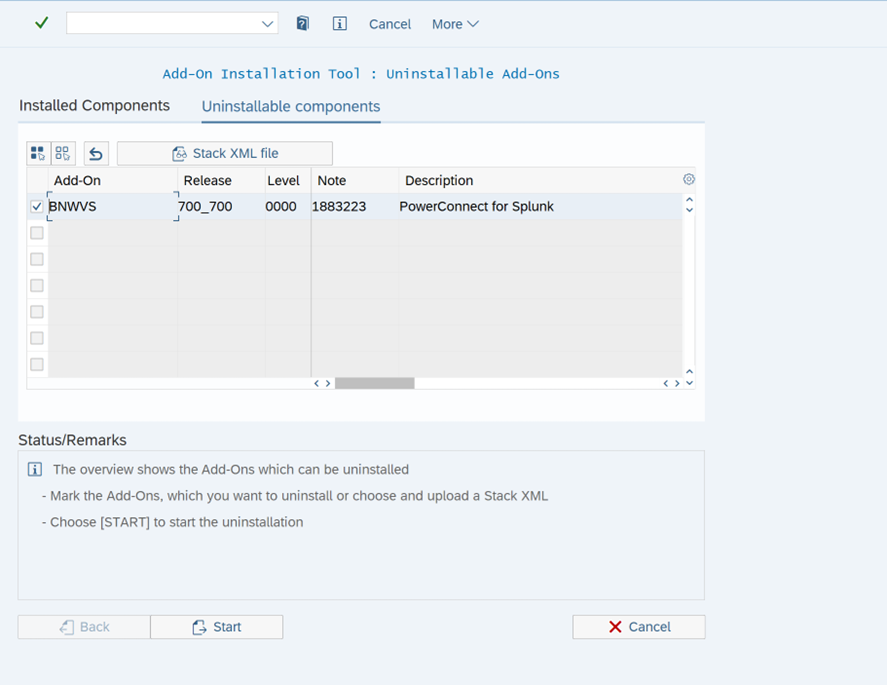
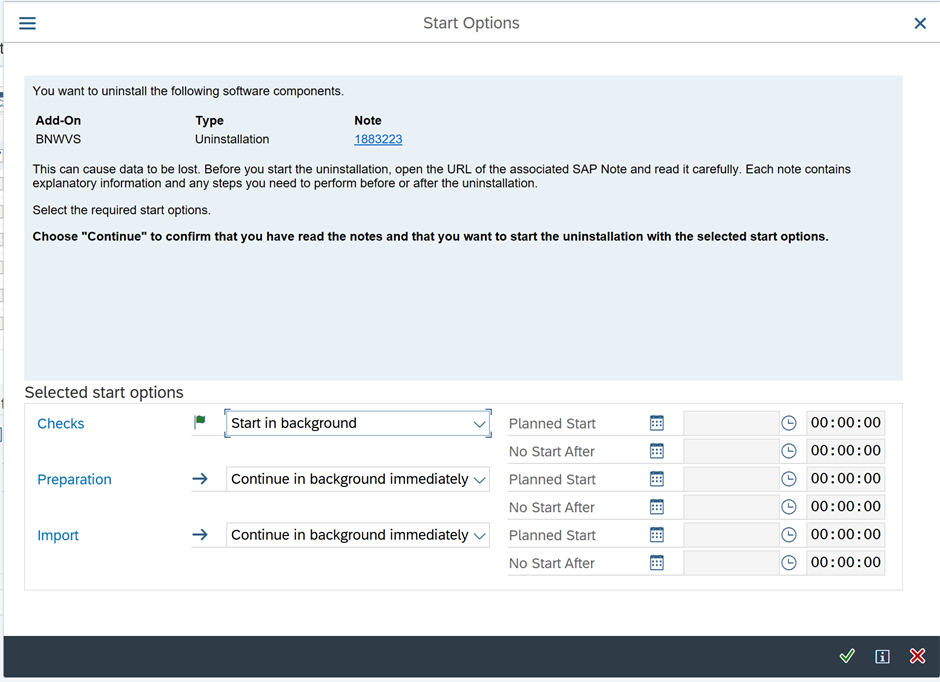
Select the “Start” button.
Select “Start in background” for the Checks option
Select the “Refresh” button to view status of job.
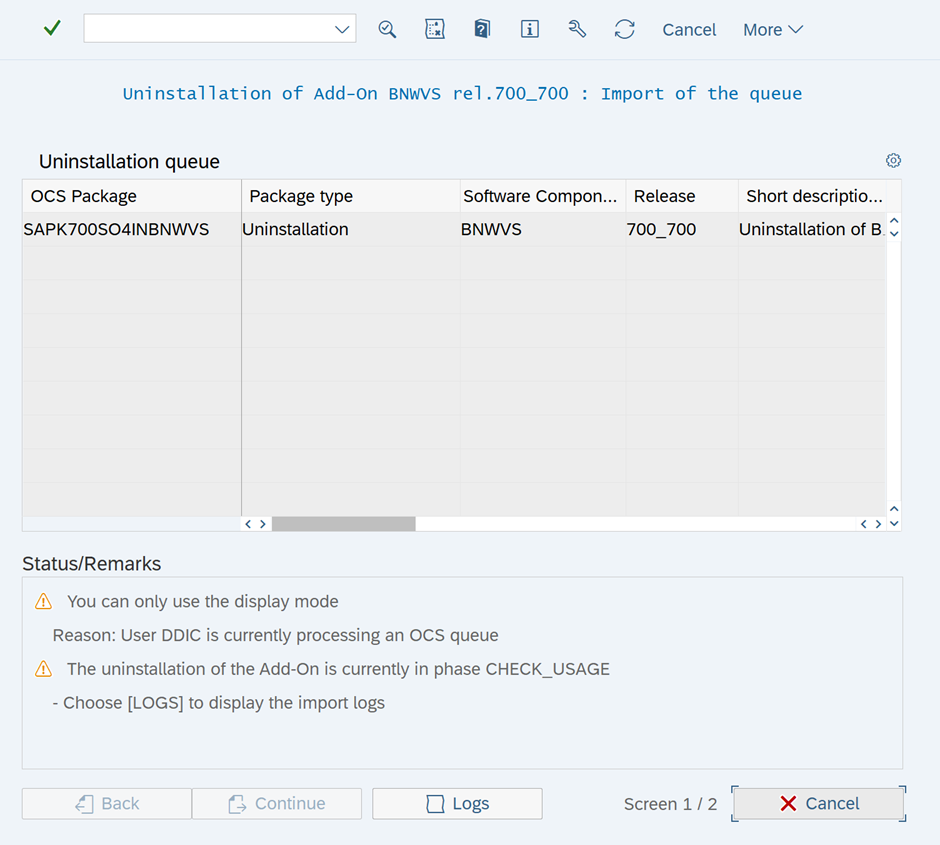
Takes around 3 to 5 mins to complete.
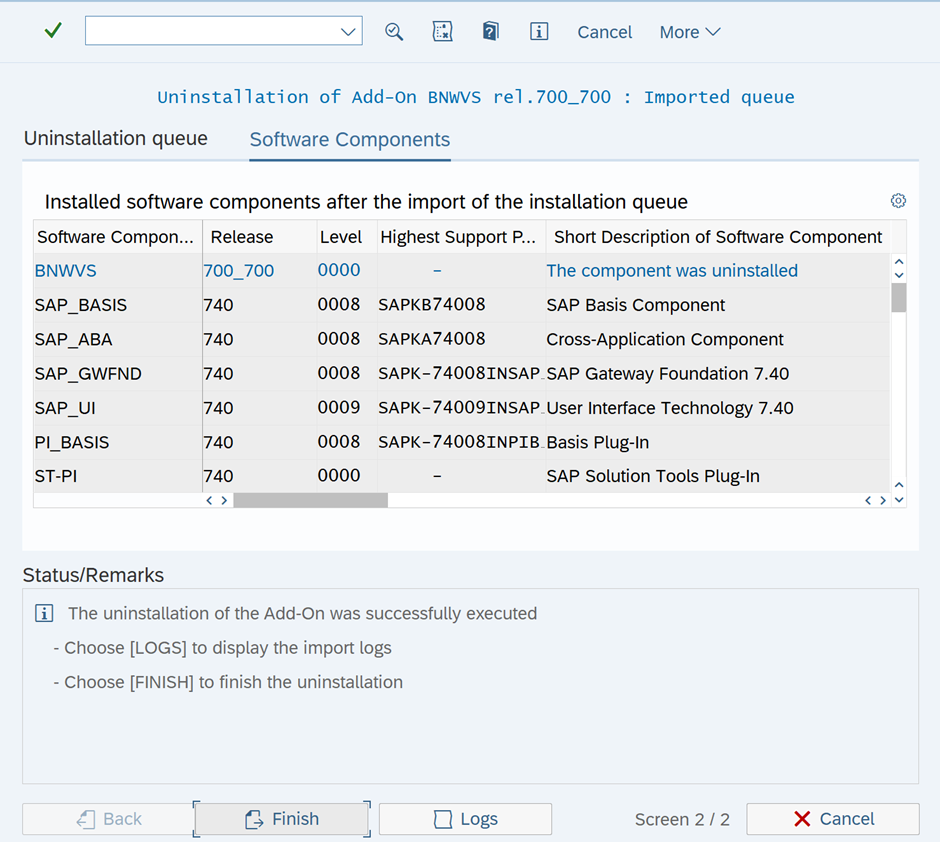
Select “Finish” once complete.
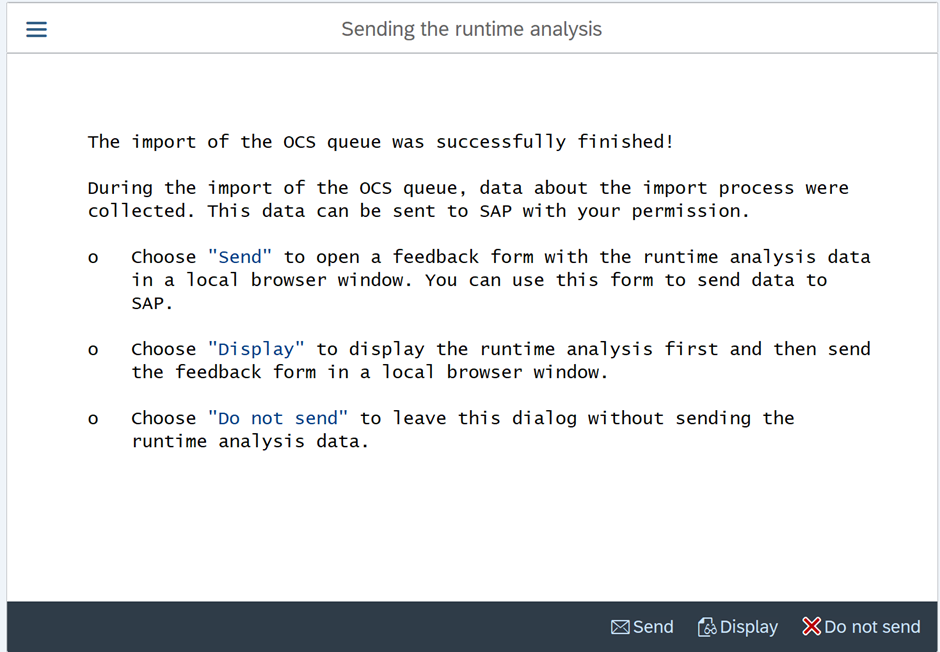
Select Do not send.
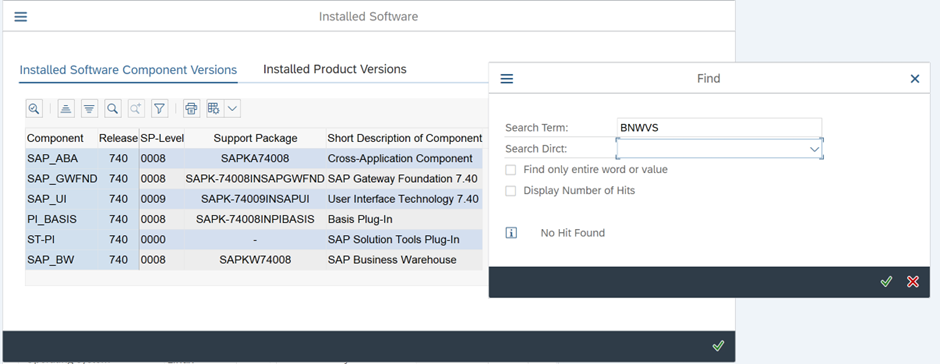
Go to Main Menu (More → System → Status ) to verify the add on is Uninstalled.