

Objective:
Upgrade to a newer PowerConnect release.
General Advice:
Please read these instructions carefully and give attention to every detail. Missing any single step could result in problems later on.
Prerequisites and Preparation
-
Inform yourself about latest and valid software components fitting to your software basis. In case of doubt contact PowerConnect support: .
-
Get all the necessary software packages you need for installation.
-
Consult related documentation resources.
!Important notes:
-
Please perform Metric queue cleanup step before the upgrade to SP 7.04 or SP 8.00 version.
Known Issues
|
Issue Title |
Issue Description |
Resolution |
|---|---|---|
|
Obsolete Extractor Added to PowerConnect Configuration During BC Set Activation |
During the BC set activation process, we have seen an obsolete version of the table reader extractor added to the PowerConnect administrative console when customers have performed an upgrade. This issue causes short dumps in the system where the application is installed. |
|
|
SPAM Stops with message Errors when Disassembling OCS Package |
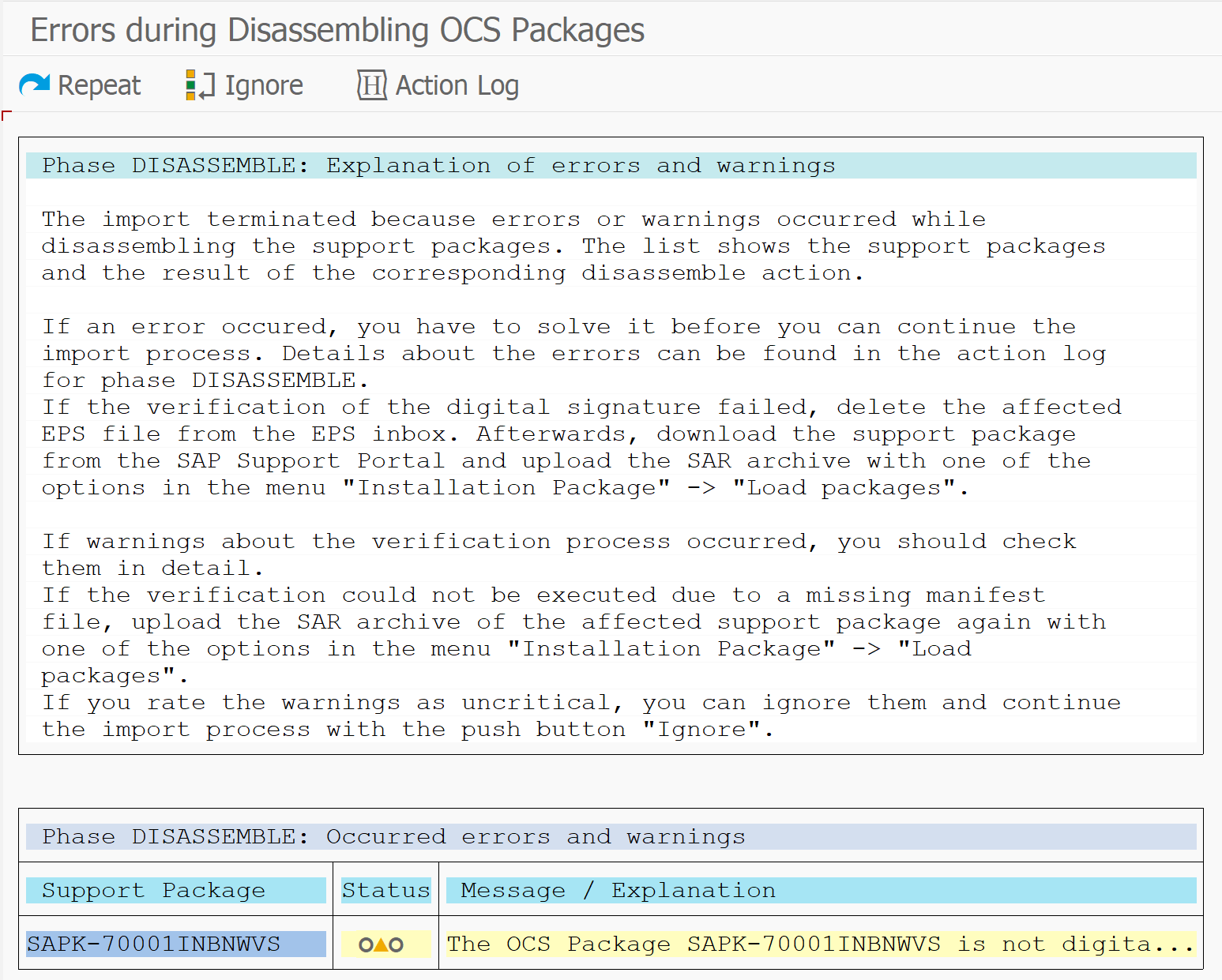
SPAM stops during early phase of patch application (DISASSMBLE STAGE) reporting Phase DISASSEMBLE: Explanation of errors and warnings 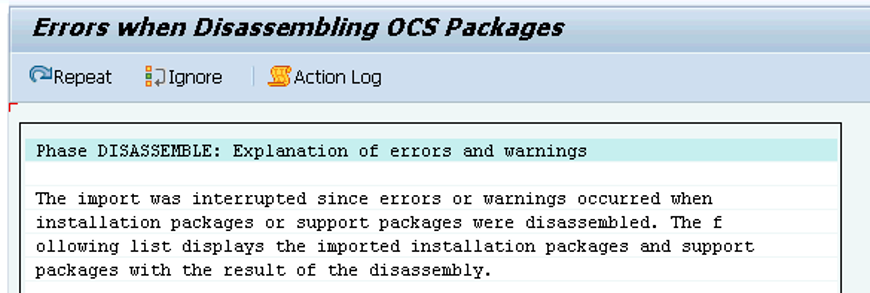
With the error The OCS package SAPK-670XXXXXXX is not digitally signed
|
This error / warning can be ignored. Partner OCS packages are not signed, only SAP packages are signed. 
|
1. Stopping running processes
-
Logon to your productive client via SAP GUI program.
-
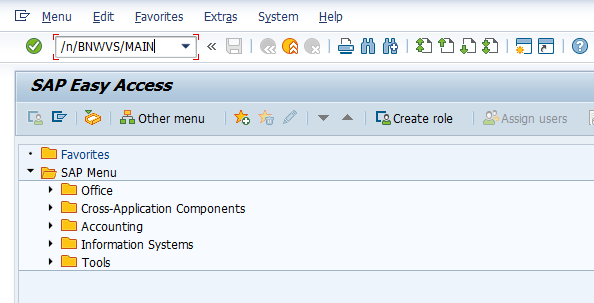
Start transaction /n/BNWVS/MAIN to start PowerConnect application.
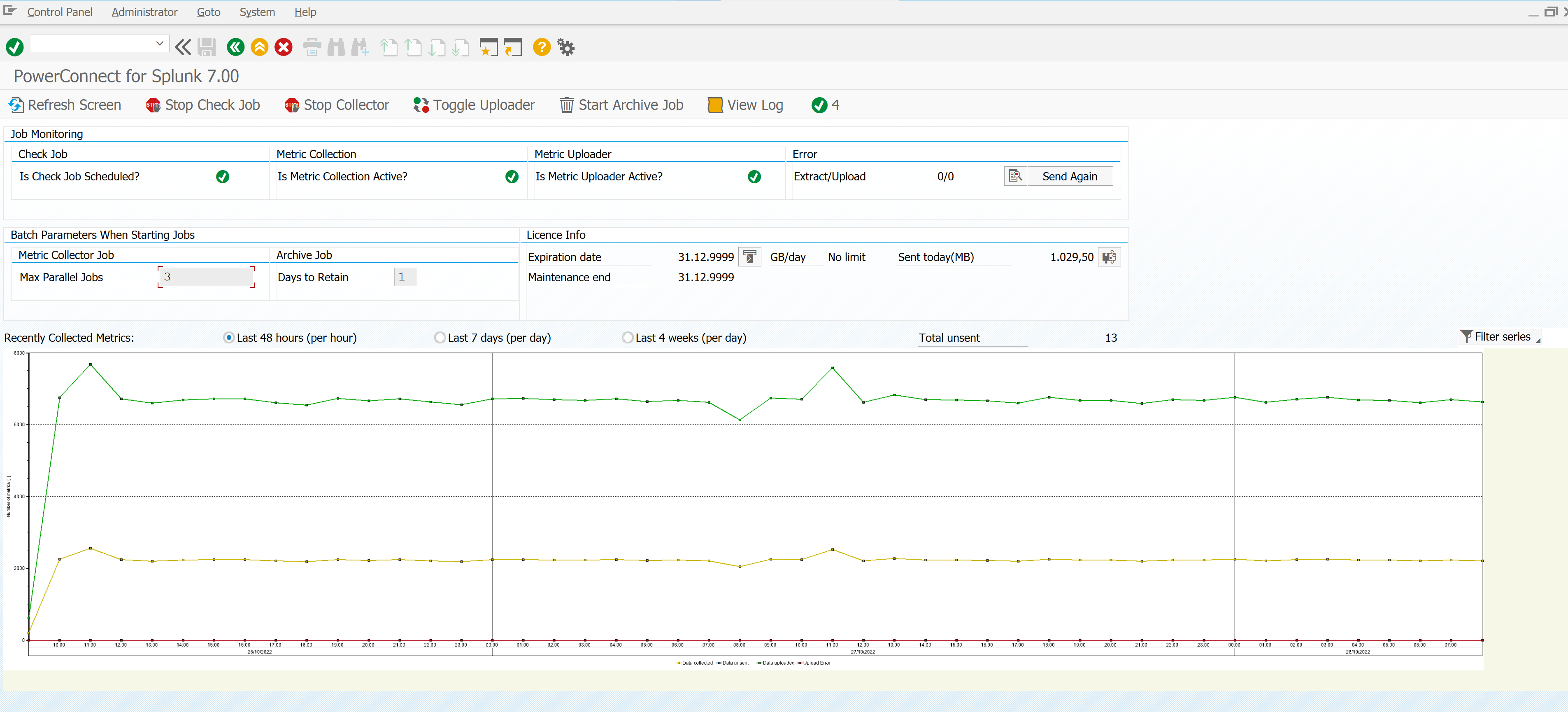
Once started, please make sure to stop all running PowerConnect processes. This is important since otherwise errors or even short dumps may occur when changing software components while the program is running.
-
Stop Check Job

-
Stop Metric Collector
-
Important! Wait until all collected metrics are sent to Splunk (Total unsent is 0). To manually clear the unsent metric queue, please follow the KB article here: KB 63 - How to remove all collected metrics .
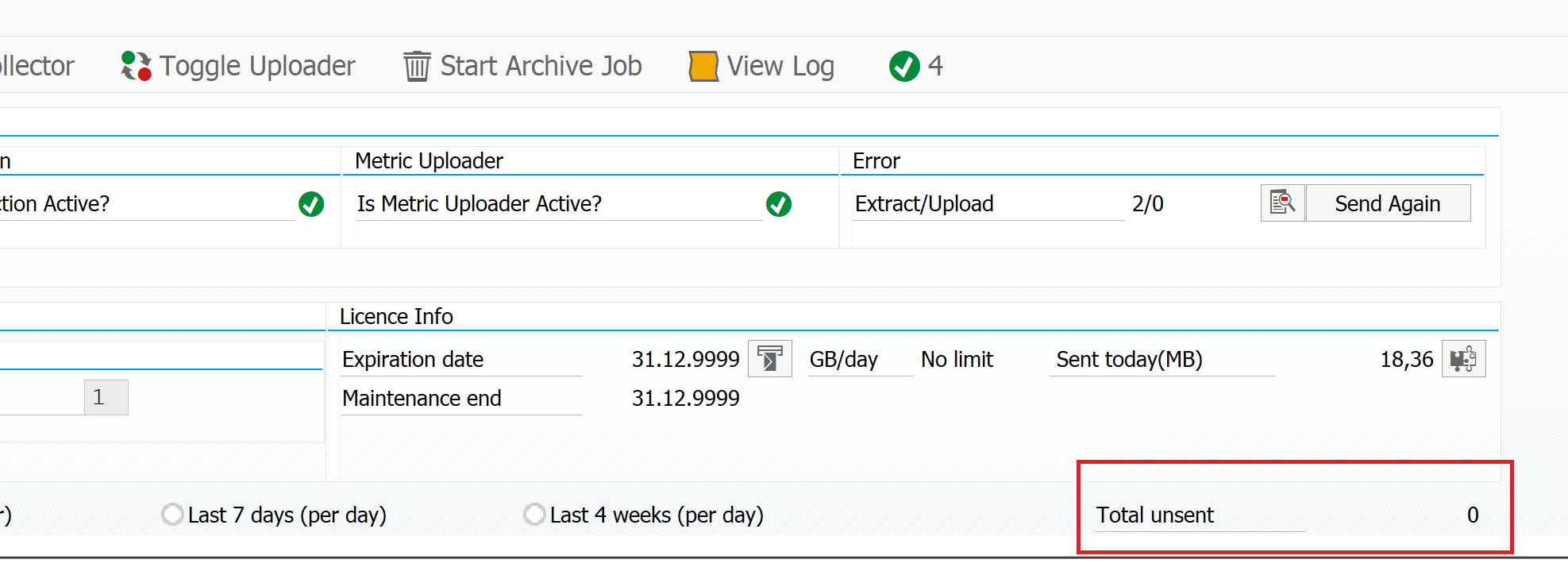
-
Stop Metric Uploader
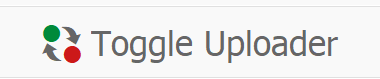
Afterwards the process status should look like that:

-
Close the program.
-
Log off productive client.
2. Install upgrade package via SAP Support Package Manager
Next step is to actually install the update package.
-
Log-on to client 000.
-
Use transaction SAINT to start the Support Package Manager.
-
If necessary, perform a SPAM/SAINT upgrade.
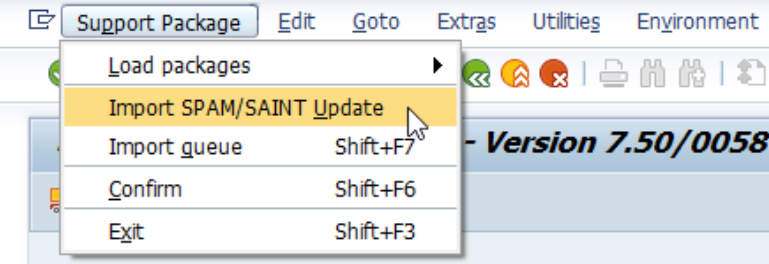
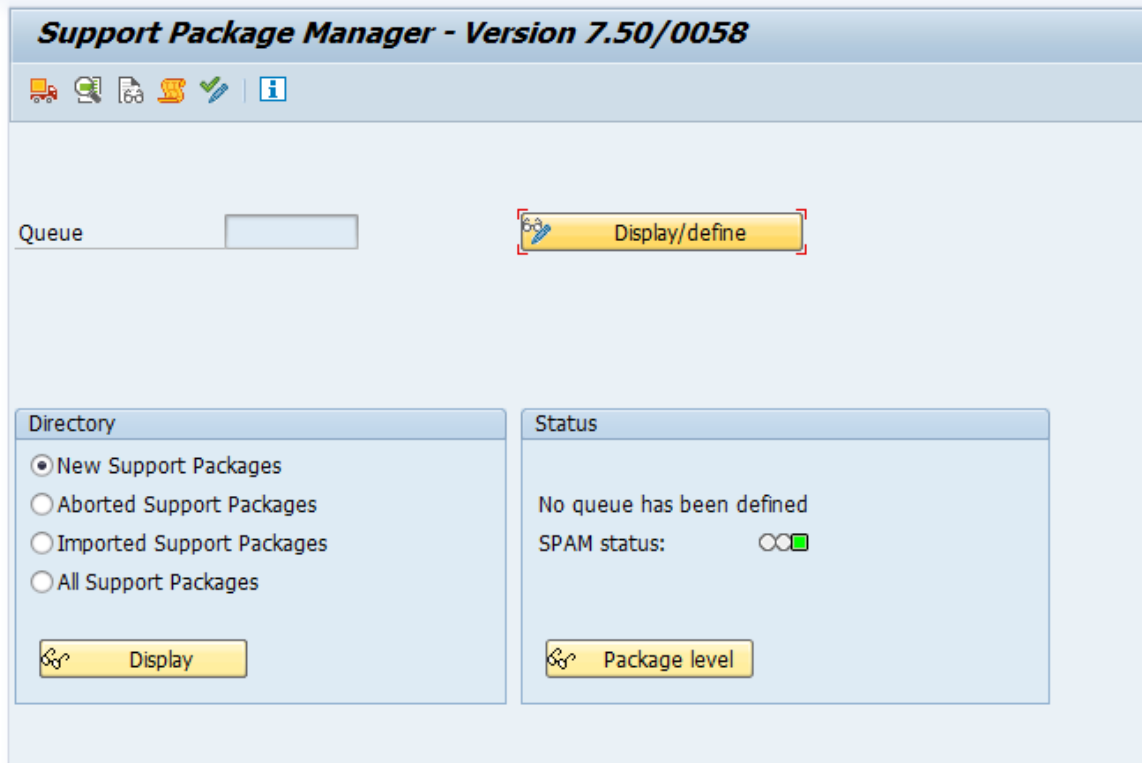
-
Load software package via menu item Support Package → Load packages → From Frontend. You can also load the package to the application server directly and load it from there.
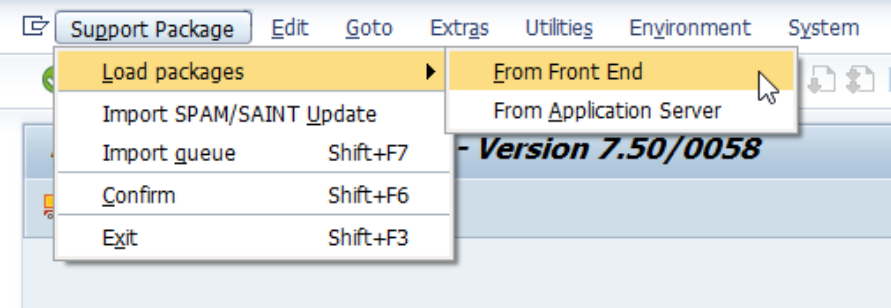
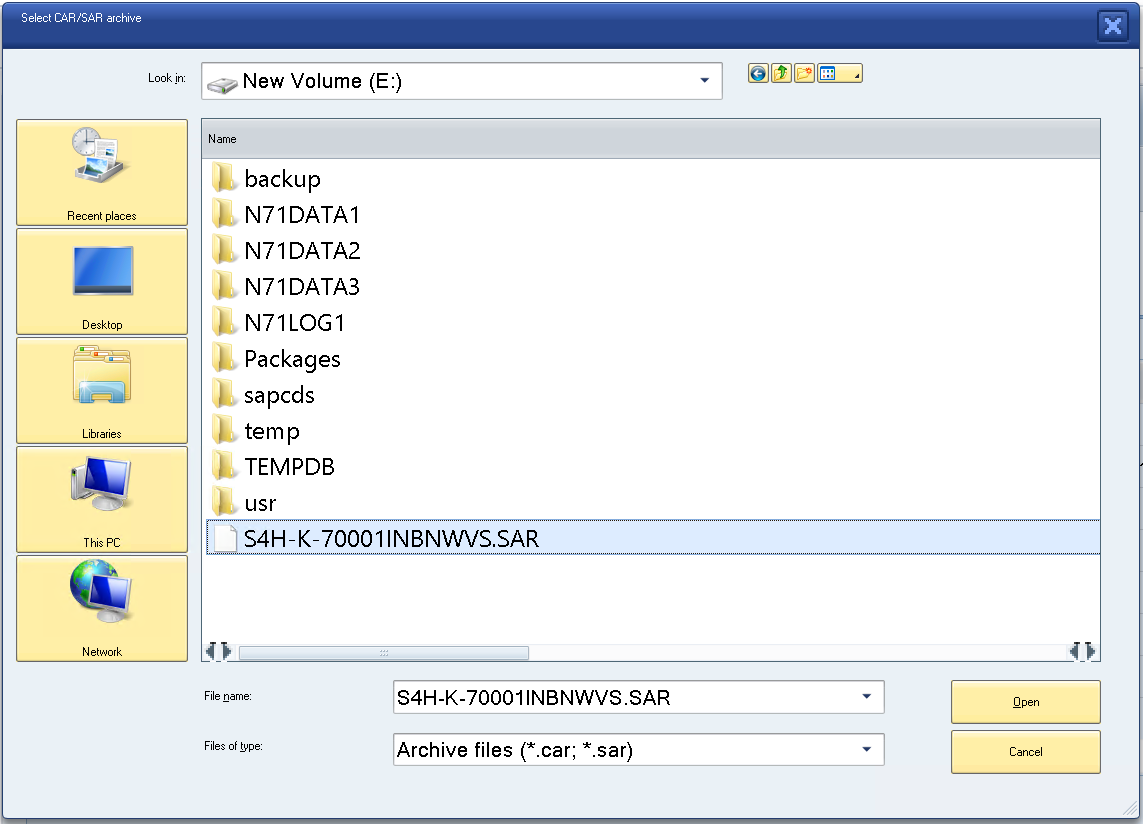
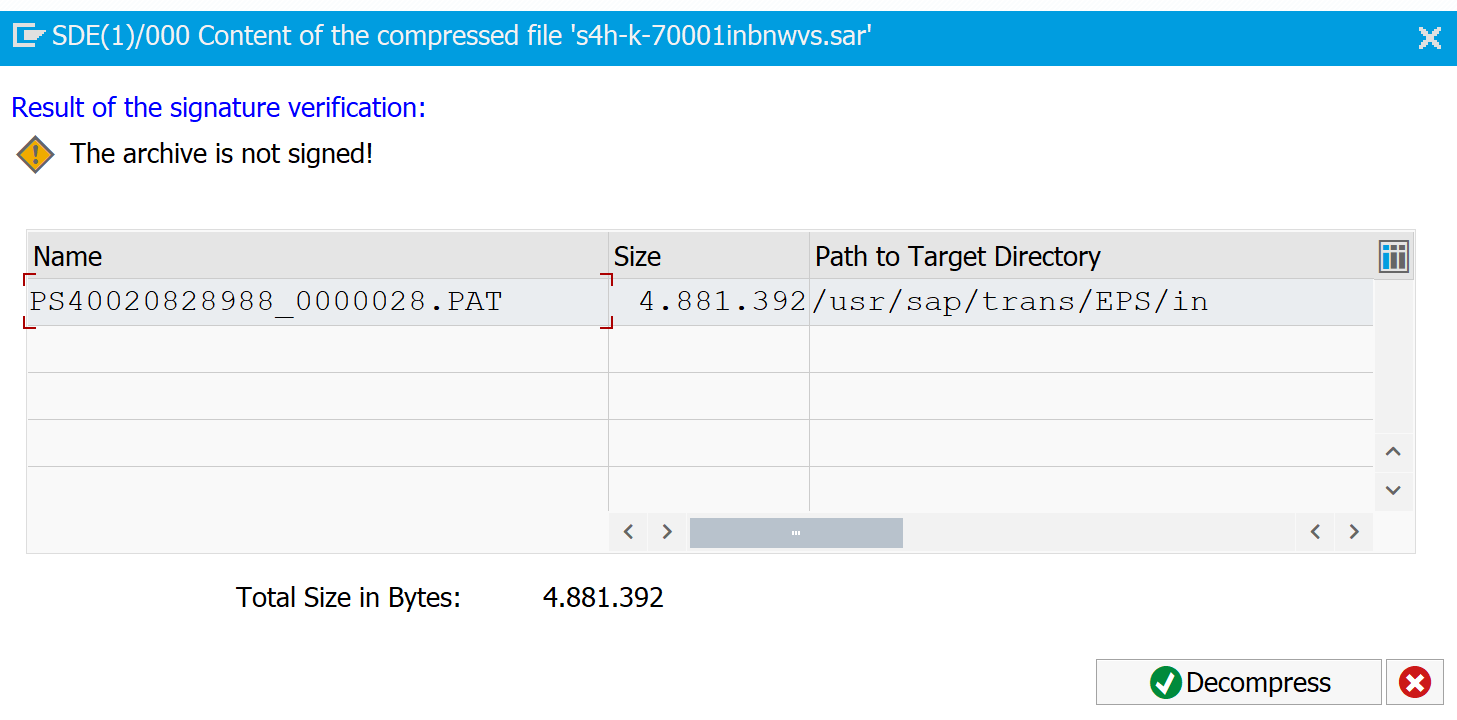
-
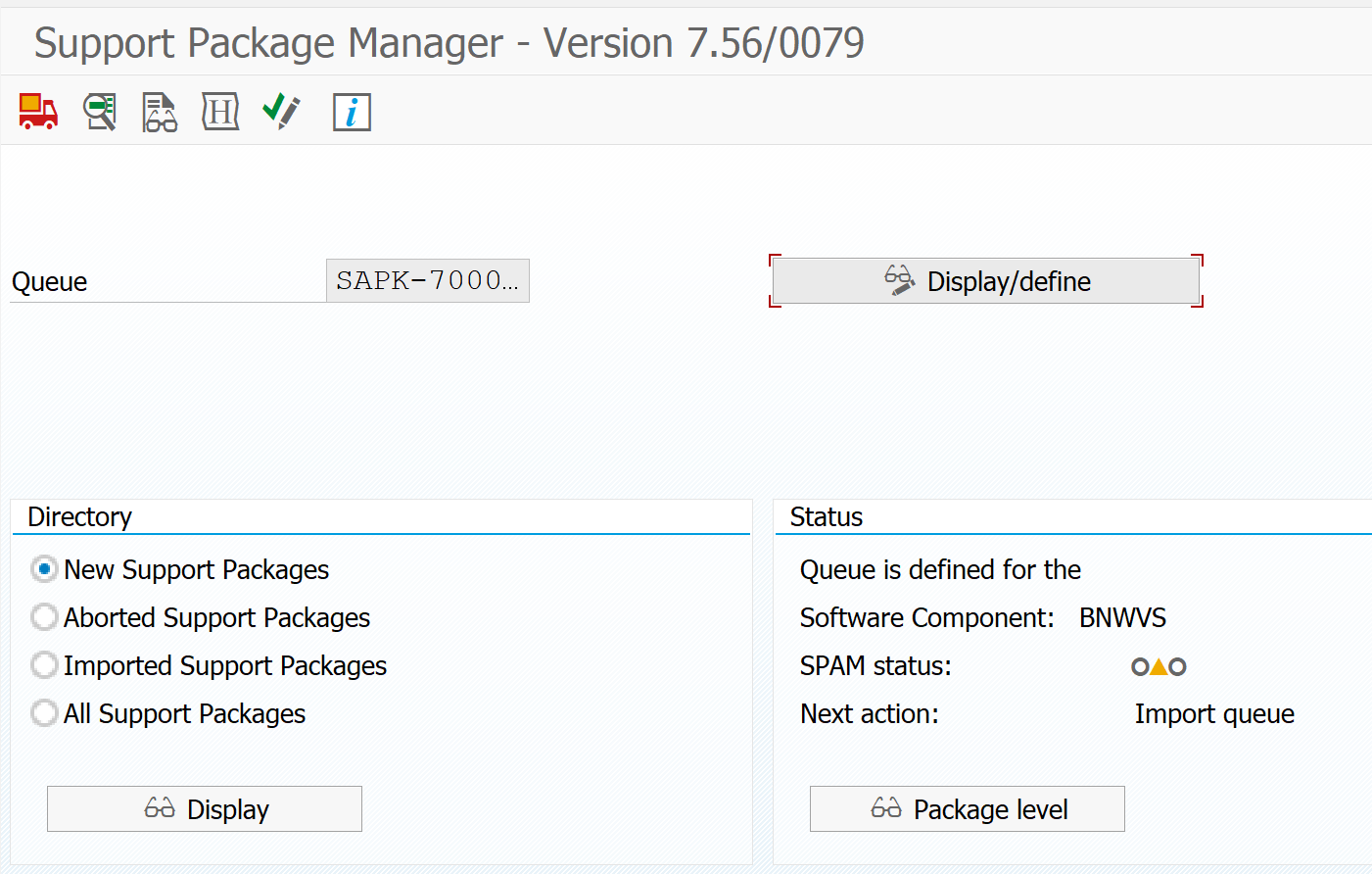
Start transaction SPAM.
-
Click on button Display/define.
-
Choose PowerConnect Application and press the green hook to proceed.
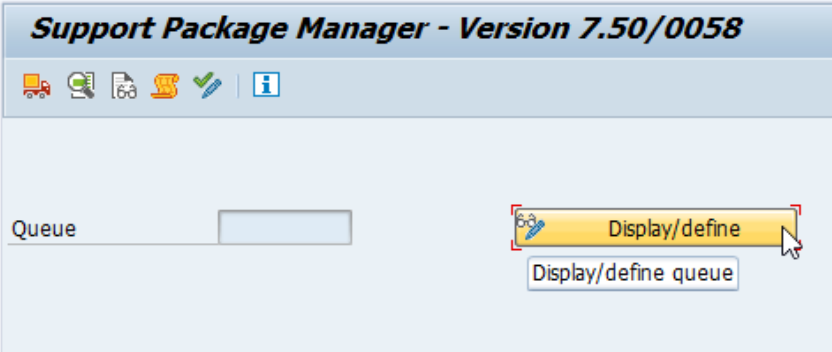
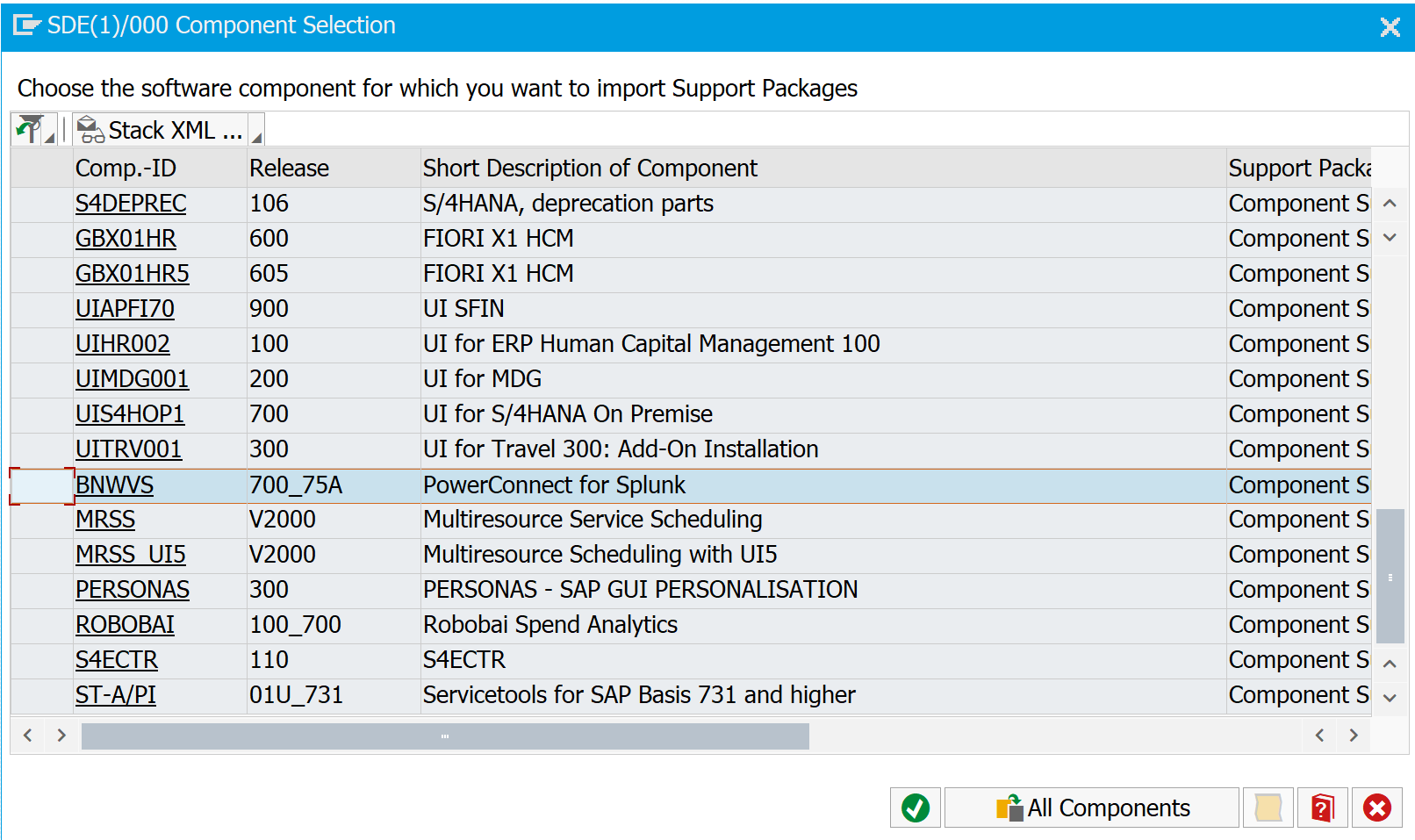
-
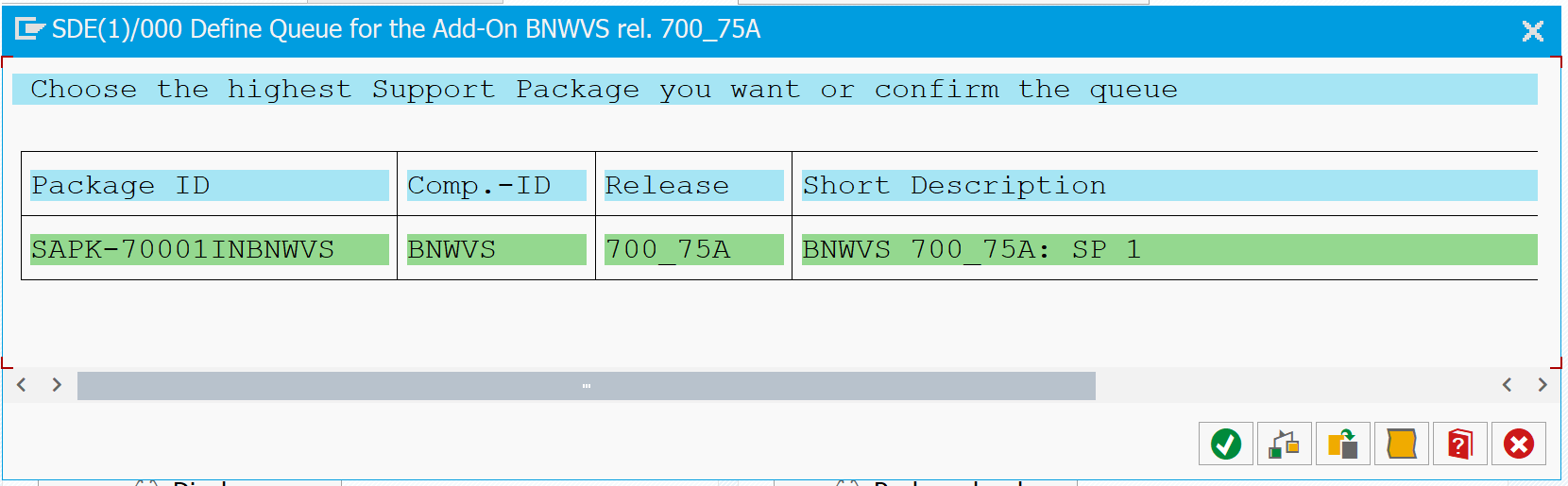
Confirm the following dialog window.
-
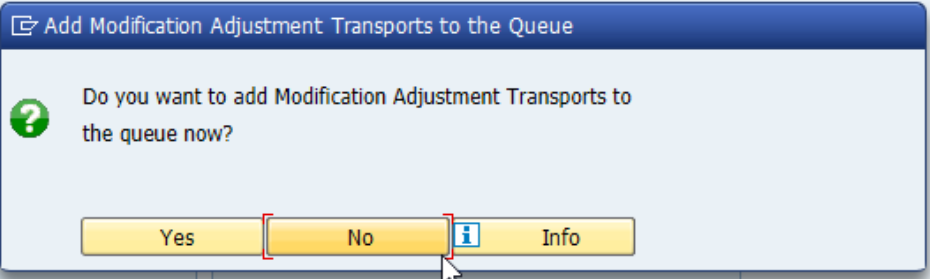
When asked whether you want to add Modification Adjustment Transports to the queue, please press No.
-
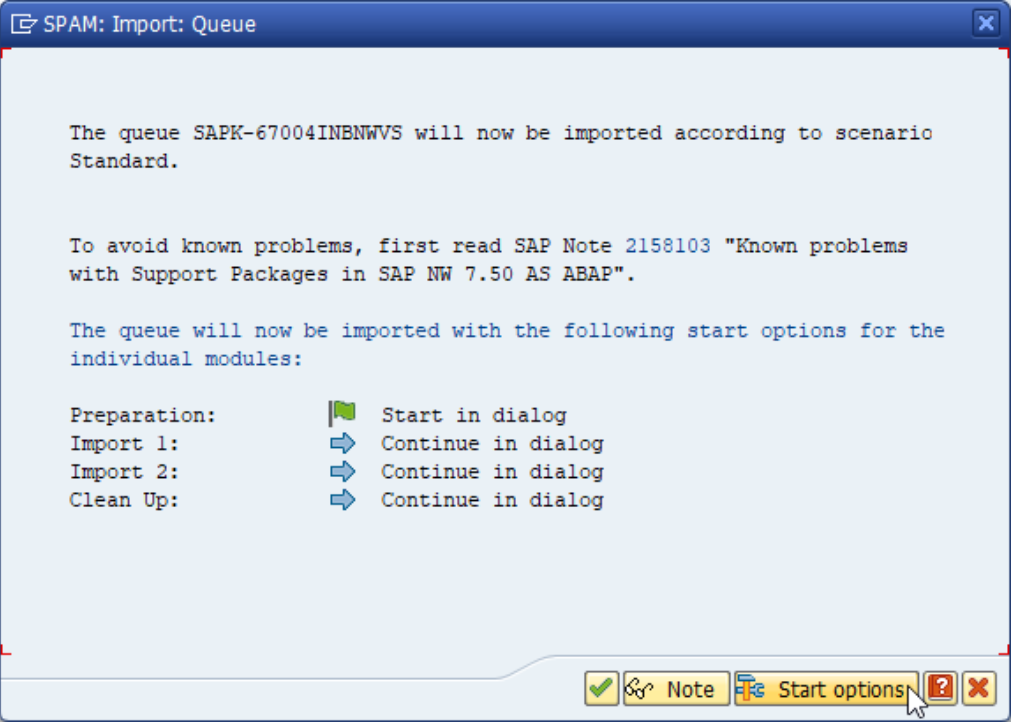
Click on the cargo van button to start the import to the queue.
-
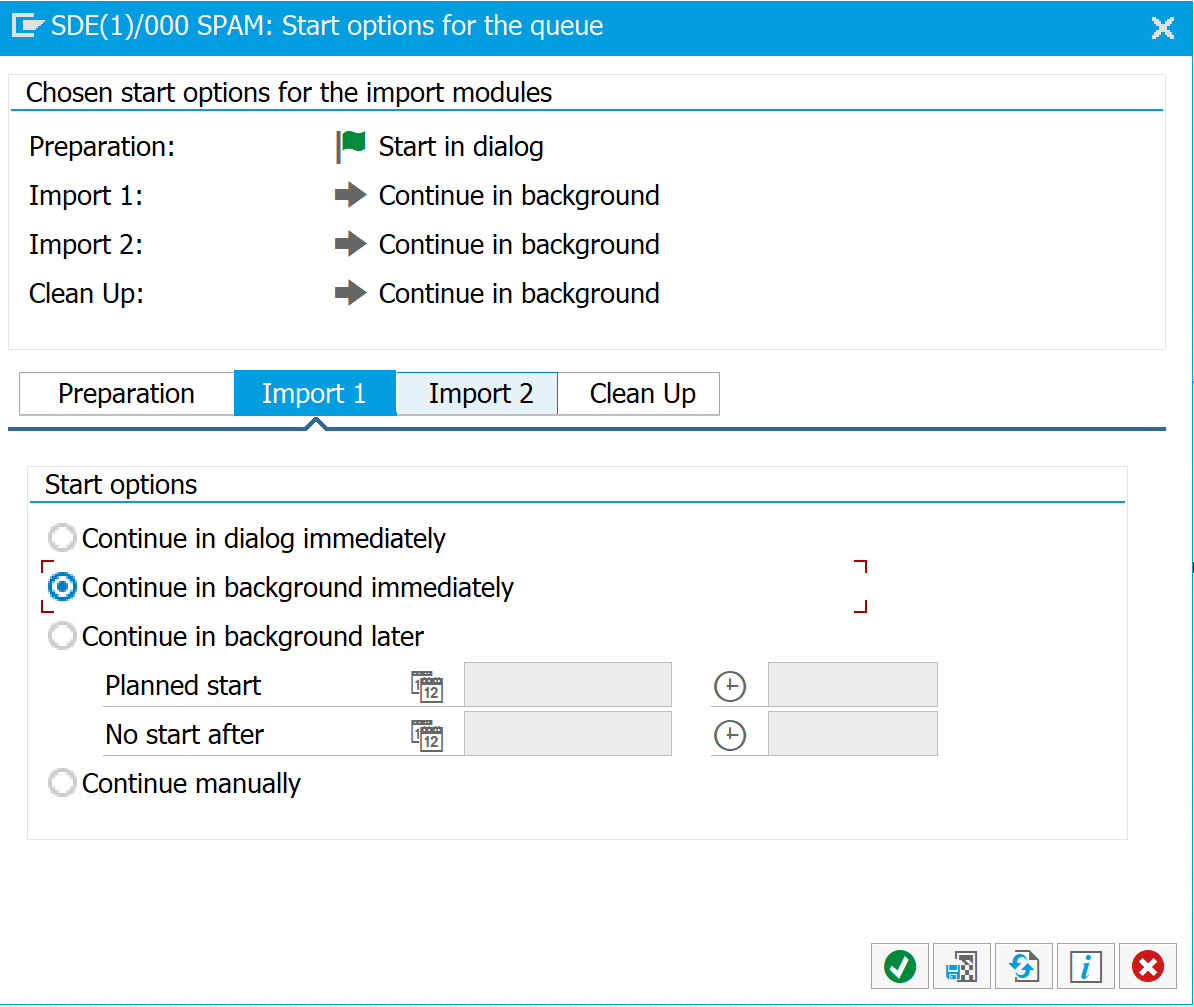
Before starting the import, please change start options by clicking the corresponding button.
-
On the Import 1 tab, select the radio button Start in the background immediately to process the import in batch fashion.
-
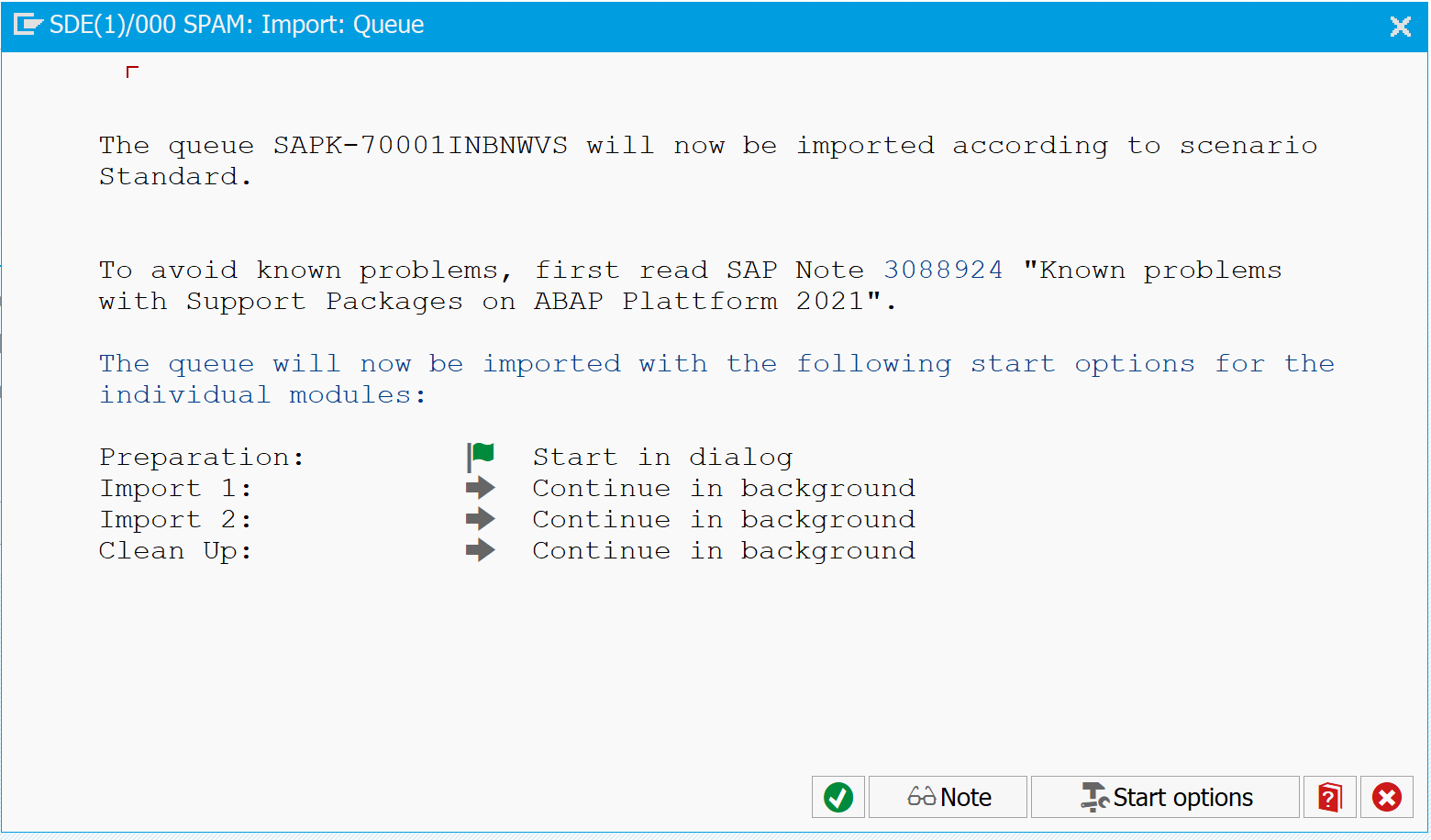
Start the process by clicking the button with the green hook.
In case the screen below is shown, please press ‘Ignore’ button on the toolbar:
-
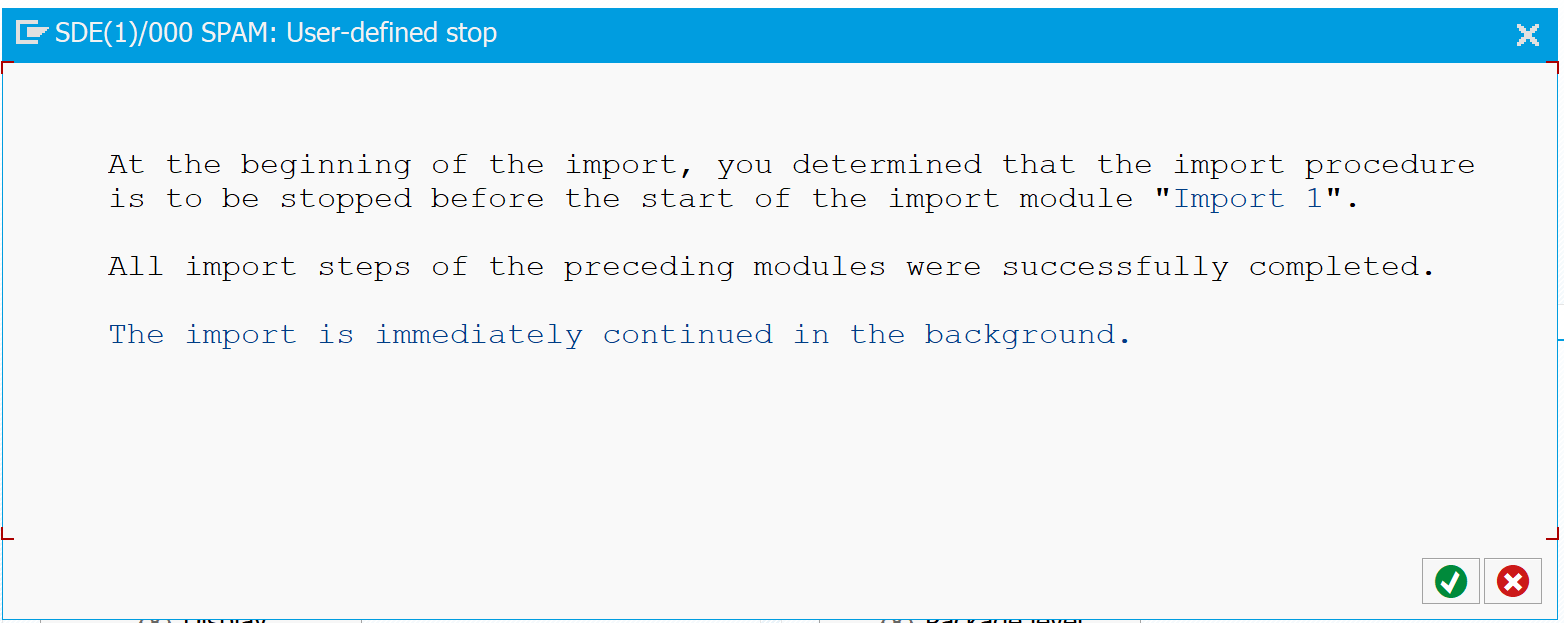
Confirm the dialog below. Import Batch job is started
-
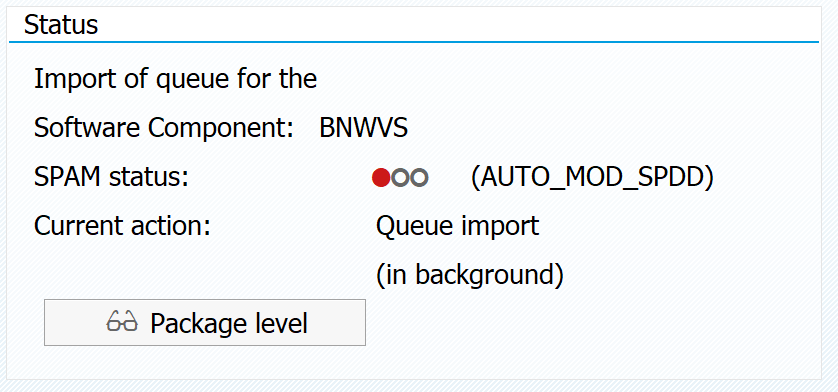
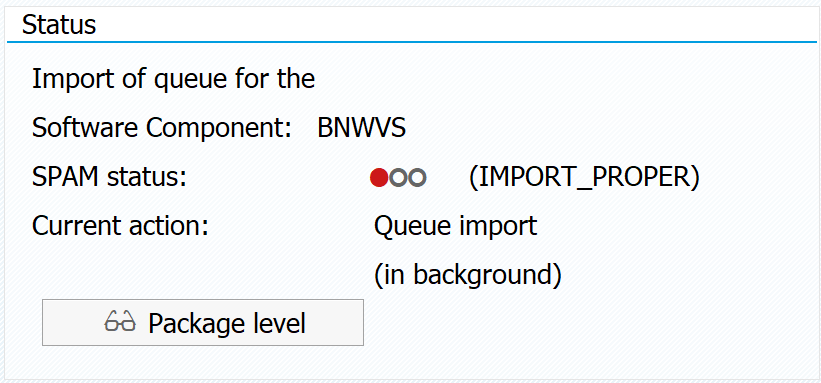
Refresh the screen to check for the import status to see if job is finished.
-
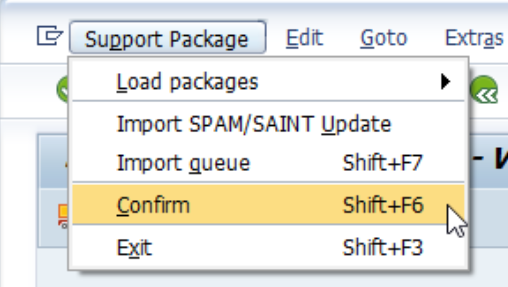
After successful queue import, queue must be confirmed by using menu item Support Package → Confirm.
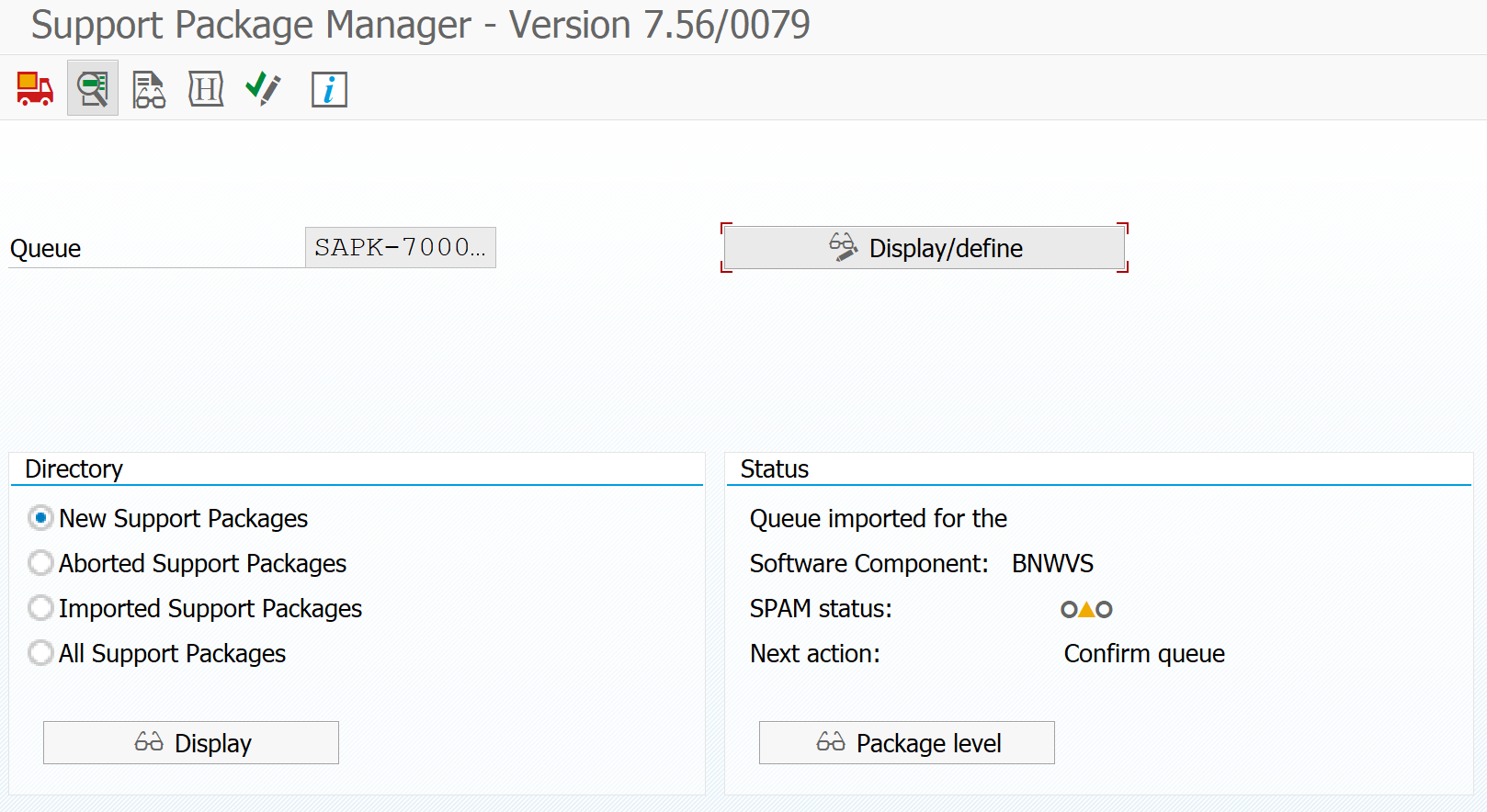
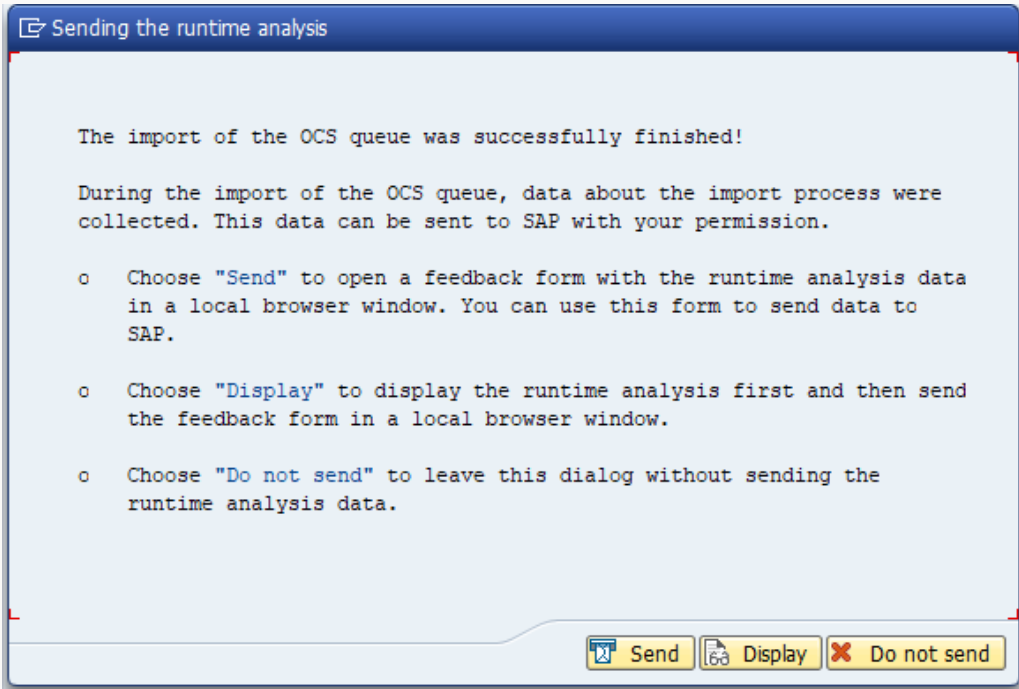
Import is finished now.
-
Close the session in client 000 and proceed in productive client again.
3. Activate BC Sets
4. Upload PowerConnect Roles (PowerConnect ABAP 7.X)
5. Post upgrade activities
5.1 Activate/deactivate extractors introduced in latest release
After first access to /bnwv/main tcode, dialog below will be shown:
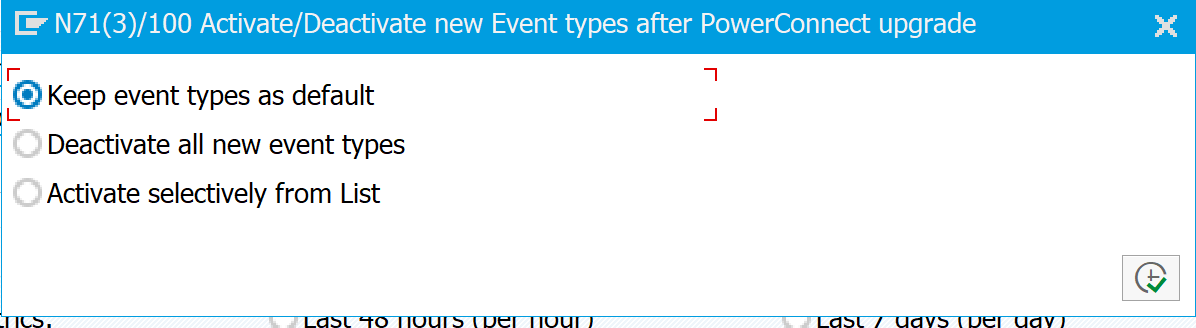
Following options could be chosen:
-
Keep event types as default - new extractors will remain in the state they are delivered by BCSET.
-
Deactivate all new event types – new extractors will be deactivated disregards to their state in BCSET.
-
Activate selectively from list - provides an option to activate/deactivate new extractors manually.
5.2 Start Power Connect Jobs
-
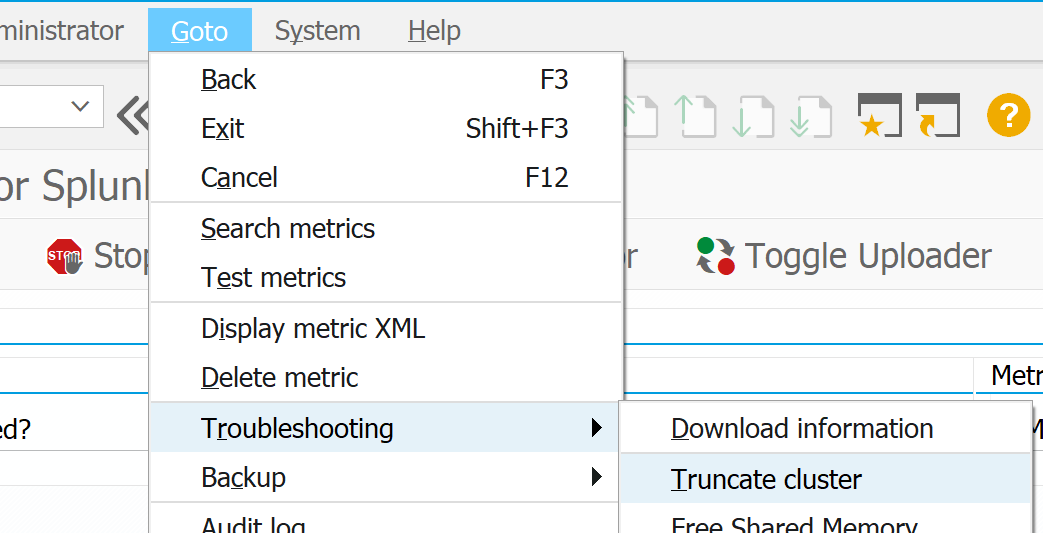
Important! Check number of Total unsent metrics
In case number of Total unsent metrics is not 0 after transaction start, please remove all collected metrics, using the Goto->Troubleshooting->Truncate cluster functionality:
-
Start PowerConnect jobs using toolbar buttons below:

-
Ensure all job state indicators are green:
