

KB 118 (ABAP) - Remove PowerConnect Extractor
|
Category: Information |
Priority: Normal |
|---|---|
|
Platform: ABAP |
Version: 1 from 23.03.2021 |
Description
There may be some instances in which you may need to remove a PowerConnect extractor from the PowerConnect administrative console in the ABAP system. To remove an extractor from the PowerConnect configuration please follow the steps below:
-
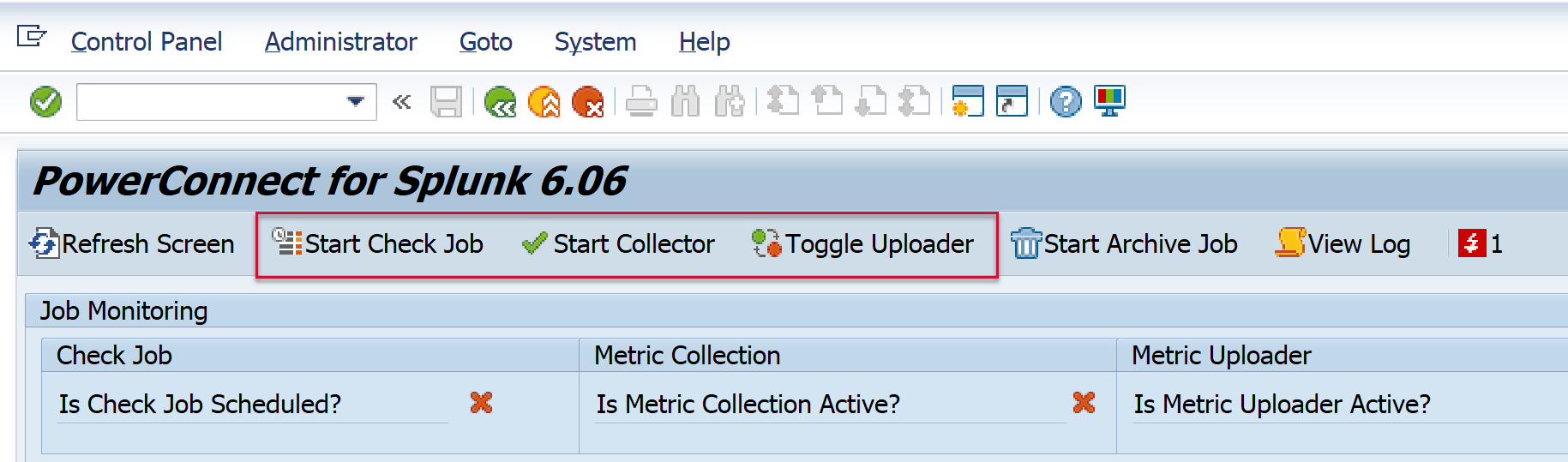
Log into the system where the PowerConnect application is installed. Execute the /n/bnwvs/main transaction, and click on the buttons below to stop the PowerConnect batch jobs

-
Confirm the batch jobs have stopped running. The PowerConnect administrative console should look like this.

-
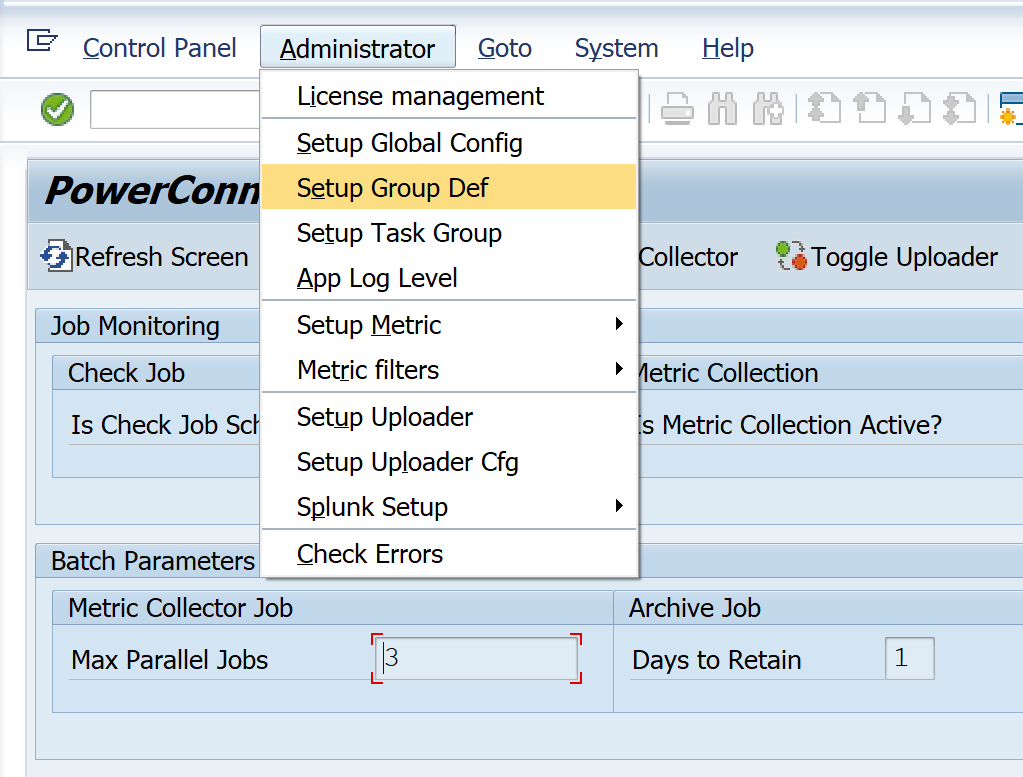
Then go to Administrator → Setup Group Def.
-
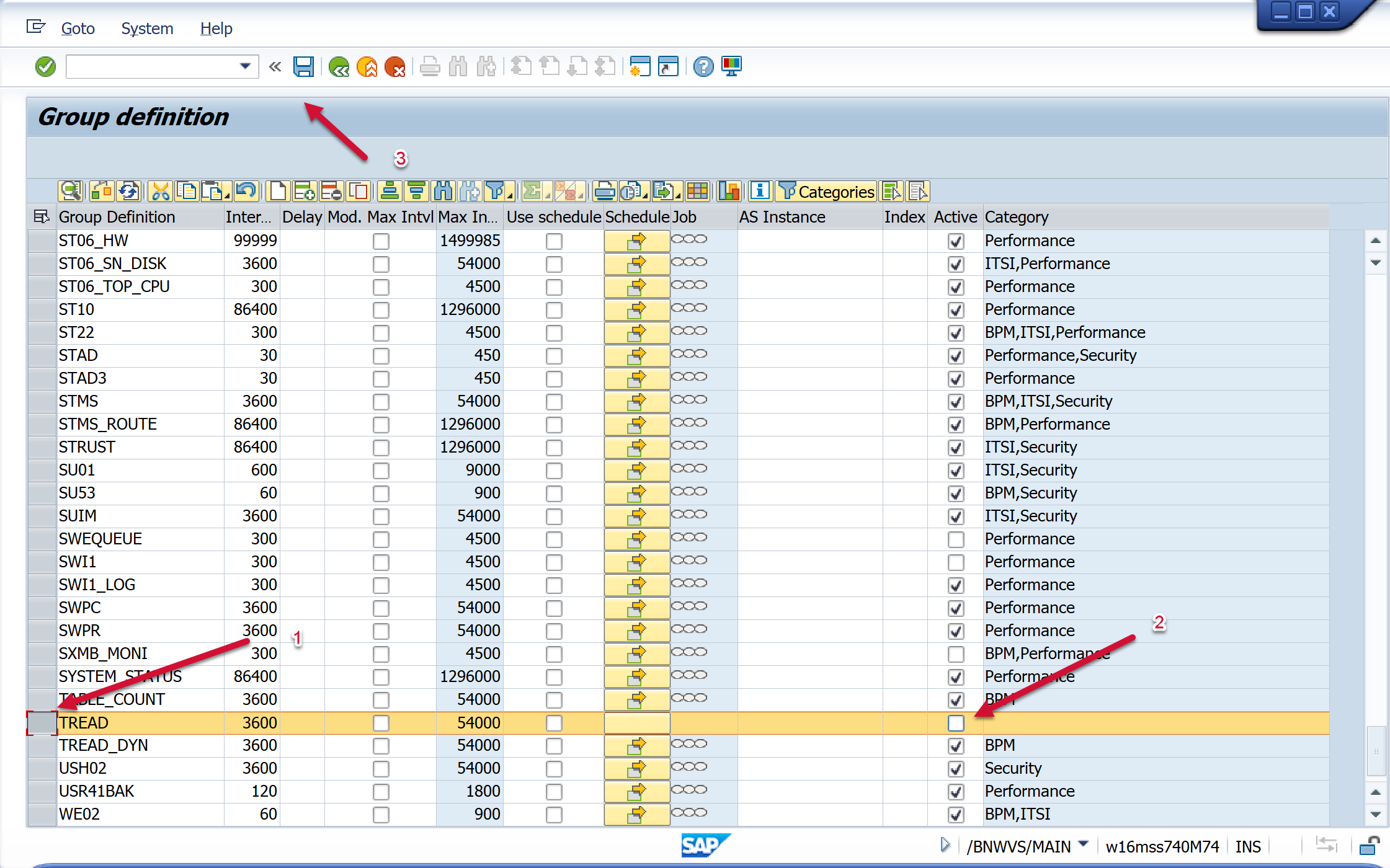
Then go to the extractor that you would like to remove from the configuration. Highlight the row, and select the Active checkbox, so that it is empty. Save.
-
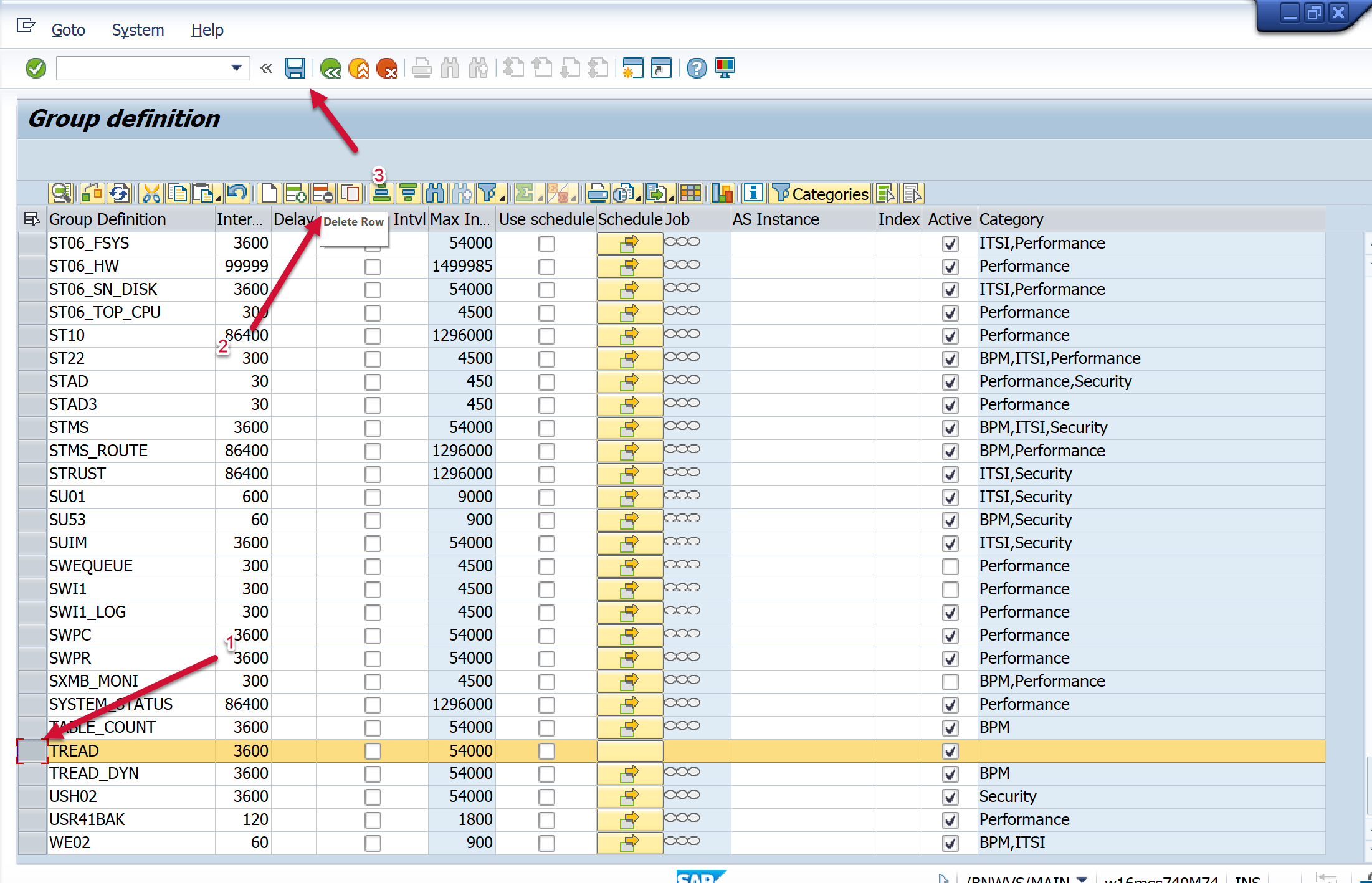
Then once again go to the extractor that you would like to remove from the configuration. Highlight the row, and select the Delete Row button. Save.
-
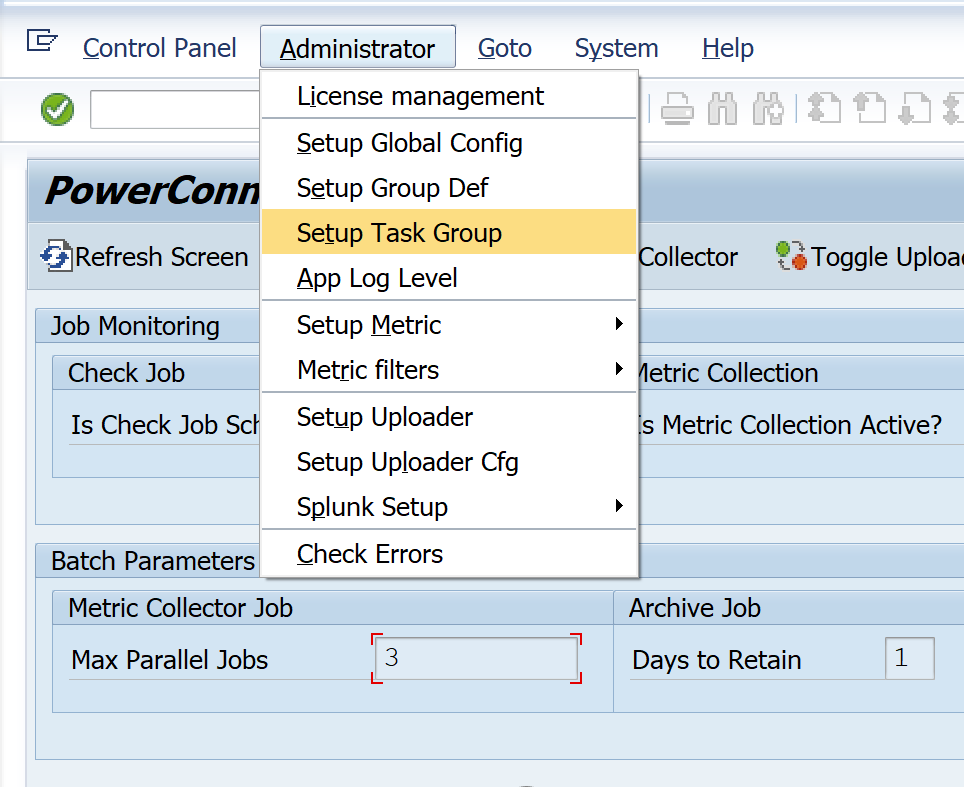
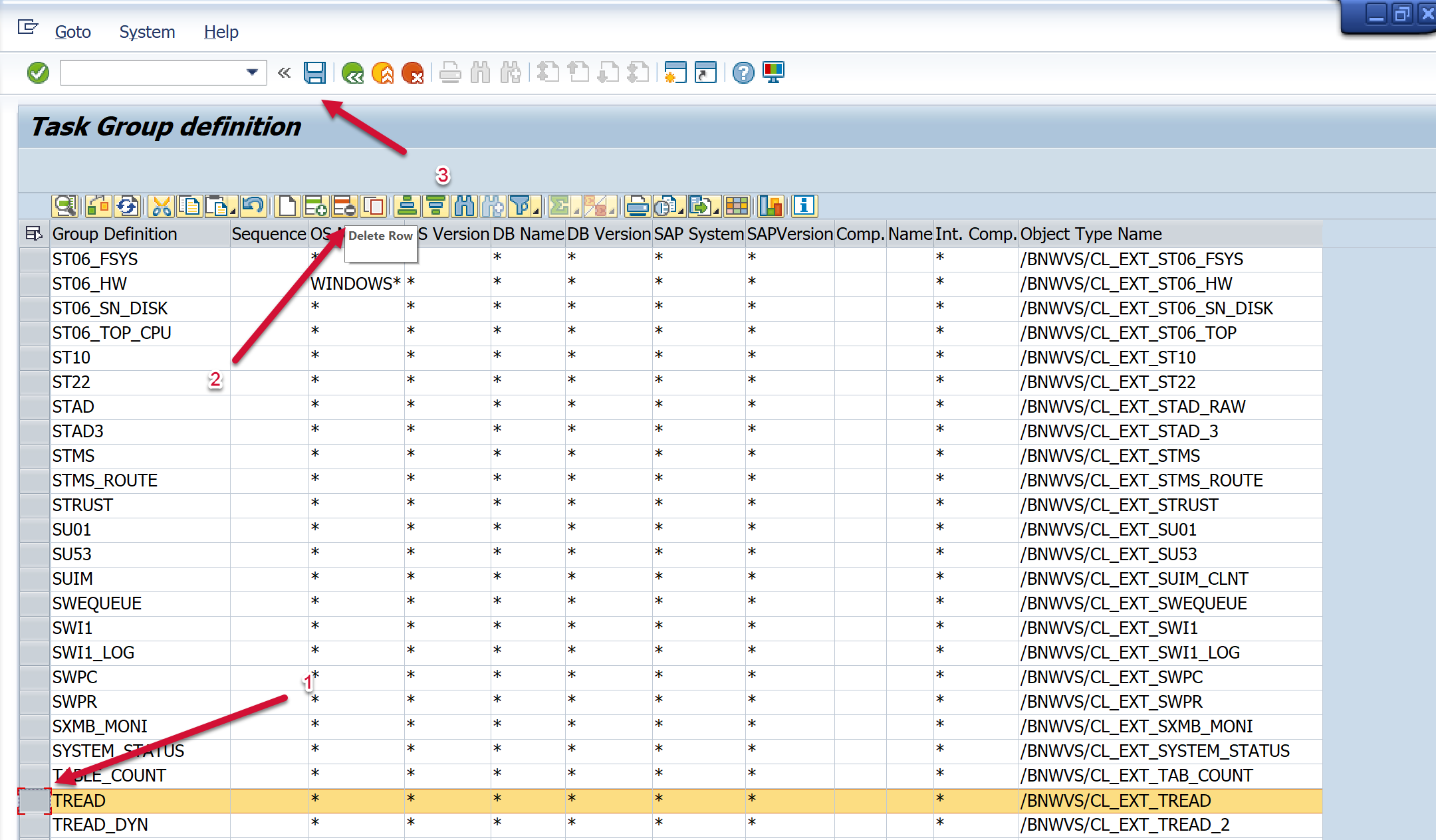
Return to the home page of the PowerConnect administrative console. Then go to Administrator → Setup Task Group.
-
Then go to the extractor you would like to remove from the configuration. Highlight the row and select the Delete Row button. Save.
-
Then return to the PowerConnect administrative console, and select the buttons below to restart the PowerConnect batch jobs.
-
The PowerConnect administrative console should match the screen below once the batch jobs have successfully restarted.
