

Overview
SAP BTP provides an audit log service for both Neo and Cloud Foundry environments. This service logs security related events for all platform services used within a SAP BTP tenancy.
Data Collected
-
Data protection and privacy related
-
audit.data-access read-access logging records for access to sensitive personal data;
-
audit.data-modification data modification logging records for sensitive personal data.
Security related
-
audit.security-events logging of general security events like login, logout, and other;
-
audit.configuration logging of security critical configuration changes.
-
APIs Used
Status
Generally Available
Configuration
PowerConnect Cloud requires access to the SAP AuditLog API to be able to extract audit log data. The most secure way to do this is add PowerConnect Cloud as an OAuth client to your SAP BTP tenancy. To do this follow the steps below for your environment:
SAP Cloud Foundry
-
If you have not already done so create an Audit Log Retrievel API instance
-
Login to the SAP BTP Cockpit
-
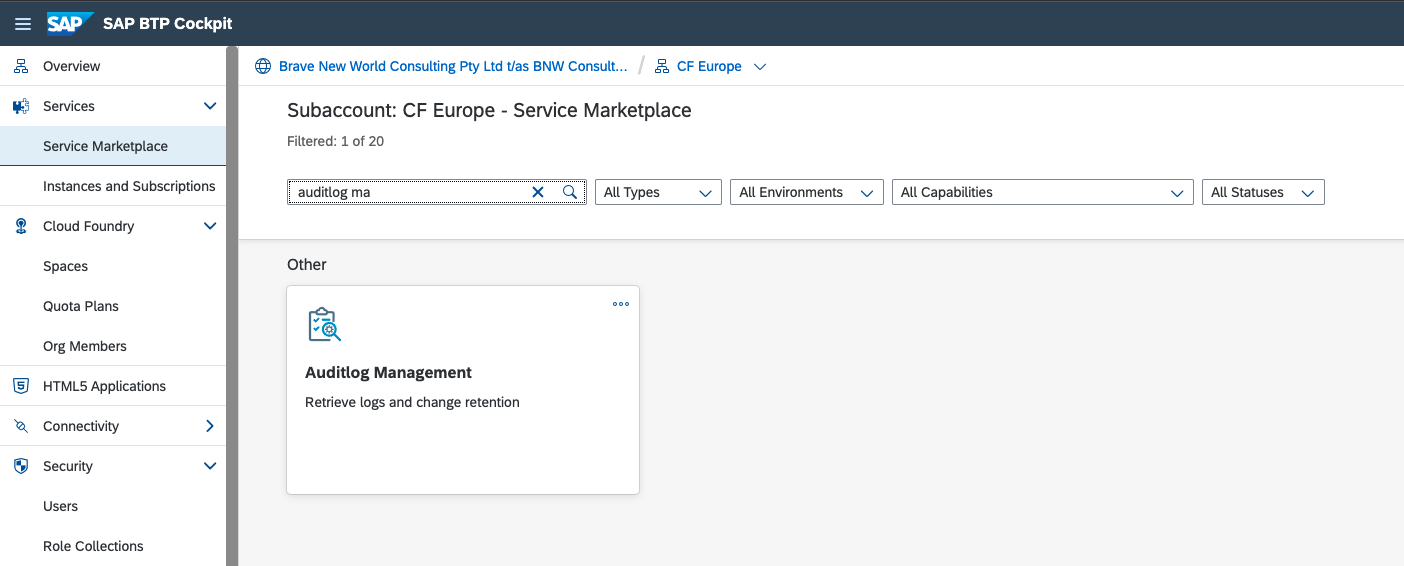
Under Service Market Place choose Auditlog Management then click Create
-
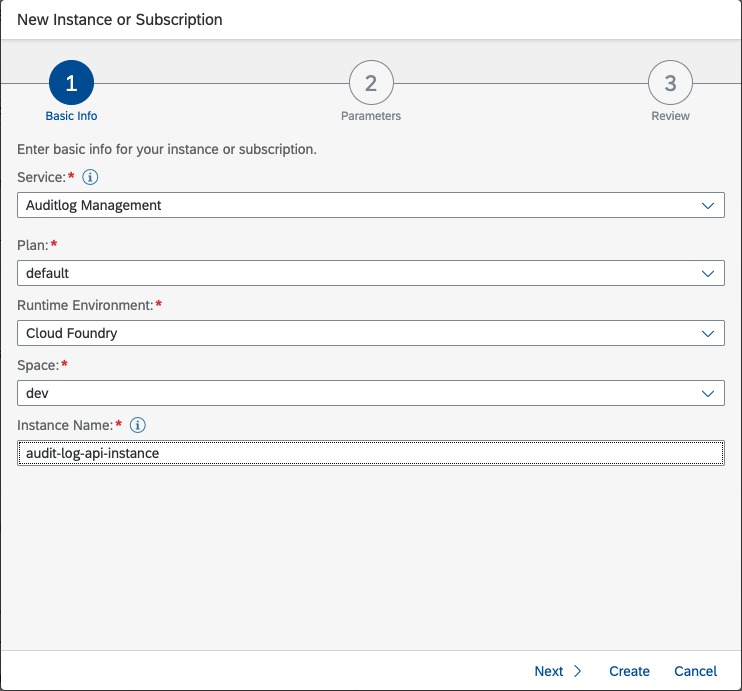
Fill in the required information including the instance name
-
Click Create
-
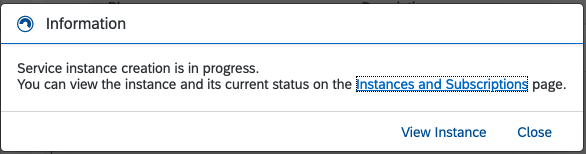
The Instance should then be provisioned, click View Instance
-
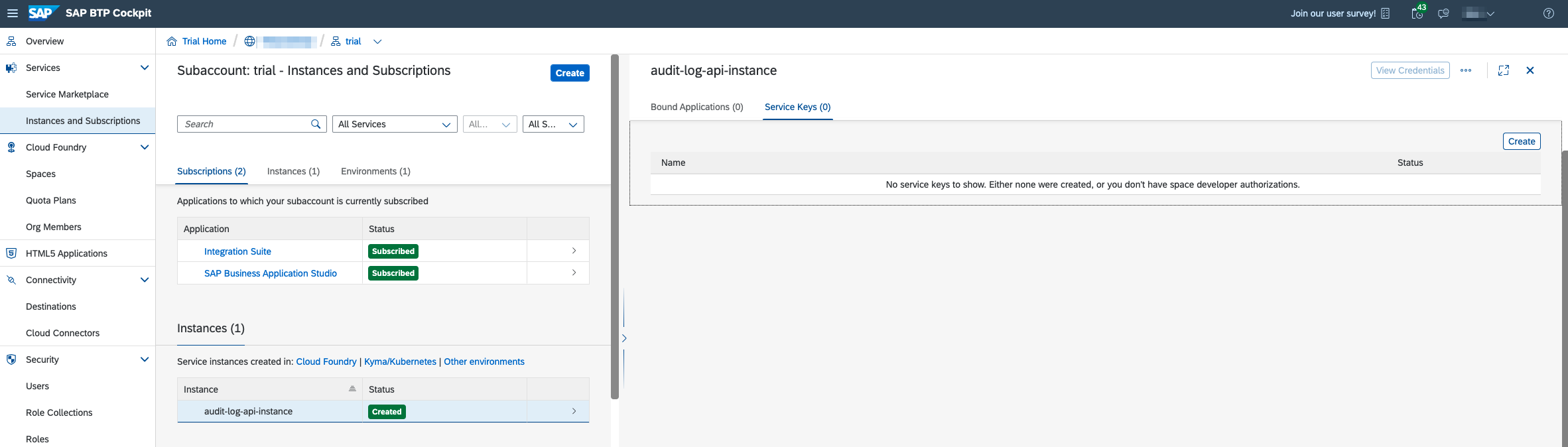
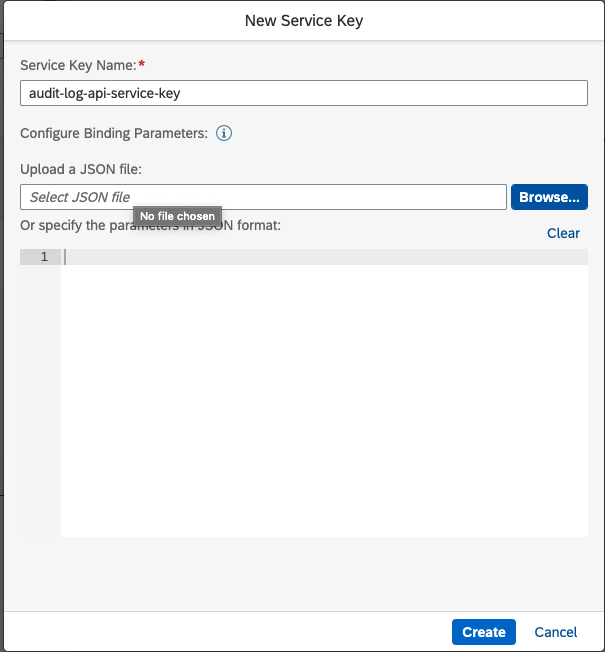
Under the instances view choose the Audit Log instance you just created then click on the Create button to create a Service Key
-
Provide a name for the Service Key then click Create
-
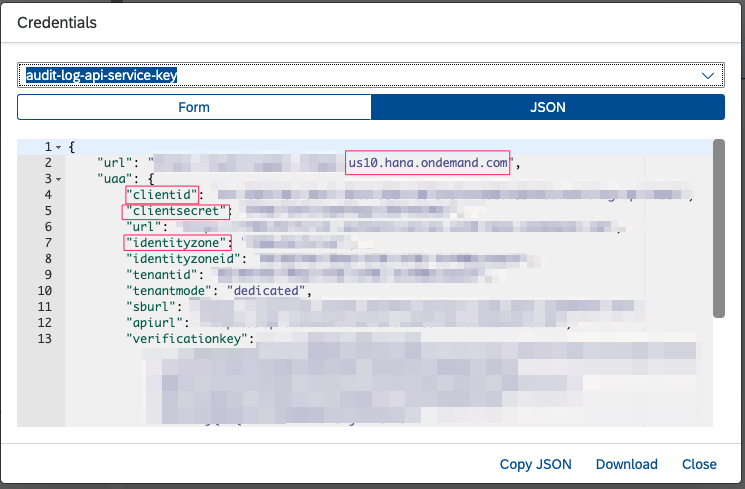
Once the Service Key has been created click on the three dots to get the dropdown menu then click View

-
Note down the following:
-
The platform host in the url field (in the example below its us10.hana.ondemand.com)
-
clientid
-
clientsecret
-
identityzone
-
-
Follow the instructions in the section below called “Adding an Audit Log Input in PowerConnect Cloud” to configure PowerConnect Cloud with these details
SAP Neo
-
Login to the SAP BTP Cockpit
-
In the menu on the left hand side click OAuth under the Security section then click the Platform API tab then click Create API Client
-
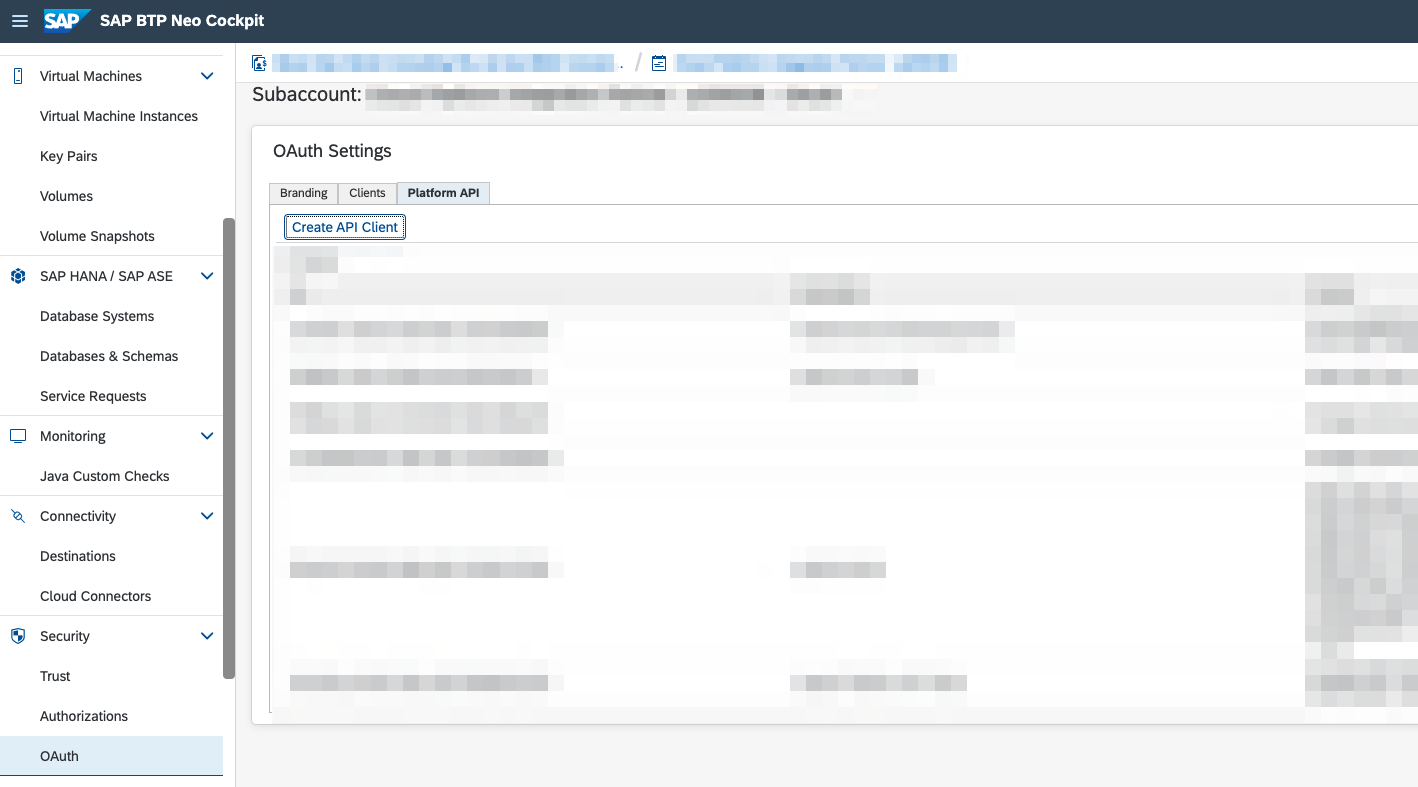
In the API and Scopes tick the Audit Log Service, fill in the Description then click Save
-
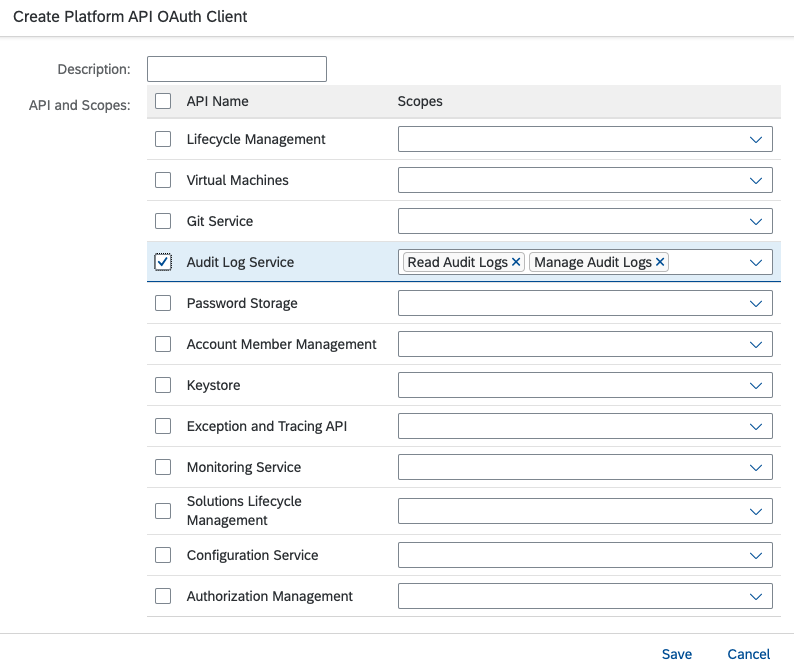
Note down the Client ID and Client Secret
-
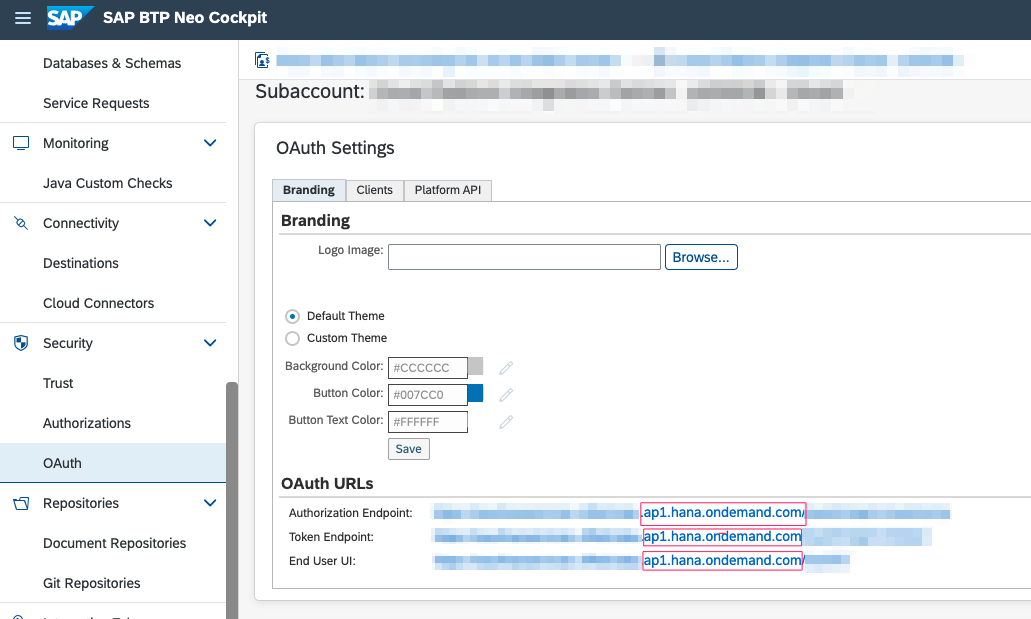
Click on the Branding Tab and note down the platform host (in the example below its ap1.hana.ondemand.com)
-
-
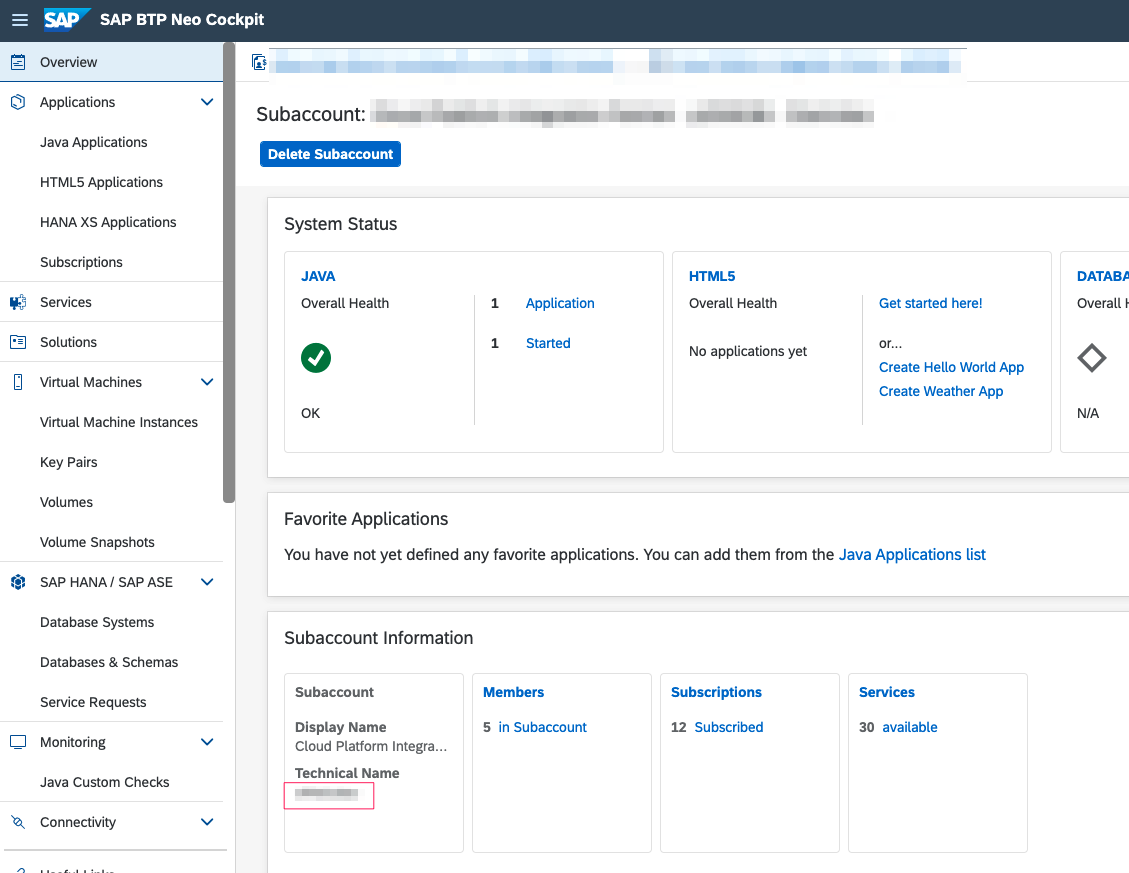
Click on Overview in the left hand side menu and note down the Technical Name of the Subaccount under Subaccount Information
-
You should now have 4 pieces of information
-
Client ID
-
Client Secret
-
Platform Host
-
Subaccount
-
-
Follow the instructions in the section below called “Adding an Audit Log Input in PowerConnect Cloud” to configure PowerConnect Cloud with these details
Adding an Audit Log Input in PowerConnect Cloud
-
Login to the PowerConnect Cloud web UI
-
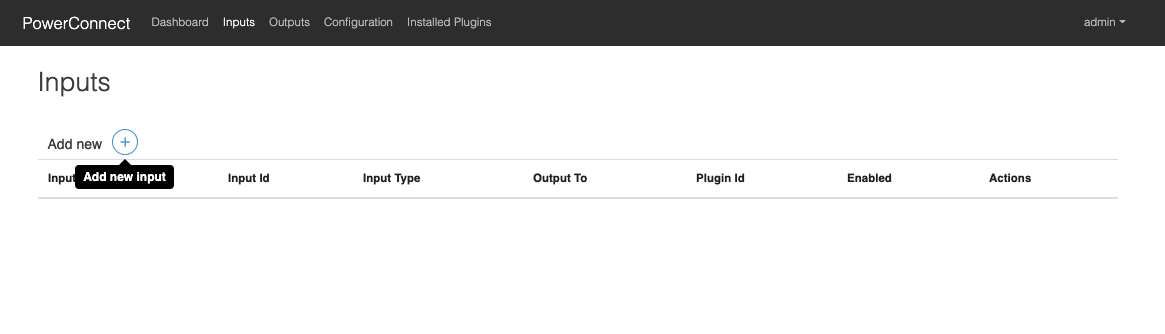
Click on the Inputs link in the menu bar
-
Click the + button to add a new Input
-
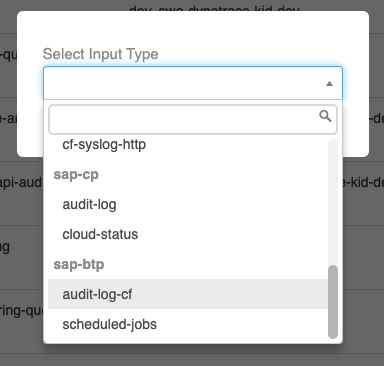
Select CF or Neo as the Platform
-
Choose audit-log-cf or audit-log-neo sap-btp depending on the target platform
-
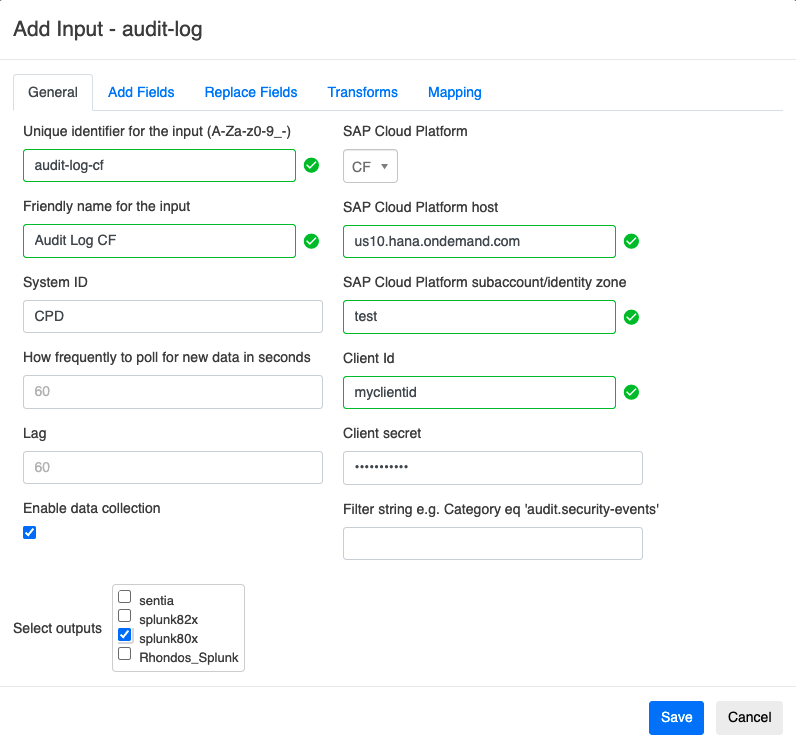
Fill in the form with the details you noted down when creating the Service Key above
-
Choose the Splunk output you wish to send the BTP audit logs to
-
Note the System ID value will be mapped to the source field in Splunk
-
Click Save
-
The Input is now created