

Configuring Dynatrace OpenTelemetry Connection in PowerConnect
|
Category: Information |
Priority: Normal |
|---|---|
|
Platform: ABAP |
Version: 1 from 01.07.2024 |
Description
!It is recommended to send only OpenTelemetry Traces via OpenTelemetry endpoint. Logs and metrics still should be send using regular Dynatrace Log connection. In order to route logs to Log endpoints and Traces to trace endpoints manual filter setup is required.
Please ensure all endpoints have appropriate filters assigned as described below.
Following steps needs to be performed to get it setup:
-
Upload Dynatrace certificate into STRUST (if not yet done).
-
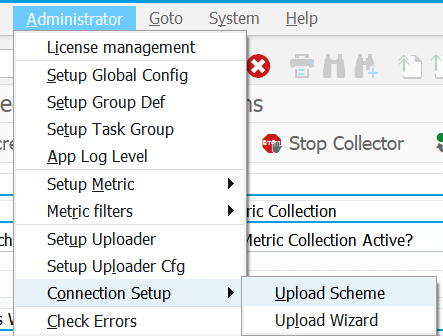
Administrator->Connection Setup->Upload Scheme
-
On the right side of the screen press Create OpenTelemetry endpoint

-
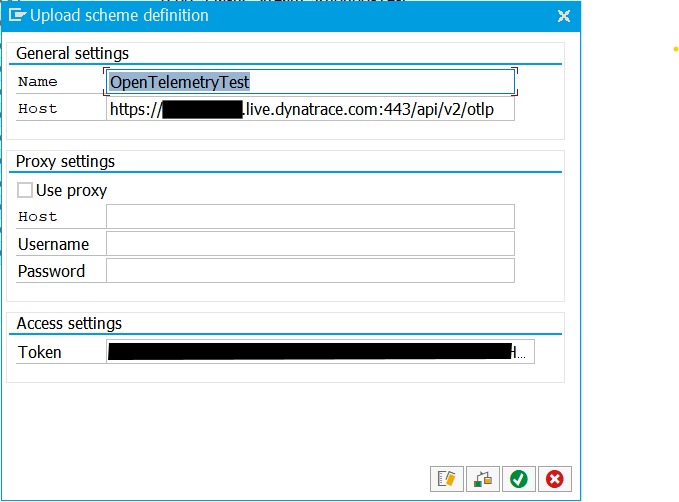
Populate connection details
-
Check the connection
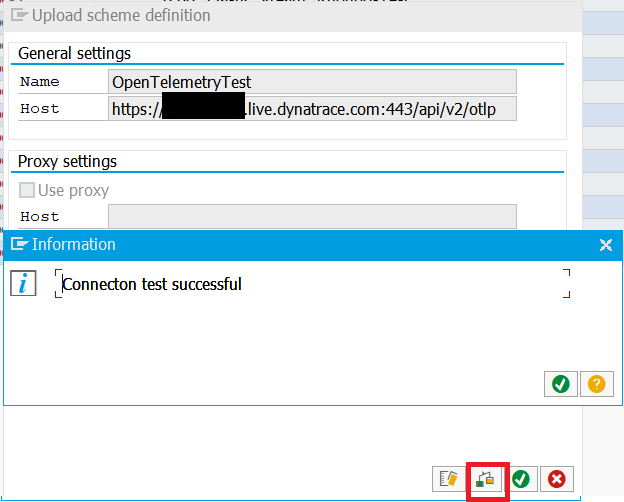
In case error message is shown, troubleshooting might be required to ensure outbound connectivity is allowed and SSL is setup properly. -
Drag and drop the endpoint from the right side of the screen to the Default Scheme node on left side of the screen. Set the Active flag and populate the filter as shown below:
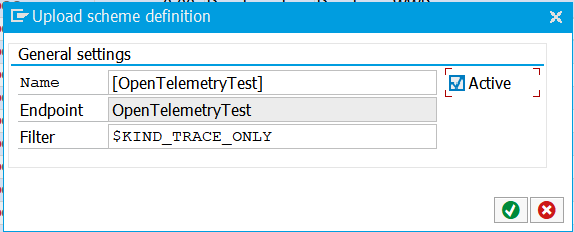
Please do not remove the predefined filter.
-
Confirm the dialog and Save changes in Upload Scheme screen.
-
Activate the trace data source extractor in Administrator->Setup Group Def menu option as described here: KB 108
Following trace sources are supported (only one needs to activated):
- STATS_TRACE extractor (in systems where STATS tcode is available). Recommended SAP_BASIS 7.51+

- STAD_TRACE extractor (for systems <=7.50)