|
Category: Problem |
Priority: Critical |
|---|---|
|
Platform: Splunk |
Version: 1 from 23.03.2023 |
Description
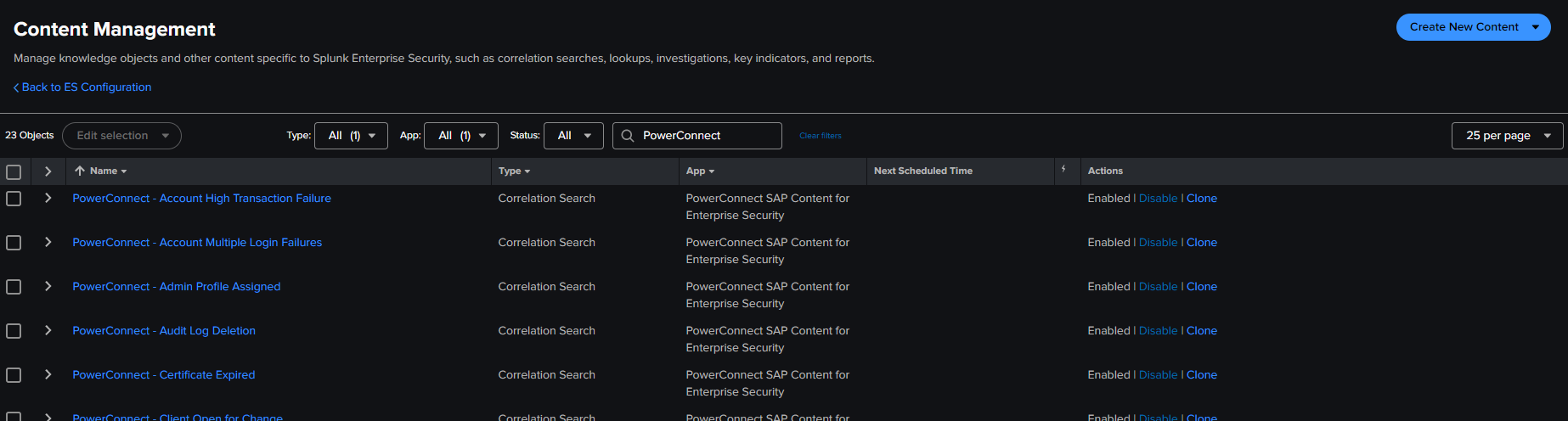
After installing the PowerConnect SAP Content Pack for Enterprise Security, you may notice that Notable Events are not being generated for your Enterprise Security instance. When you go to Content Management and filter on the content pack searches, you see that there are no “Next Scheduled Times,“ despite the searches being enabled.
You may also see a Message notification indicating a number of “orphaned searches.”
Cause
“Orphaned” searches have no established owner in the Splunk environment, and therefore cannot be run unless they are assigned a user.
Resolution
-
While logged in with an administrative user account in your Splunk instance, go to “Settings” and “All configurations”
-

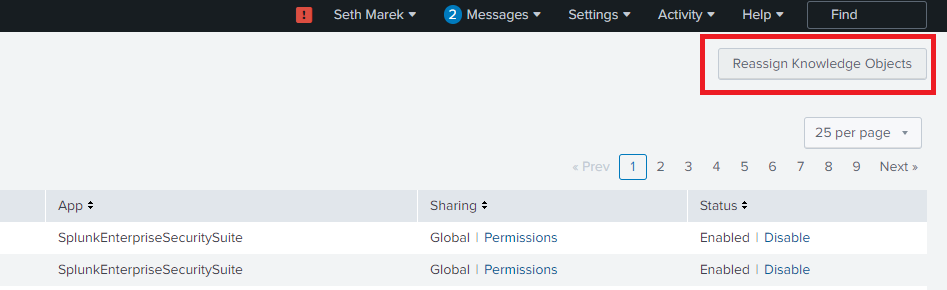
At the top of the “All configurations” page, click “Reassign knowledge objects.”
-
On the following page, make use of the filters to narrow the view down to the orphaned searches in the PowerConnect SAP Content Pack for Enterprise Security. Here are the recommended filter settings:
-
The “Orphaned” toggle filter
-
The “App” filter set to “PowerConnect SAP Content Pack for Enterprise Security
-
-
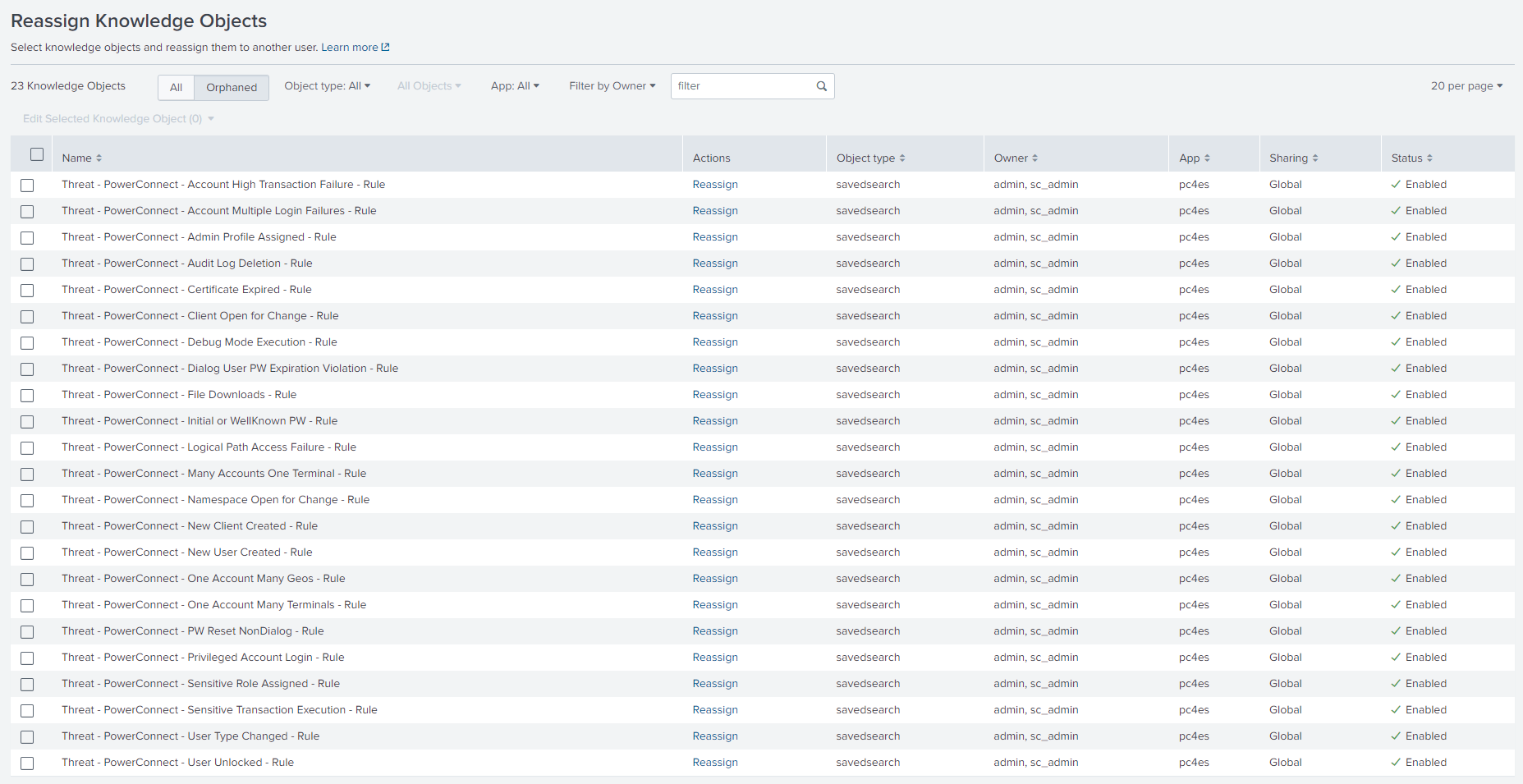
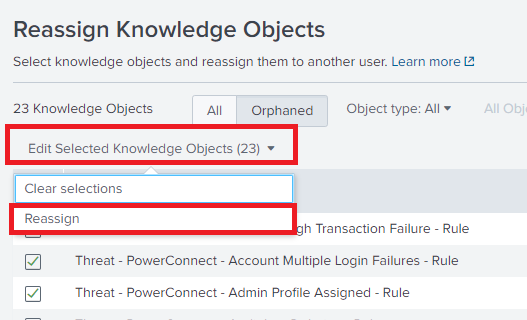
Select all of the searches and click “Edit Selected Knowledge Objects,” then “Reassign”
-
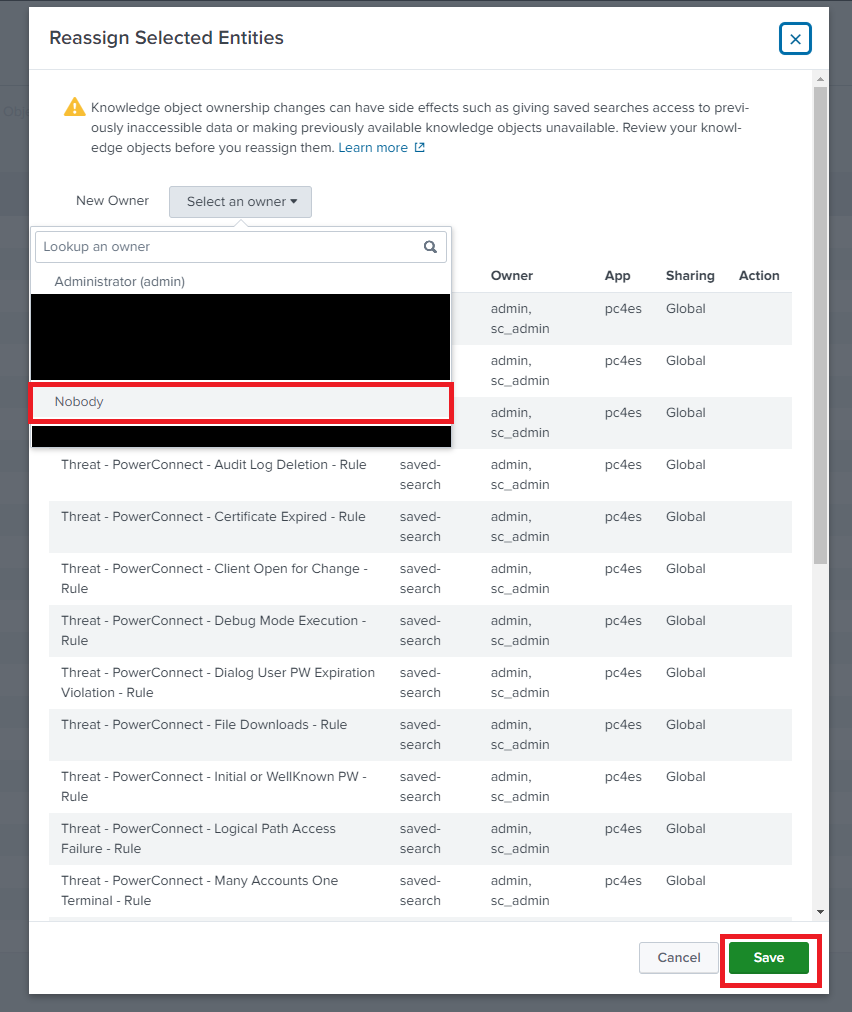
For “New Owner,” assigning “Nobody” is recommended, but an account with the requisite search provisioning (dependent on your data volume) is also acceptable.
-
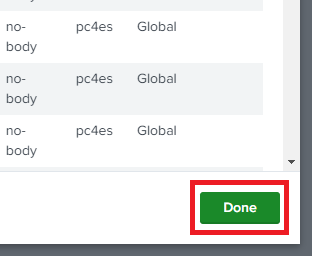
Now that the searches have been reassigned, they should begin scheduling automatically. Click “Done” when the reassignment finishes.
-