KB 208 (Cloud): Capturing SAP CPI payloads using PowerConnect Cloud
|
Category: Information |
Priority: Normal |
|---|---|
|
Platform: Cloud |
Version: 1 from 01.04.2024 |
Description
In SAP CPI there is no concept of a payload as part of the CPI message object. This is different to SAP PO where the payload is a key part of the message structure.
This document describes an example of capturing SAP CPI payloads using the SAP CPI message store. As per the SAP docs the following data can be stored:
-
Message payloads and headers as data store entries
-
Data store entries can be accessed by Data Store Select or Data Store Get steps.
-
Any data as variable
Note - the message store is a separate API and as such for each message an additional API call needs to be made. In high volume environments (+100k messages per day) this can significantly slow down the data collection. For high volume environments an alternative approach is to store parts of the payload a custom header properties instead of using message stores.
Configuration Steps
There are two parts to the configuration:
-
Updating the iFlow to store the required payload in the message store
-
Enabling message store collection in PowerConnect Cloud
SAP CPI IFlow Configuration
-
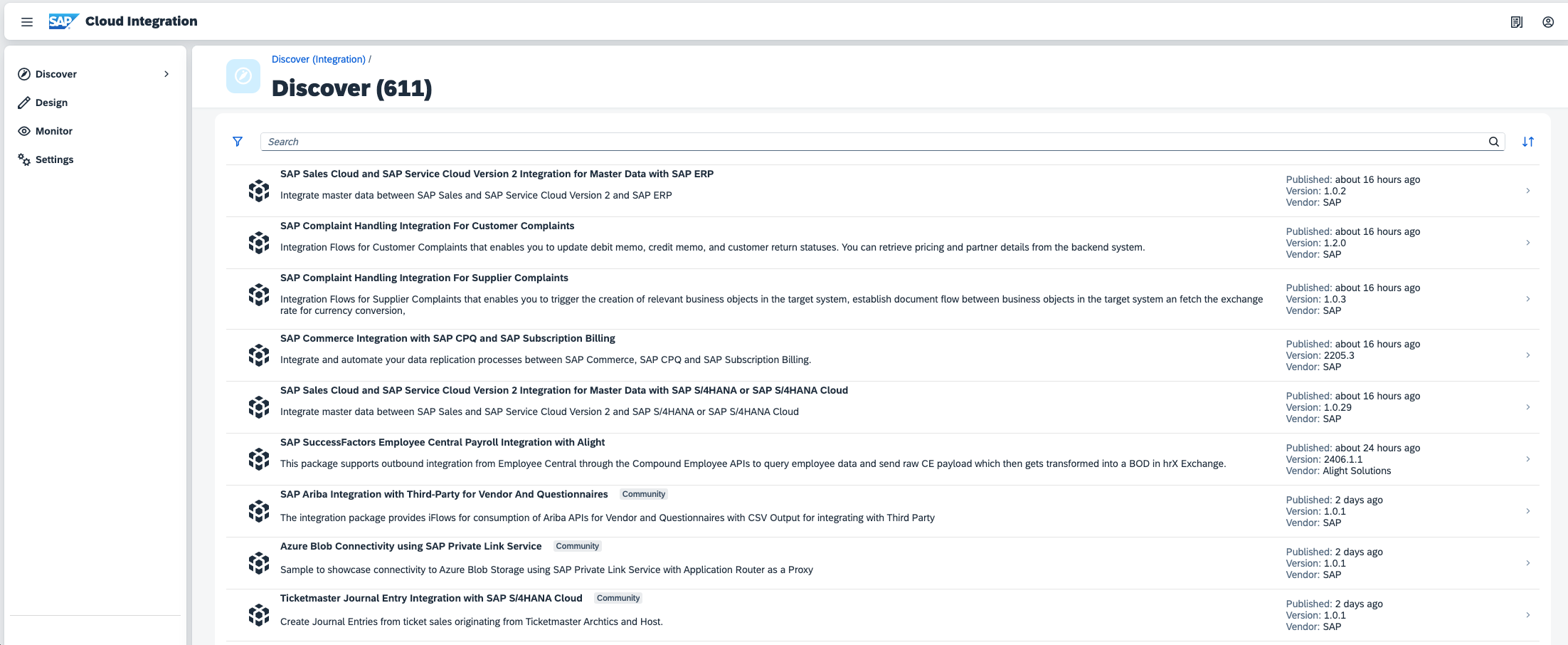
Login to your SAP CPI portal
-
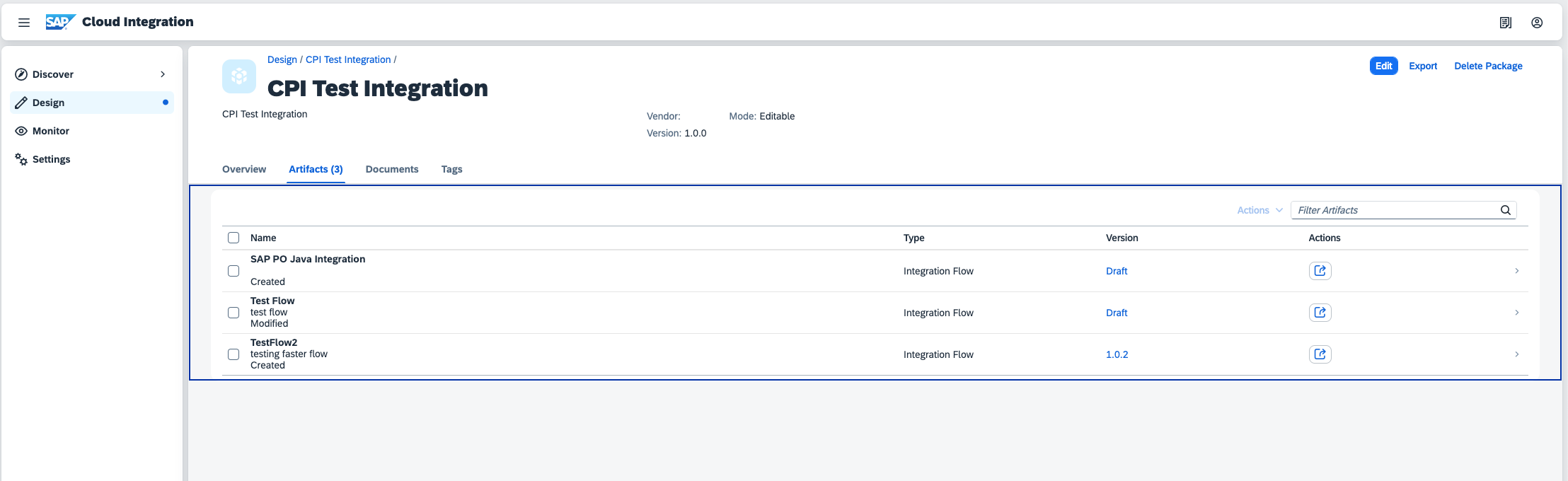
Click Design the open the CPI IFlow where payload should be captured (in this example we will use the iFlow named Test Flow)
-
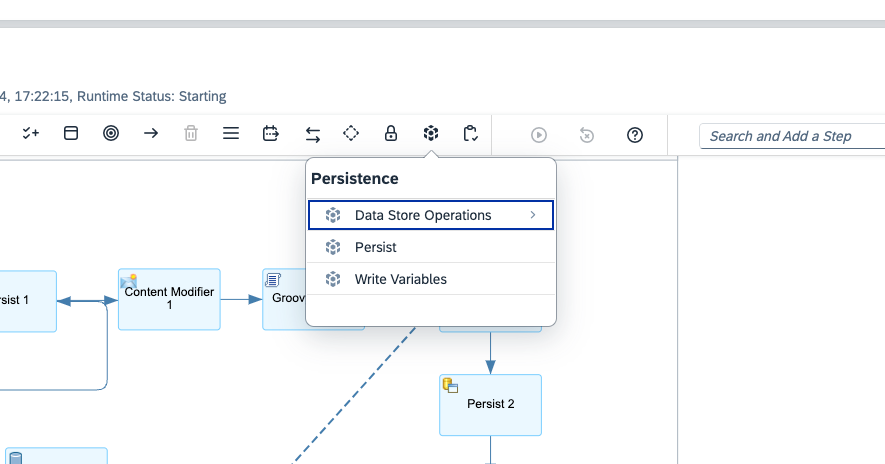
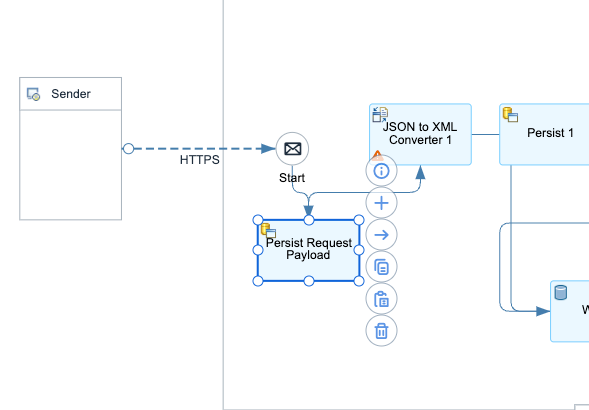
In this example we would like to capture the inbound request payload (json) sent via HTTP to our iFlow. We add the persist step and connect it to the Start
-
We would like to capture the JSON payload before it is tranformed to XML so we place the Persist step between the Start and JSON to XML Converter
-
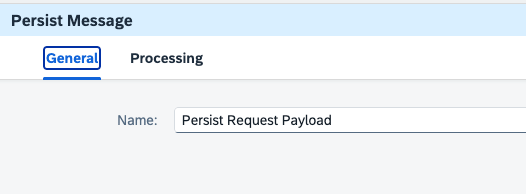
We give the Persist step a friendly name so we can easily identify what it’s doing
-
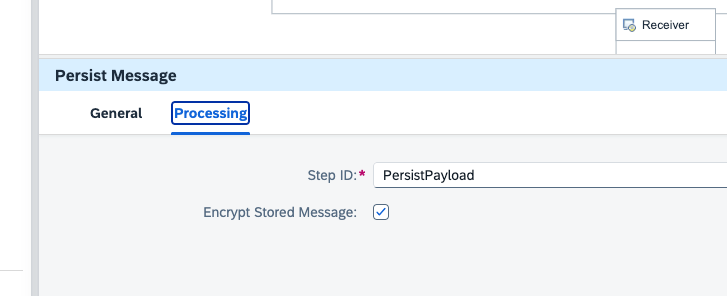
We also give it a Step ID which will appear as part of the CPI message data
-
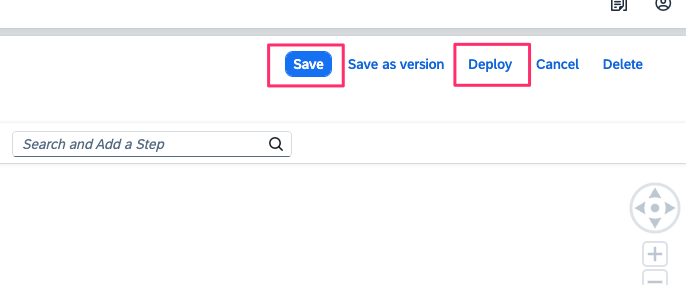
Click Save and Deploy the change
PowerConnect Cloud Configuration
-
Login to the PowerConnect Cloud UI
-
In the menu bar choose Inputs

-
Find the SAP CPI input you have configured. If you have not configured one yet follow these steps
-
Click on the edit button to edit the Input

-
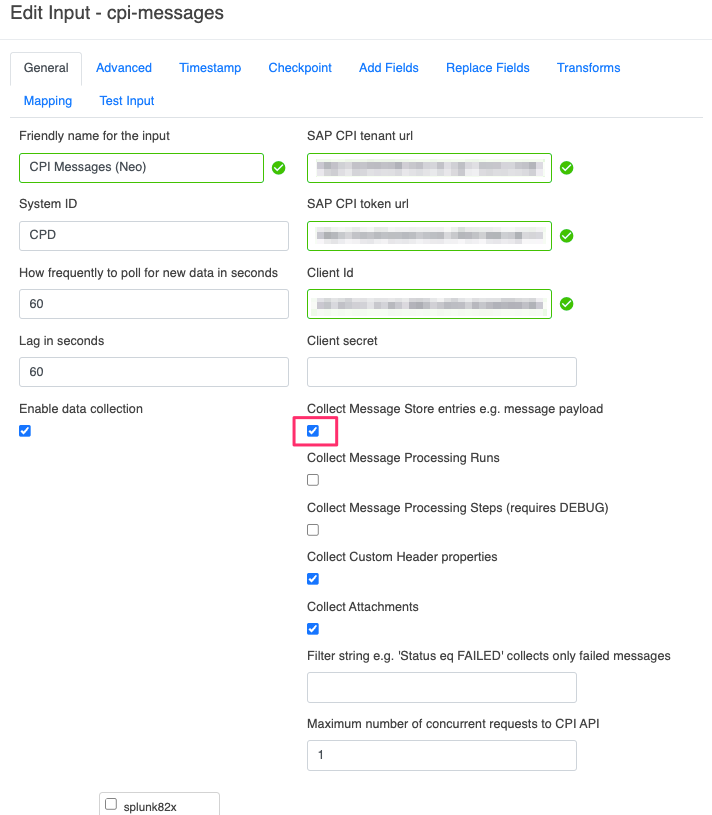
In the configuration form check the Message Stores checkbox
-
Click Save
-
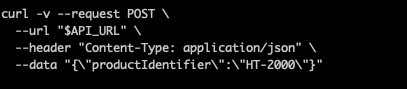
In this example we trigger the iFlow by sending some JSON payload to it using curl
-
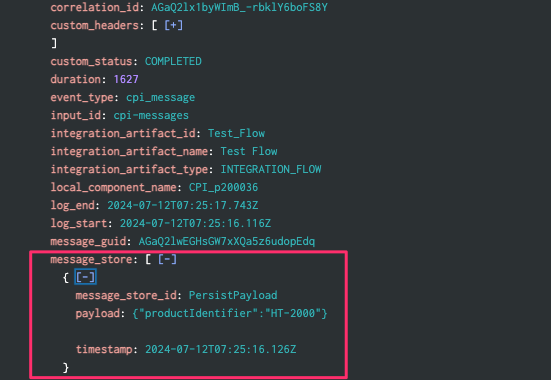
We can now see in our target platform the CPI messages for this iFlow have a new message store field containing the JSON payload we sent with the PersistPayload identifier we used above