

Once the agent is installed, there are some basic security objects that need to be created, these include:
Create PowerConnect role
Open a browser and navigate to the User Administrator page http://<sap host>:<sap port>/useradmin/index.jsp
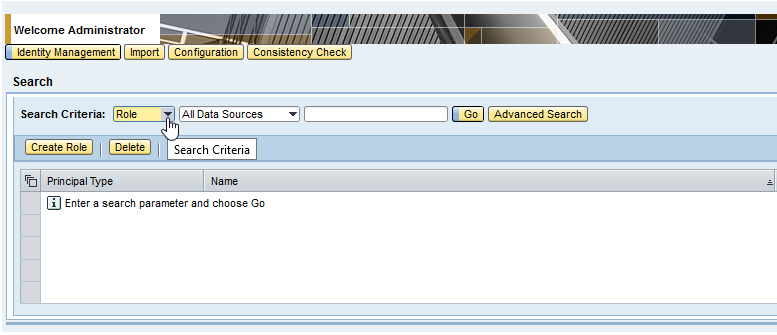
Select Criteria=Role
Click Create Role
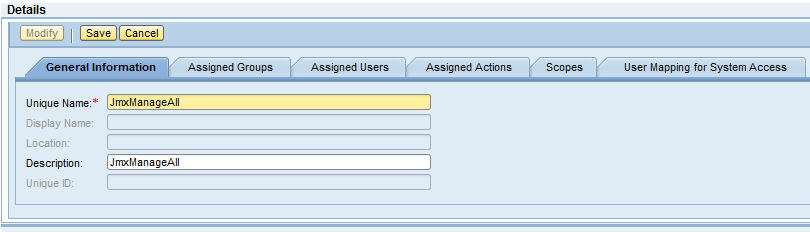
Search for JmxManageAll in available actions & highlight both roles
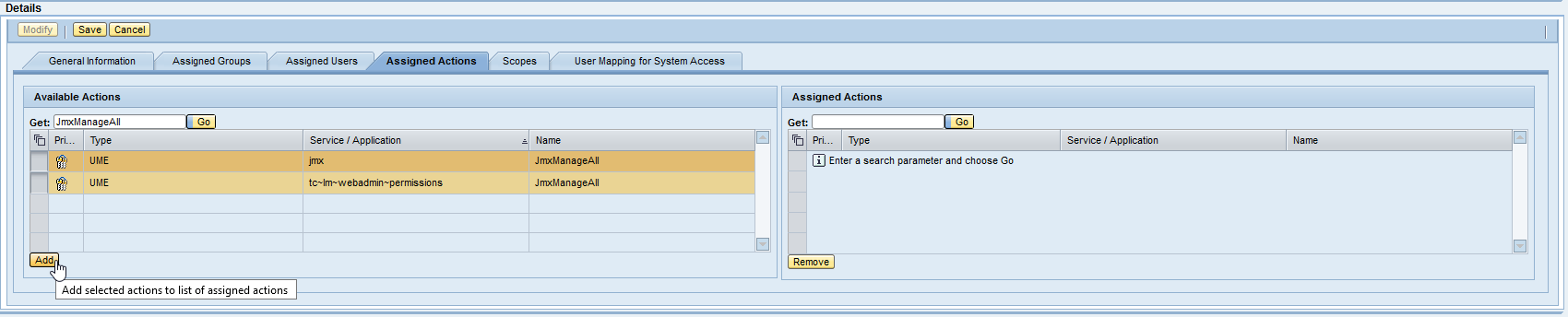
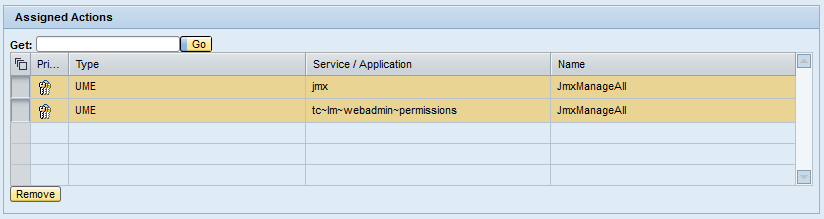
The roles should appear on right in Assigned Actions
Search for SystemInfo_Support_Role
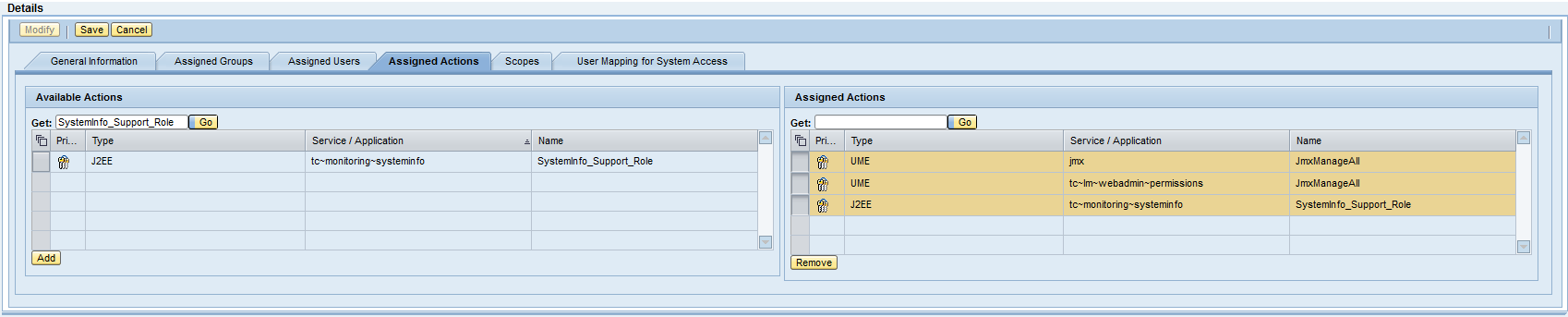
Highlight it and click ADD
Ensure these 3 roles are on the right
-
SystemInfo_Support_Role
-
JmxManageAll x2
-
dbpool
And click SAVE
Create powerconnect technical user
Open a browser and navigate to the User Administrator page http://<serverhost>:<port>/useradmin/index.jsp
Click Create User
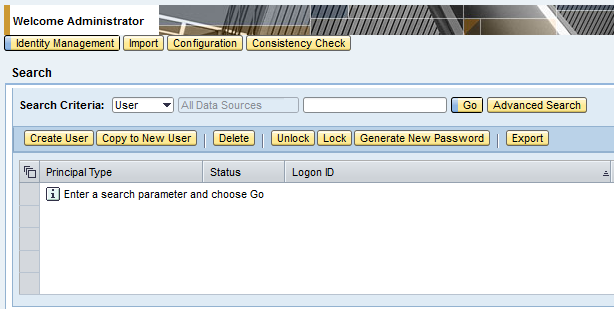
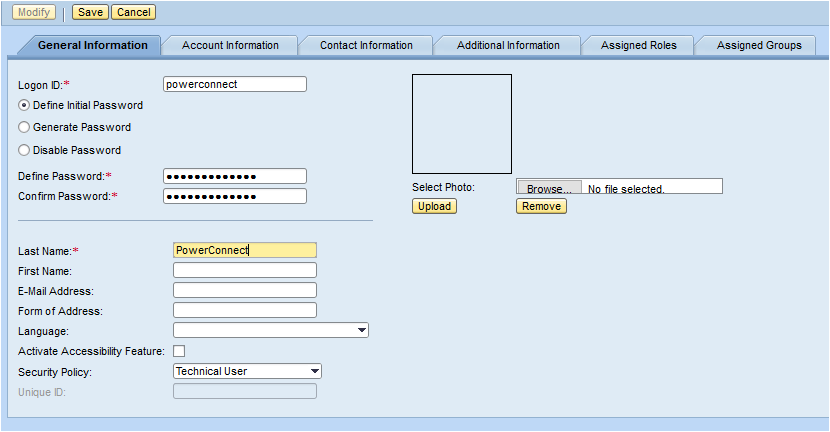
Create user powerconnect (all lowercase), enter password, and set it as a Technical User
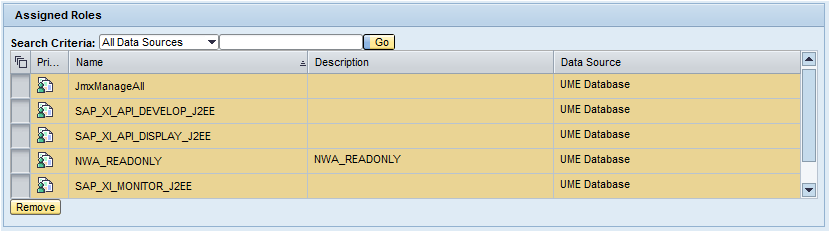
Add the following 5 roles to the user
|
NAME |
DESCRIPTION |
MANDATORY |
RELATED MONITORING EXTRACTOR |
|
JmxManageAll |
Required for PowerConnect to be able to query JMX |
Yes |
JMX |
|
SAP_XI_API_DEVELOP_J2EE |
Required for PowerConnect to be able to retrieve PI Channel status |
No |
PI |
|
SAP_XI_API_DISPLAY_J2EE |
Required for PowerConnect to be able to retrieve PI Channel status |
No |
PI |
|
NWA_READONLY |
Required for PowerConnect to be able to retrieve PI message meta data |
No |
PI |
|
SAP_XI_MONITOR_J2EE |
Required for PowerConnect to be able to retrieve PI message meta data |
No |
PI |
|
dbpool |
Required for PowerConnect to be able to retrieve message server parameters and metrics |
No |
Message Server Parameters Message Server Metrics |
|
XiMdt.ExtendedMonitor |
Required for PowerConnect to be able to retrieve PI message payload |
No |
PI |
|
bpm.solutionmanager |
Required for PowerConnect to be able to monitor BPM Tasks |
No |
BPM |
|
locking |
Required for PowerConnect to be able to monitor locks |
No |
Enqueue Server Locks |
|
keystore |
Required for PowerConnect to be able to monitor certificates |
No |
Certificates (see KB here for further details on adding individual keystores) |
Applying permissions to the SAP PowerConnect Agent
Before a license can be applied the SAP PowerConnect Agent must be granted permissions to read the installation number of the SAP system.
Open a browser and navigate to the PowerConnect general page http://<serverhost>:<port>/webdynpro/resources/com.powerconnect5/spcj_wd/SapPowerConnectJava
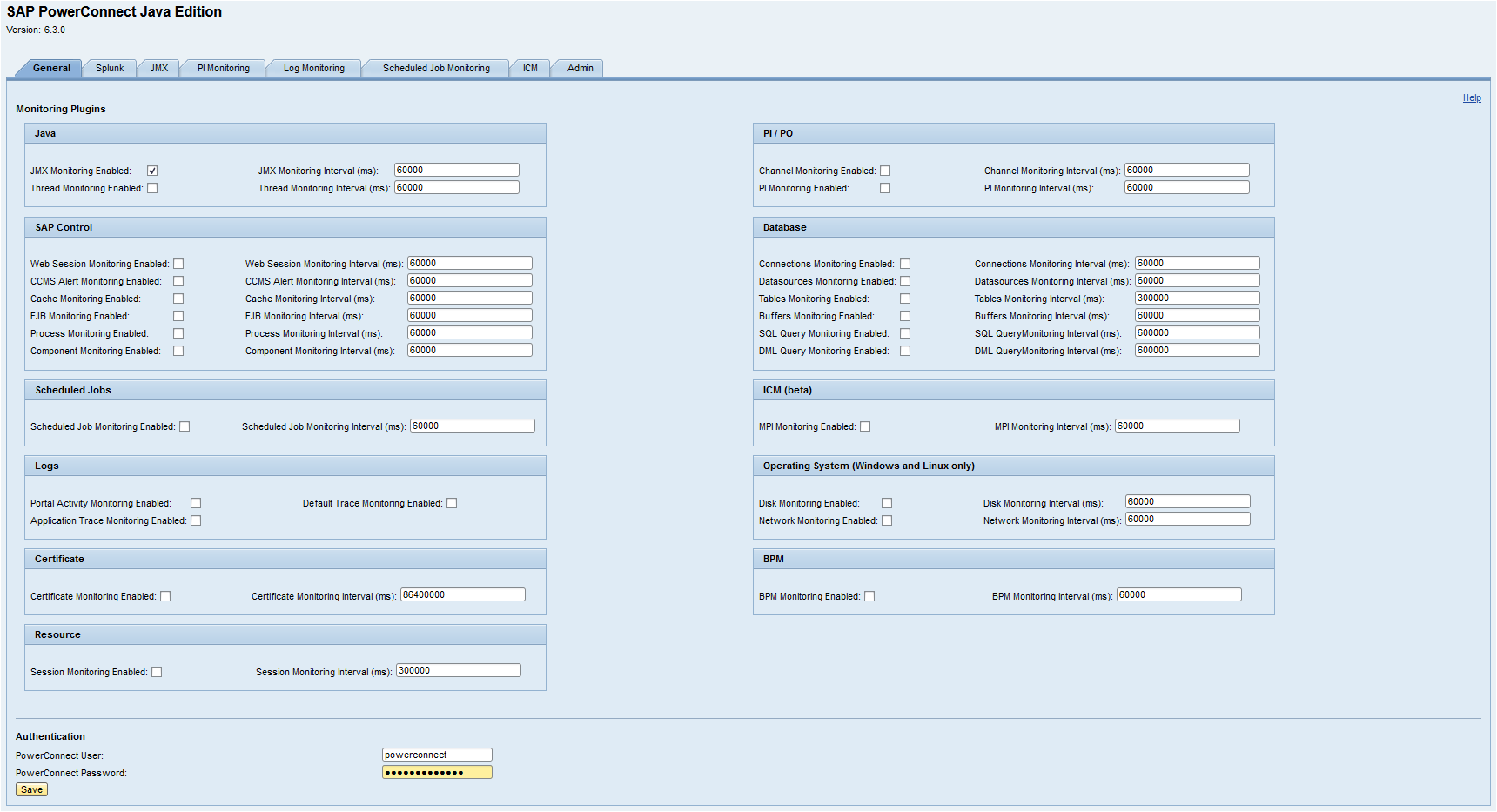
Enter the PowerConnect User and PowerConnect Password in the Authentication section and click Save
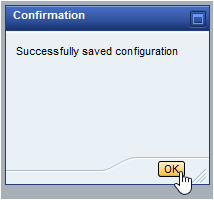
Now restart the SAP PowerConnect Agent using the instructions provided in Starting / Stopping Agent.
After successful restarting the agent the PowerConnect license must be applied to continue with basic configuration of PowerConnect.