

To install the SAP PowerConnect Java monitoring agent perform the following steps.
Acquire the PowerConnect agent from file sap-powerconnect-java-X.X.sca. If you don’t have access to this file, connect with your reseller or PowerConnect support: .
Download the latest SUM and unpack it using SAPCAR to a directory on the SAP application server, in this example we have unpacked SUM to c:\temp\SUM.
Run STARTUP.BAT.
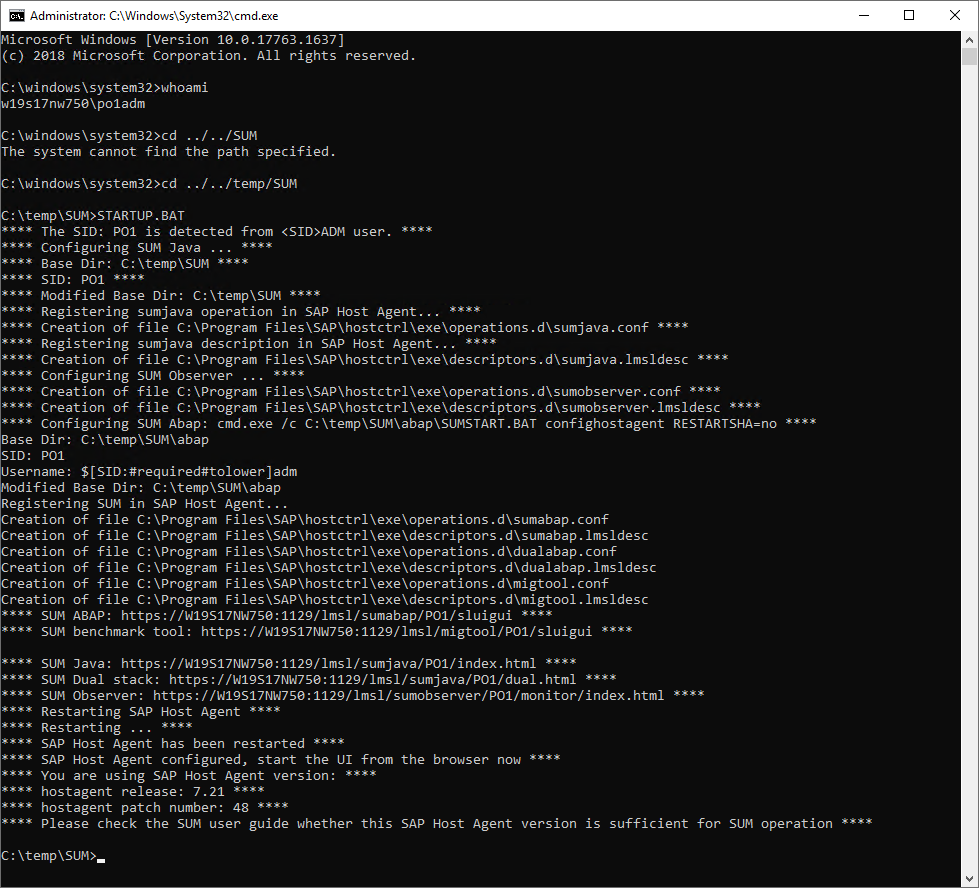
Open a browser and connect to the Java SUM control page https://<host>:1129/lmsl/sumjava/<SID>/index.html. In case you’re not using SSL, open http://<host>:1128/lmsl/sumjava/<SID>/index.html.
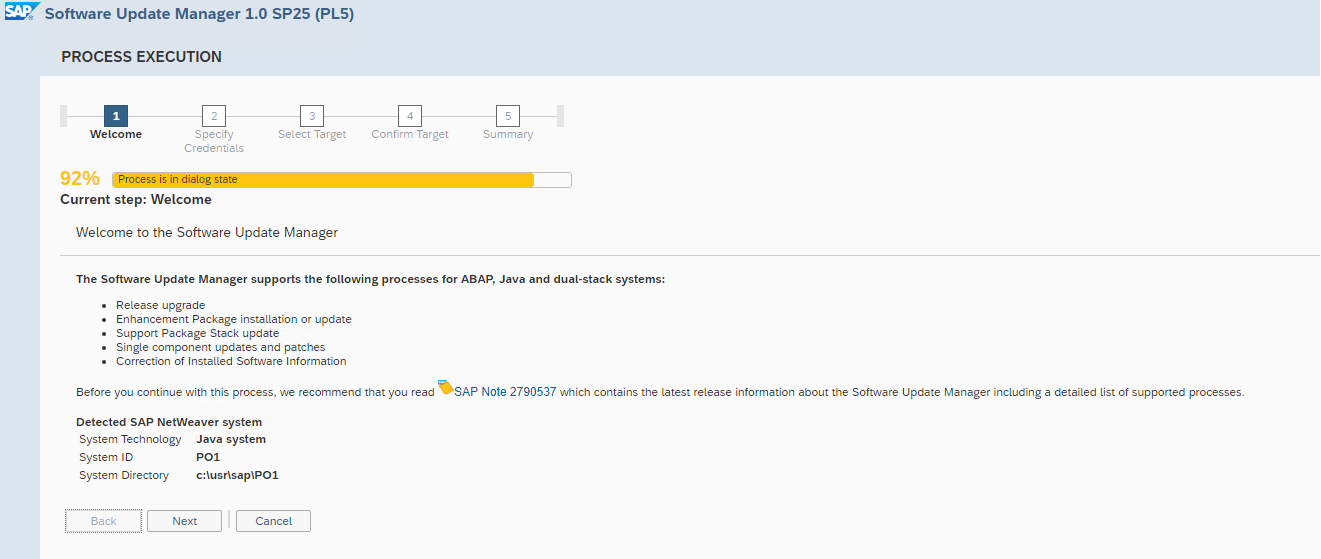
Enter <sid>adm credentials
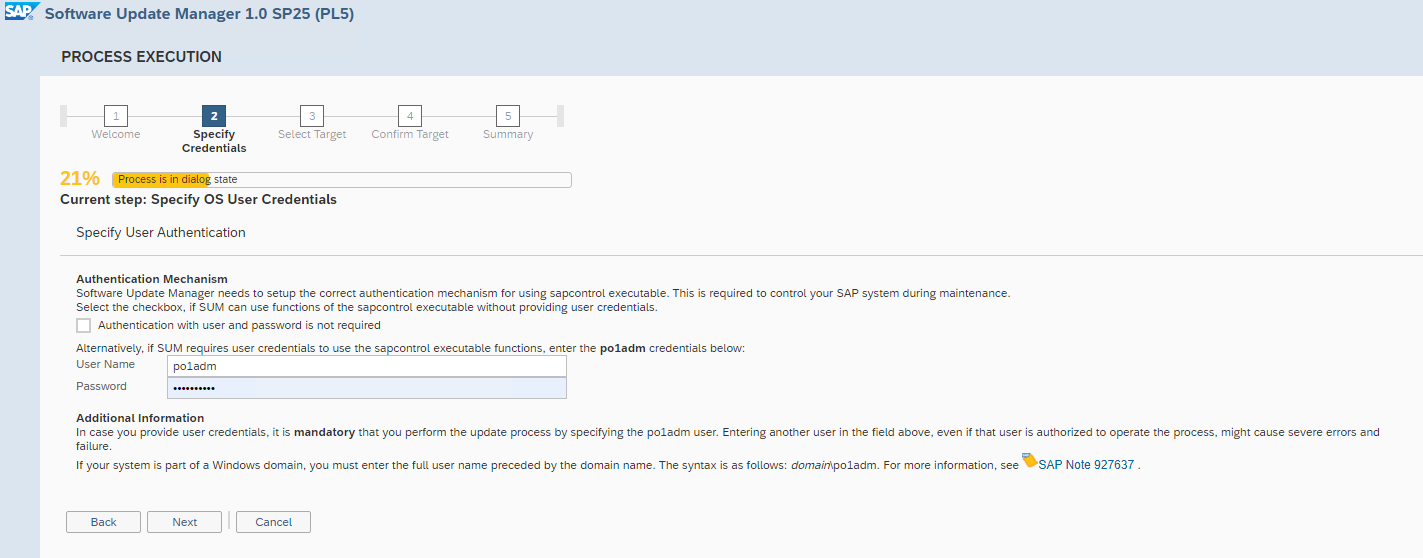
Locate the PowerConnect SCA file
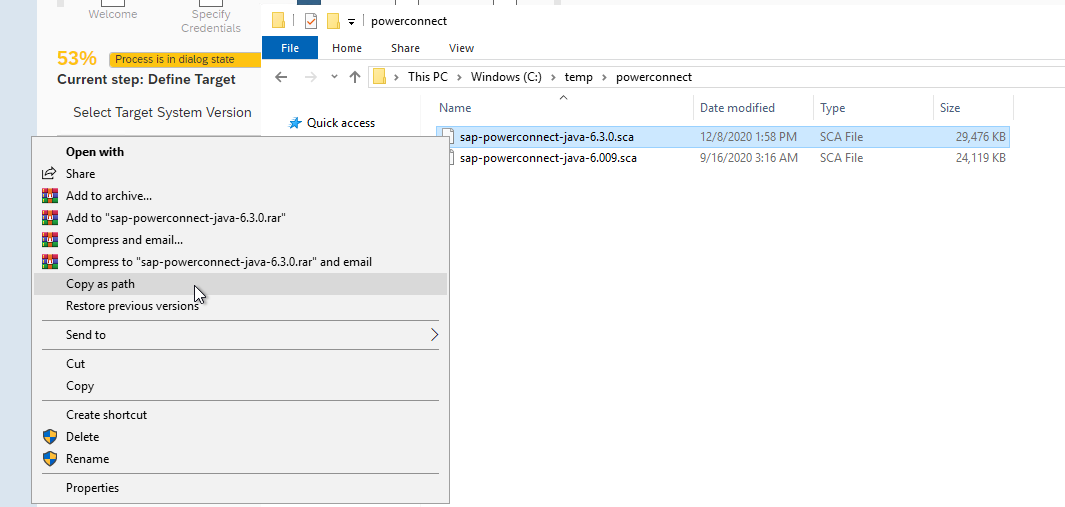
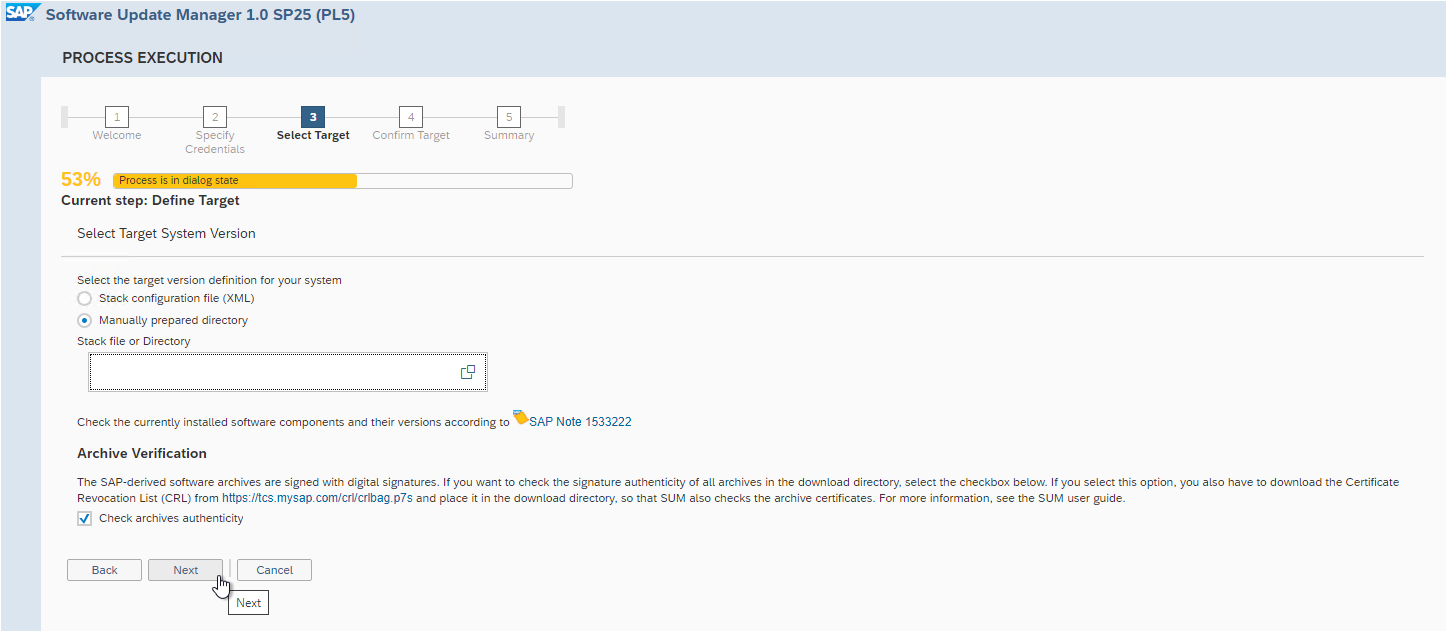
Provide the directory of the installation file
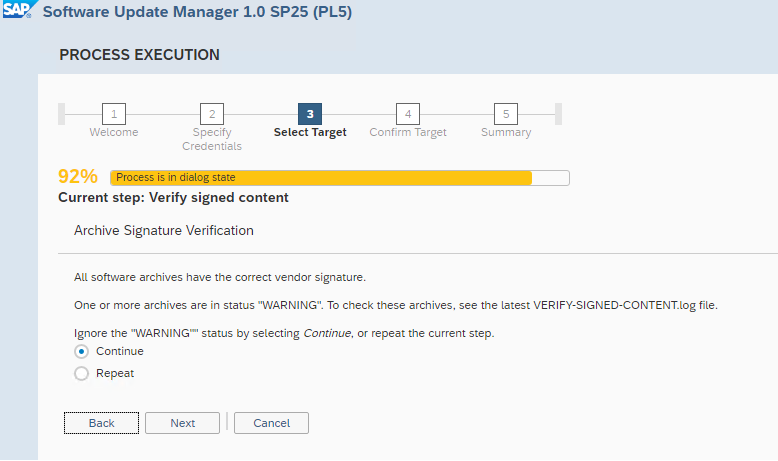
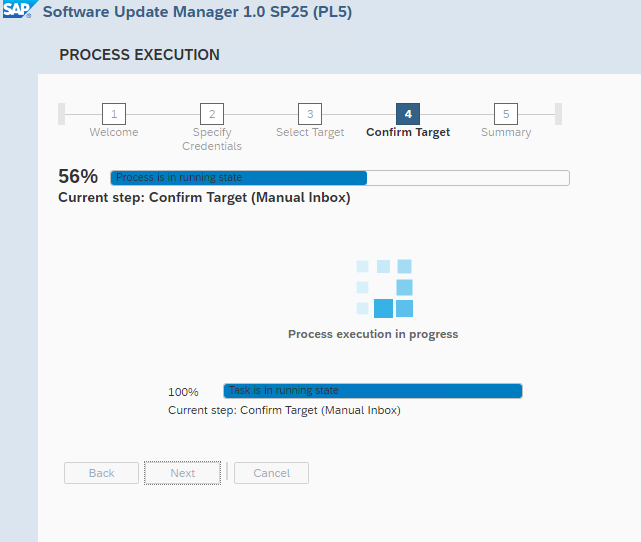
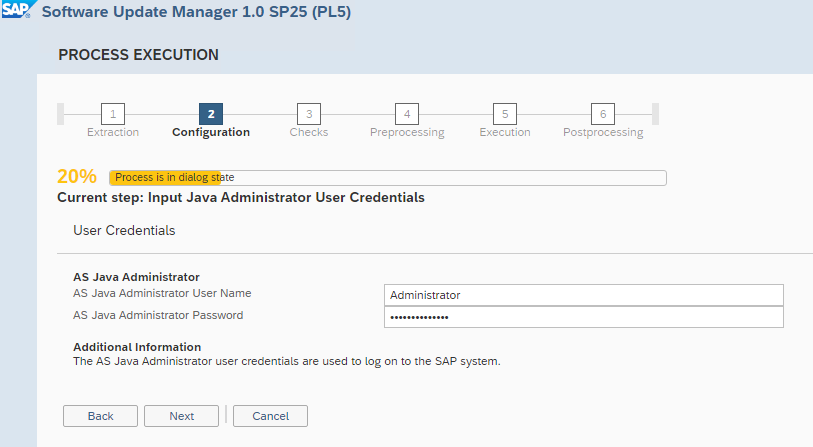
Enter J2EE administrator credentials
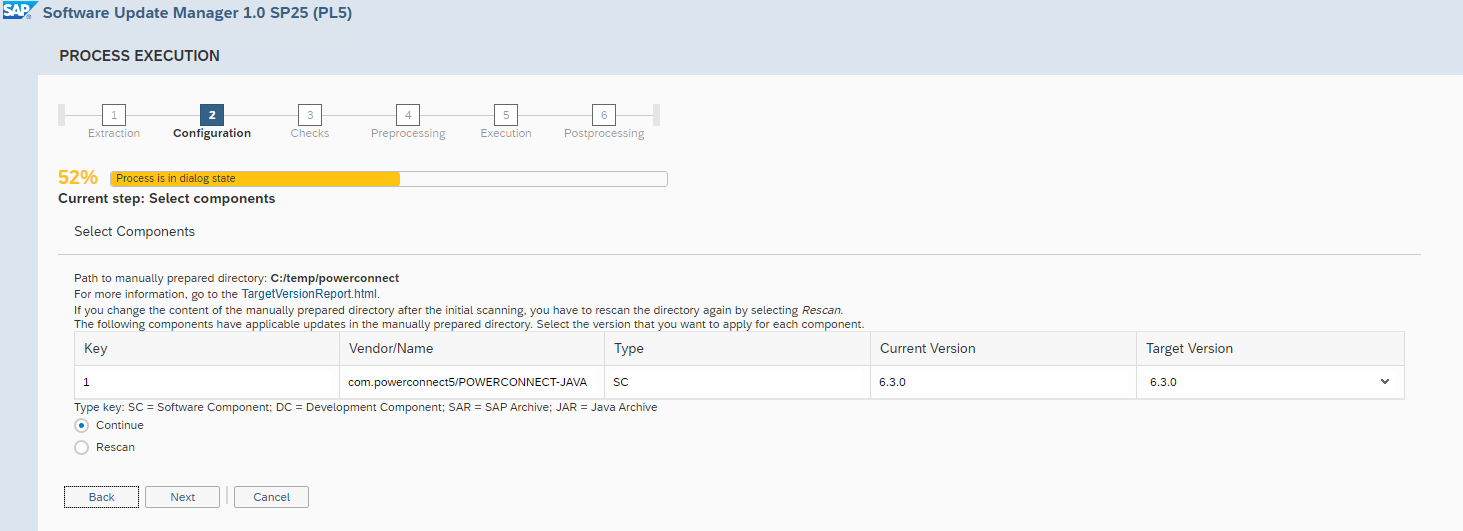
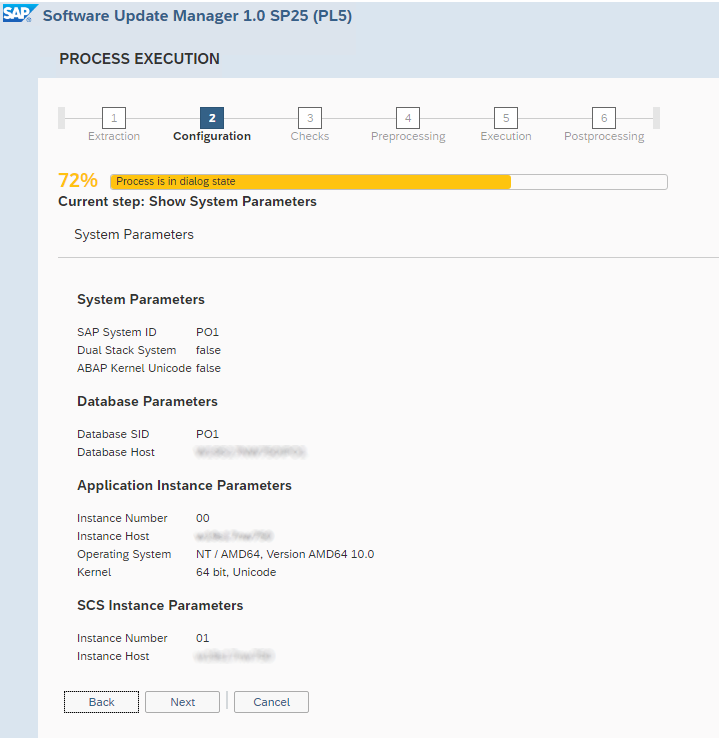
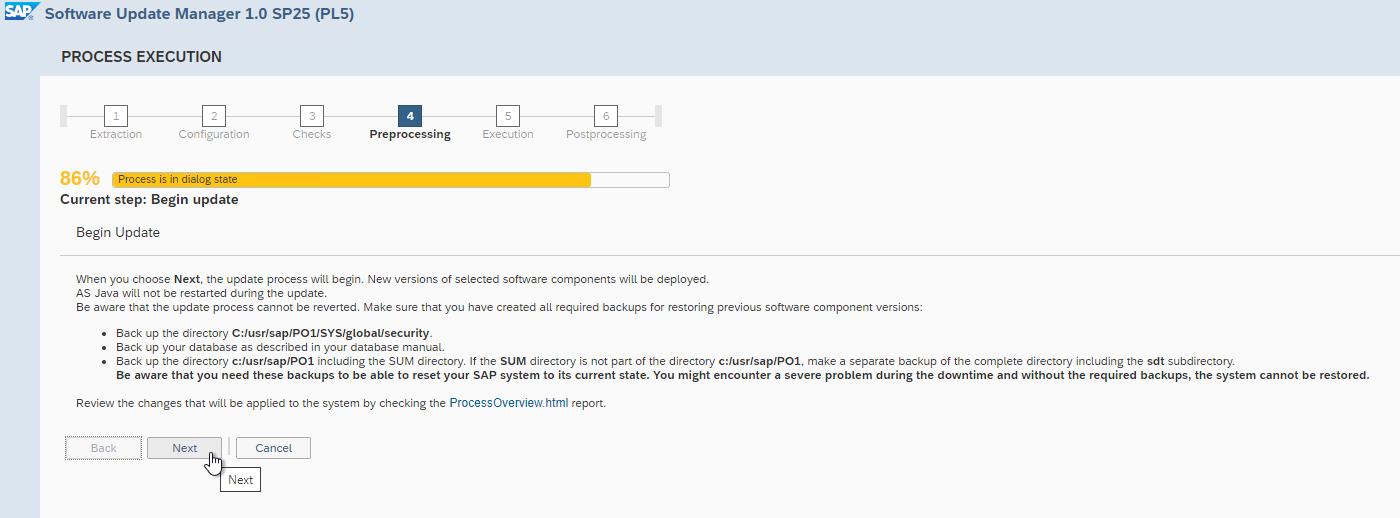
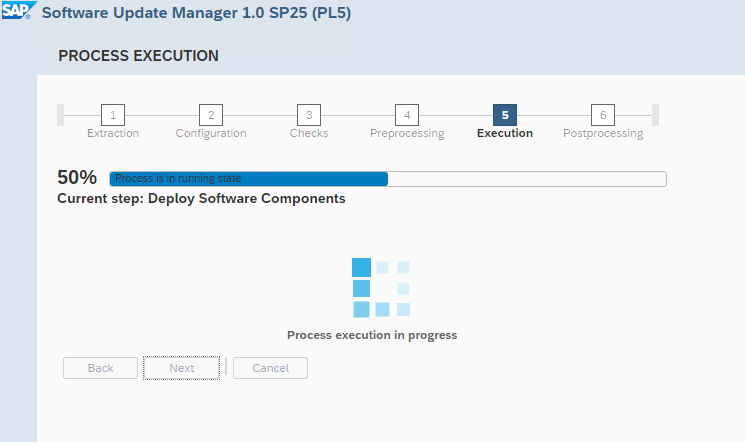
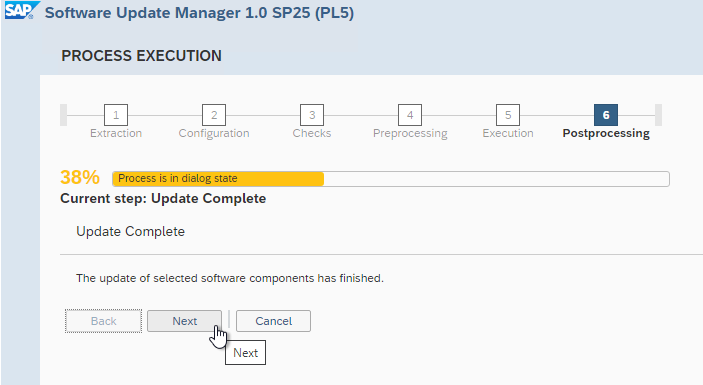
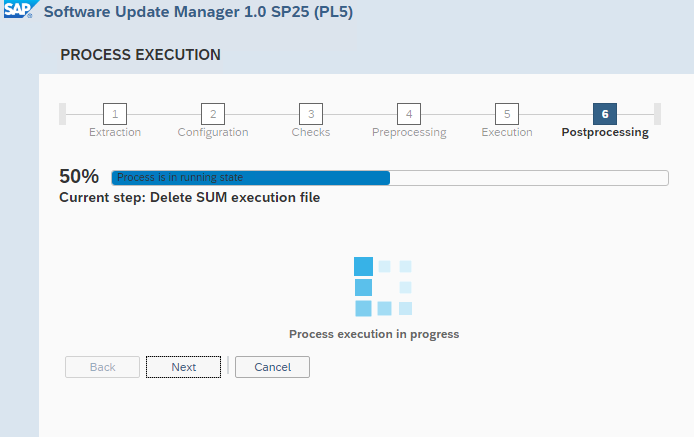
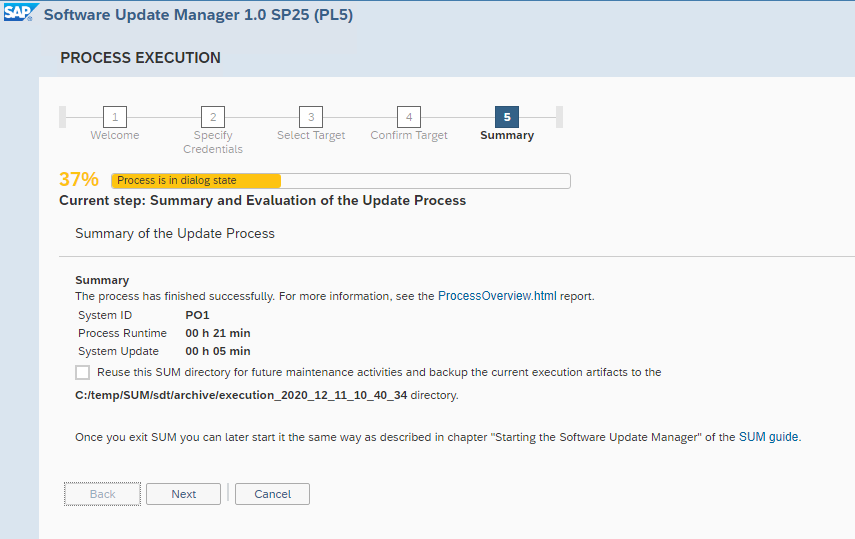
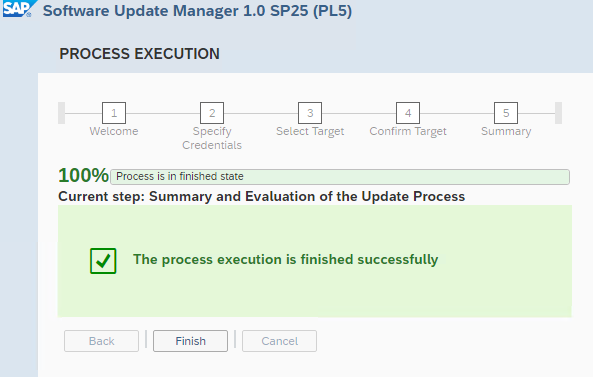
The PowerConnect Java agent is successfully installed. If it fails for any reason send the SUM logs to your PowerConnect reseller or try to perform the installation using Telnet.
If the installation succeeded, however, next step would be to configure roles and users.