

This guide outlines the steps required to upgrade PowerConnect Java agent to a later version.
Known Issues
|
Issue |
KB Article |
|---|---|
|
After upgrade PowerConnect UI shows “500 Internal Server Error” In the logs you see the text 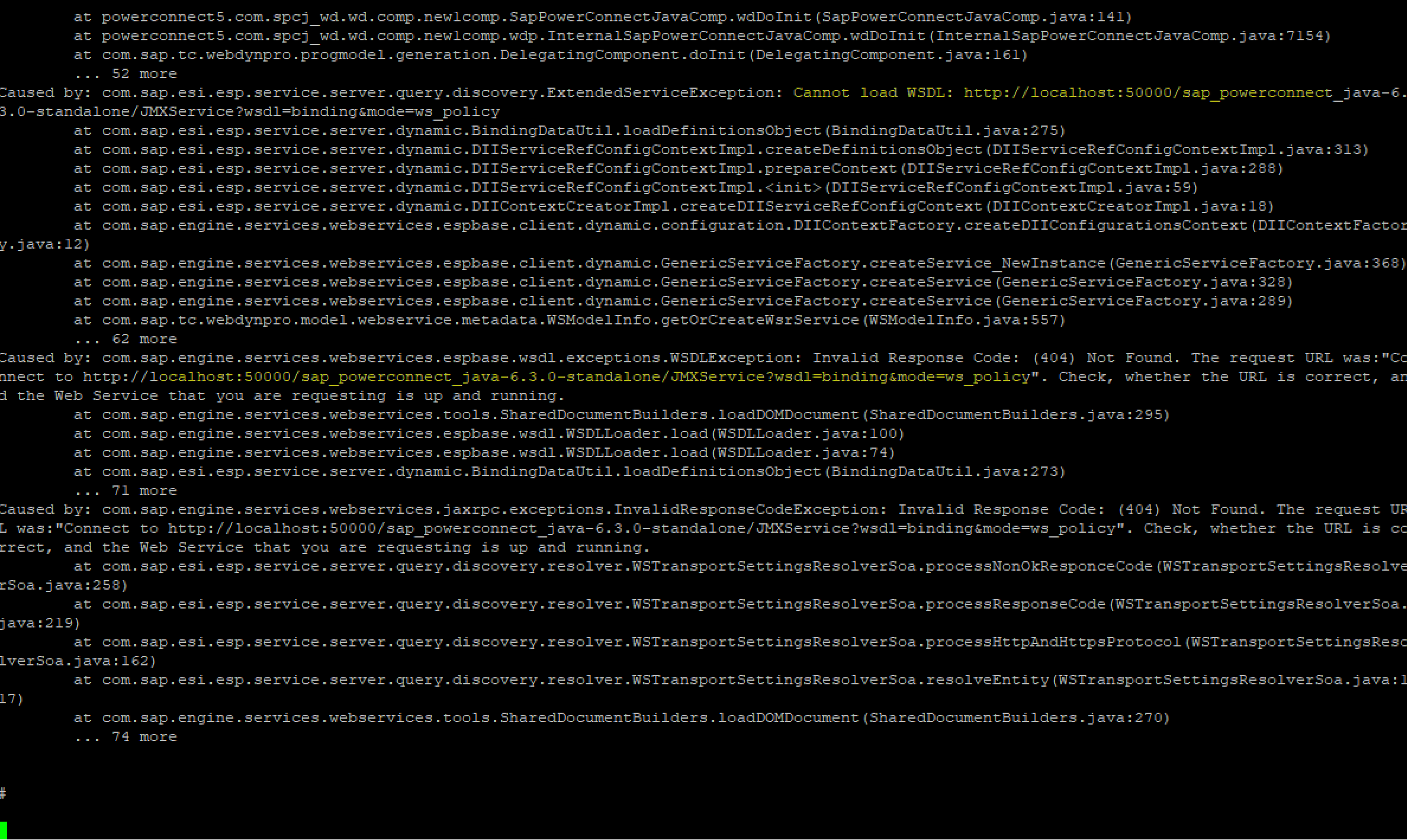
|
Issue is caused by caching of the ws policy in NetWeaver java engine. The ws cache needs to be flushed using this KB article below. This issue only occurs when using SUM to update the application, using telnet to deploy the application this issue does not occur. https://www.powerconnect.io/wiki/kb-079-ui-ws_policy-error-after-upgrade/ |
|
|
|
Steps
To upgrade the SAP PowerConnect Java agent perform the following steps.
Acquire the PowerConnect agent from file sap-powerconnect-java-X.X.sca. If you don’t have access to this file, connect with your reseller or PowerConnect support directly: .
Download the latest SUM and unpack it using SAPCAR to a directory on the SAP application server, in this example we have unpacked SUM to c:\temp\SUM.
Run STARTUP.BAT.
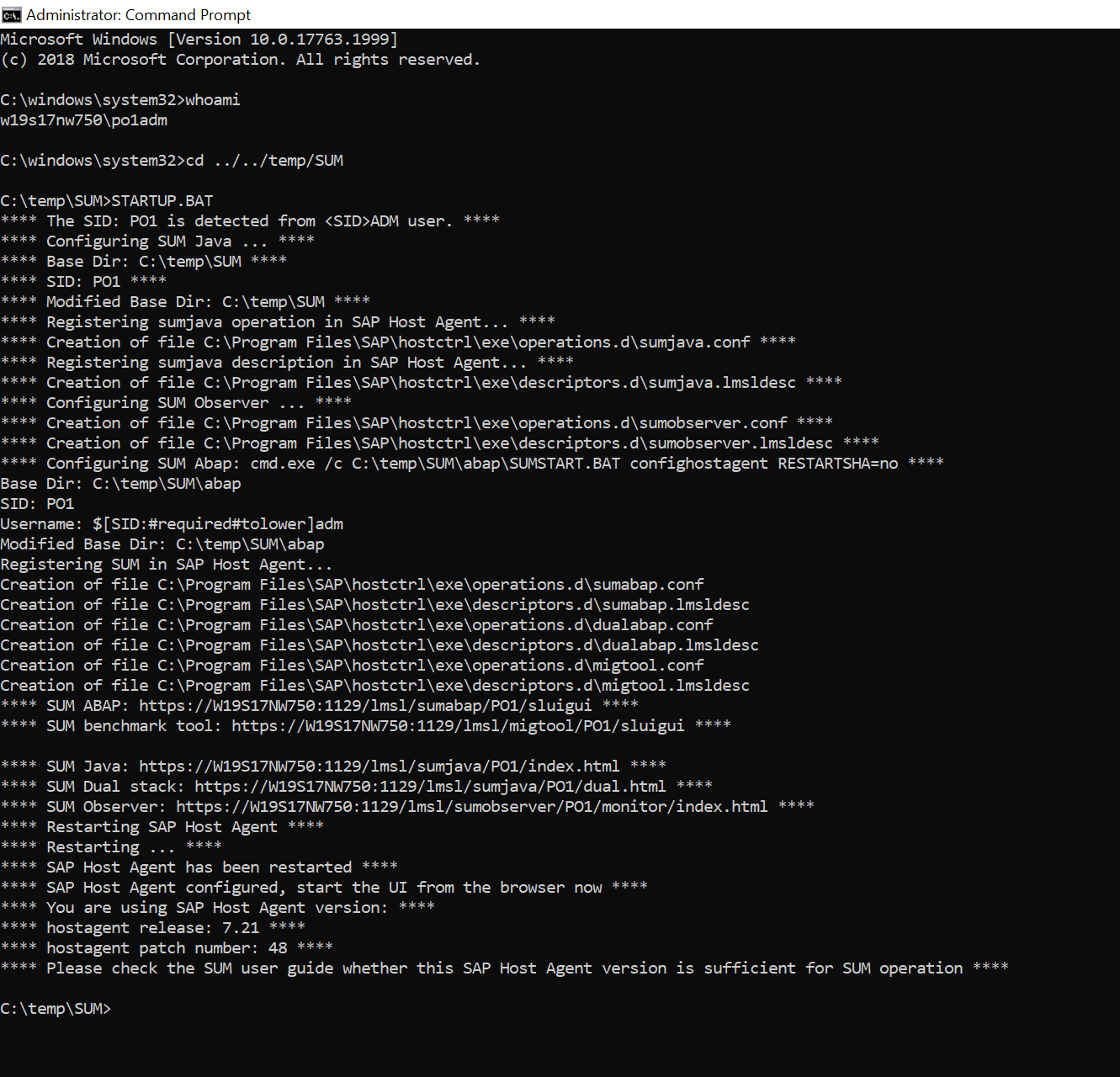
Open a browser and connect to the Java SUM control page: https://<host>:1129/lmsl/sumjava/<SID>/index.html.
In case you’re not using SSL, open http://<host>:1128/lmsl/sumjava/<SID>/index.html.
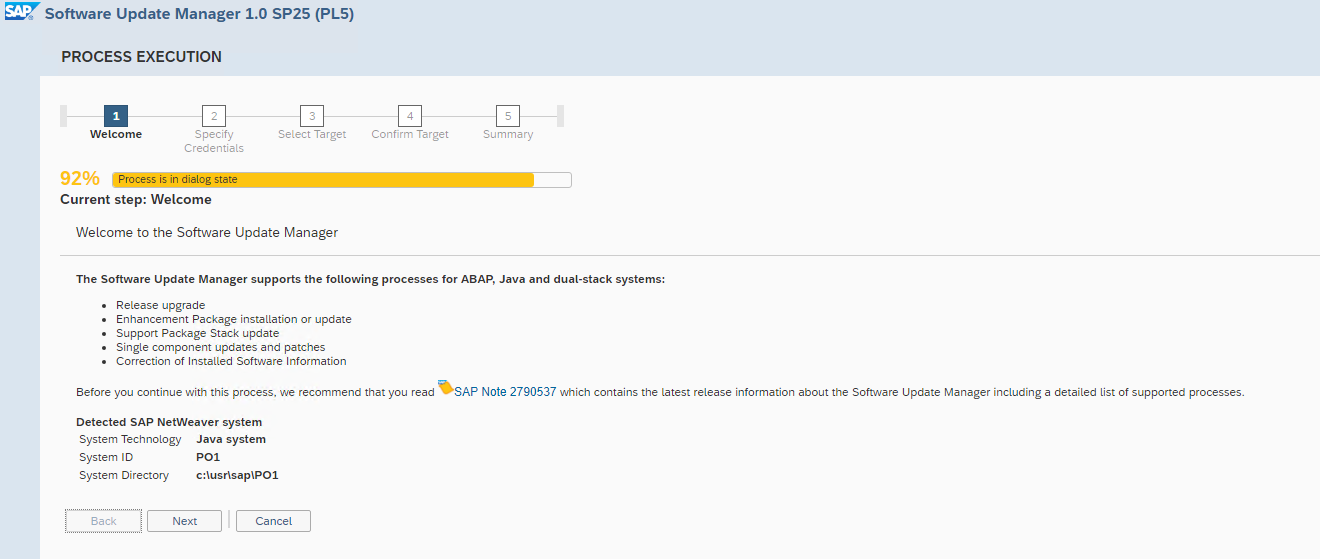
Click “Next”
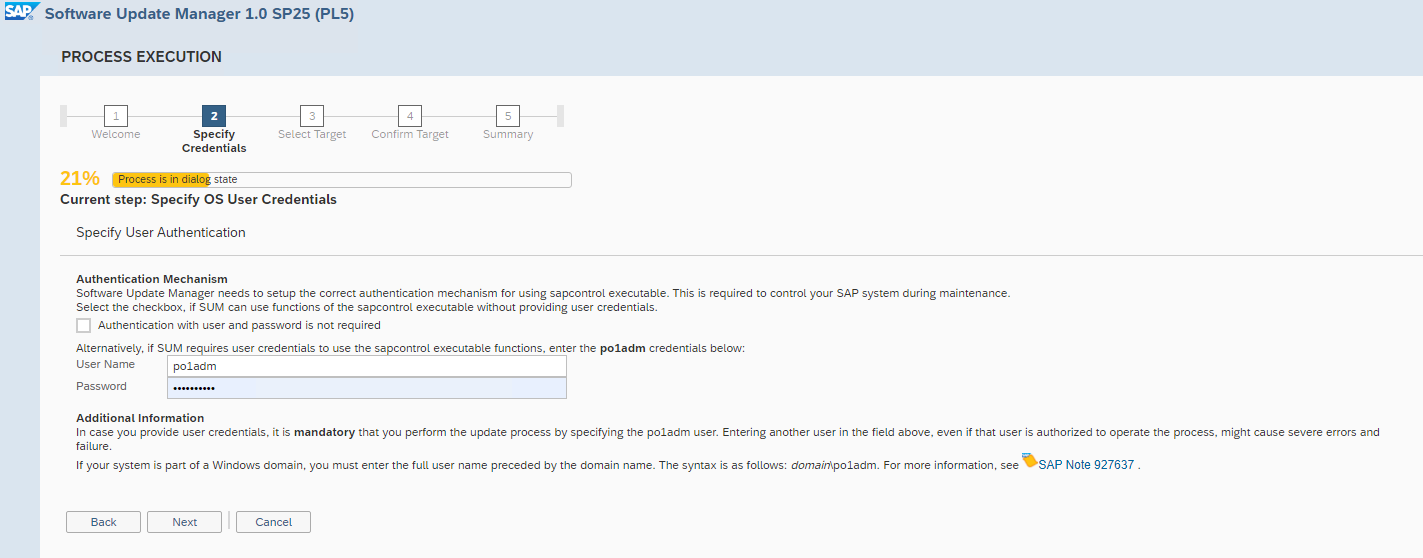
Enter <sid>adm credentials, and click “Next”
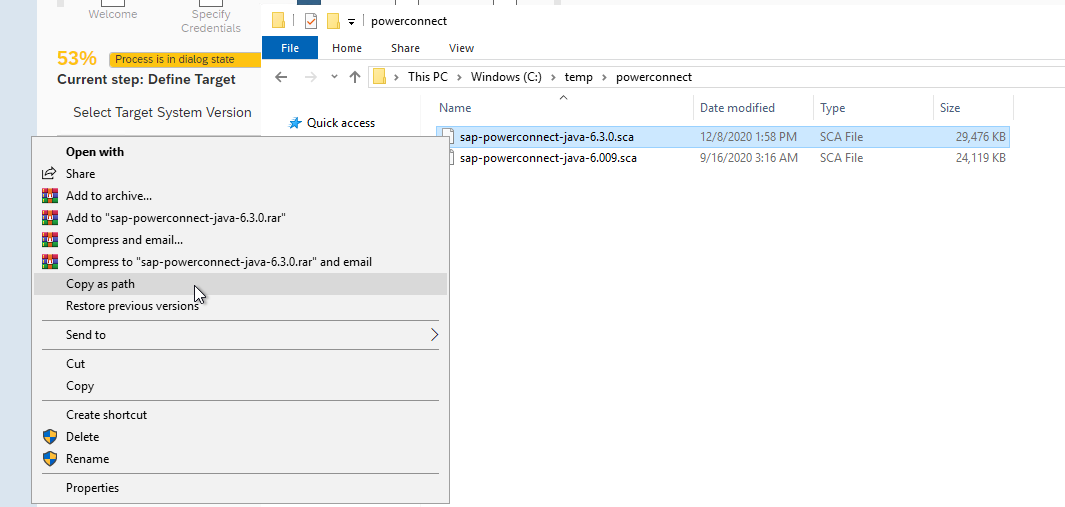
Locate the PowerConnect SCA file, and copy the location.
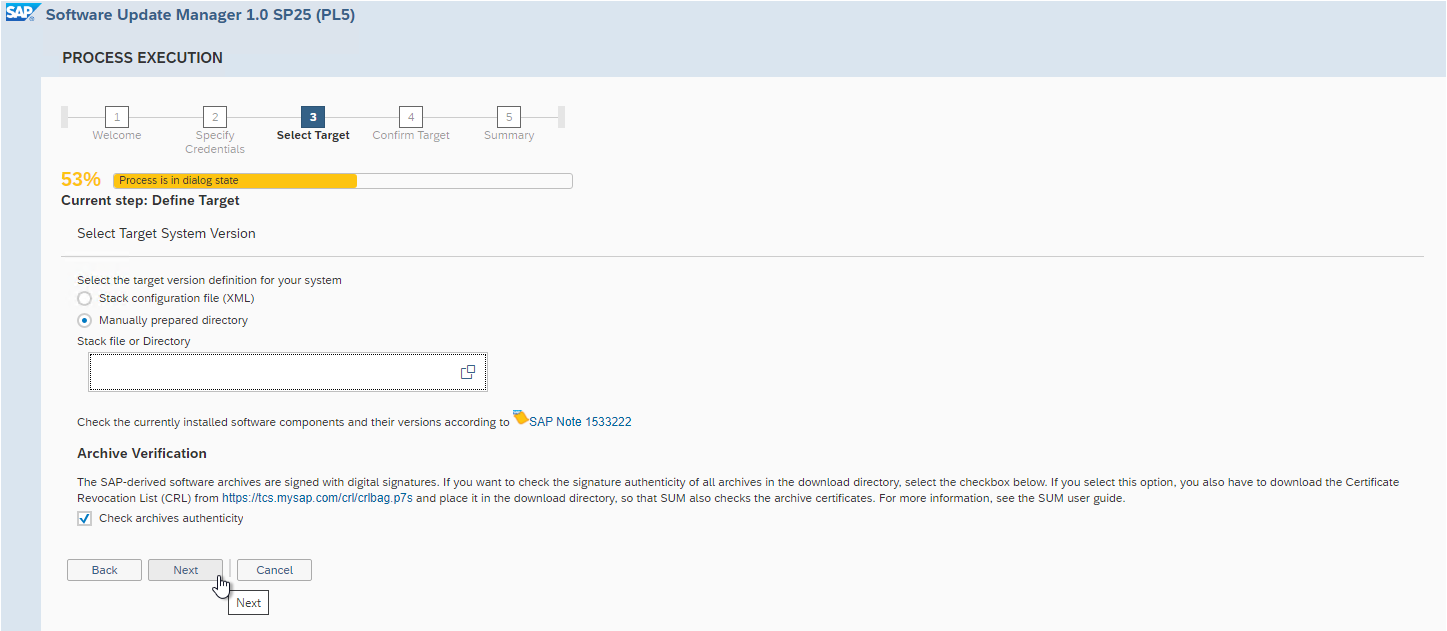
Provide the directory of the installation file, ensure the “Manually prepared directory” option is selected, and click “Next”
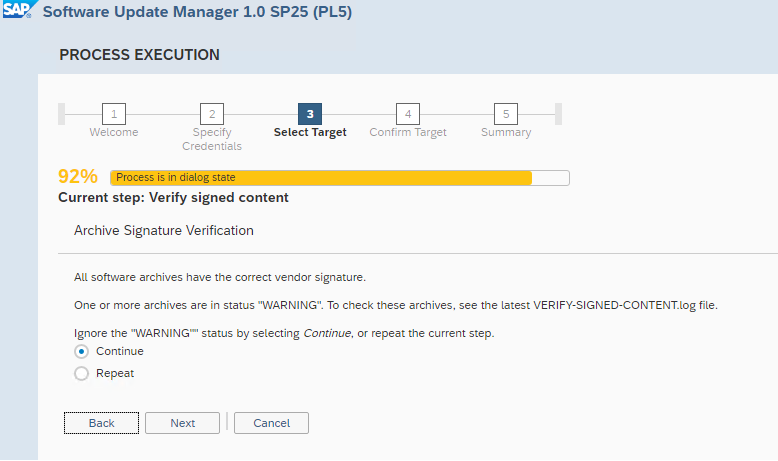
Confirm that “Continue” is selected, and then select “Next”
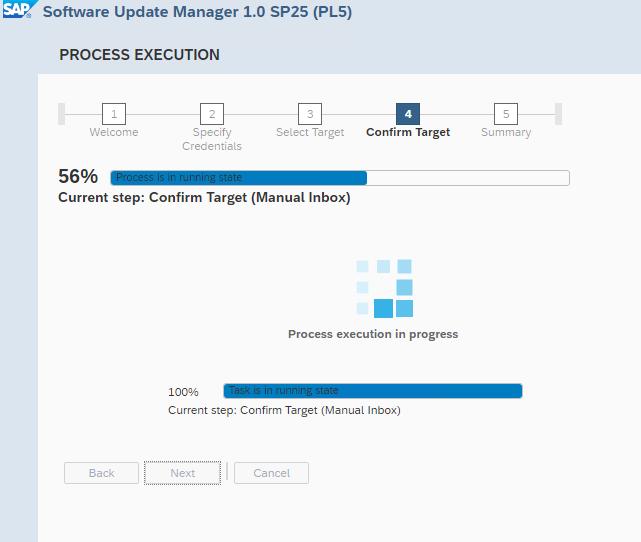
Select “Next”
Enter J2EE administrator credentials, and select “Next”
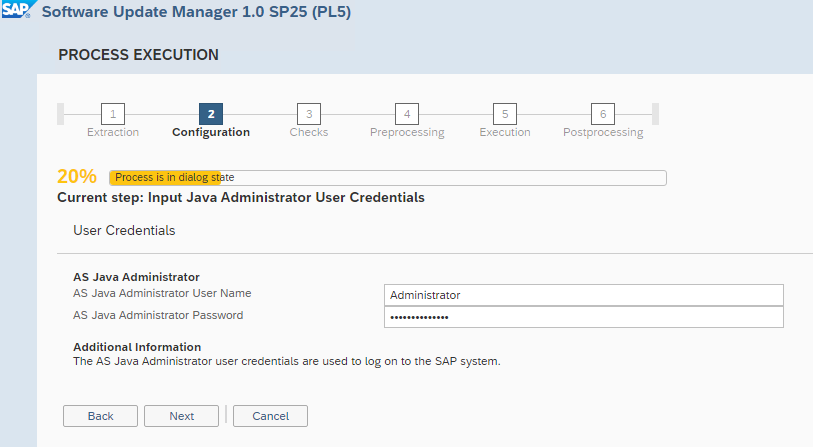
Ensure “Continue” is selected, and select “Next”
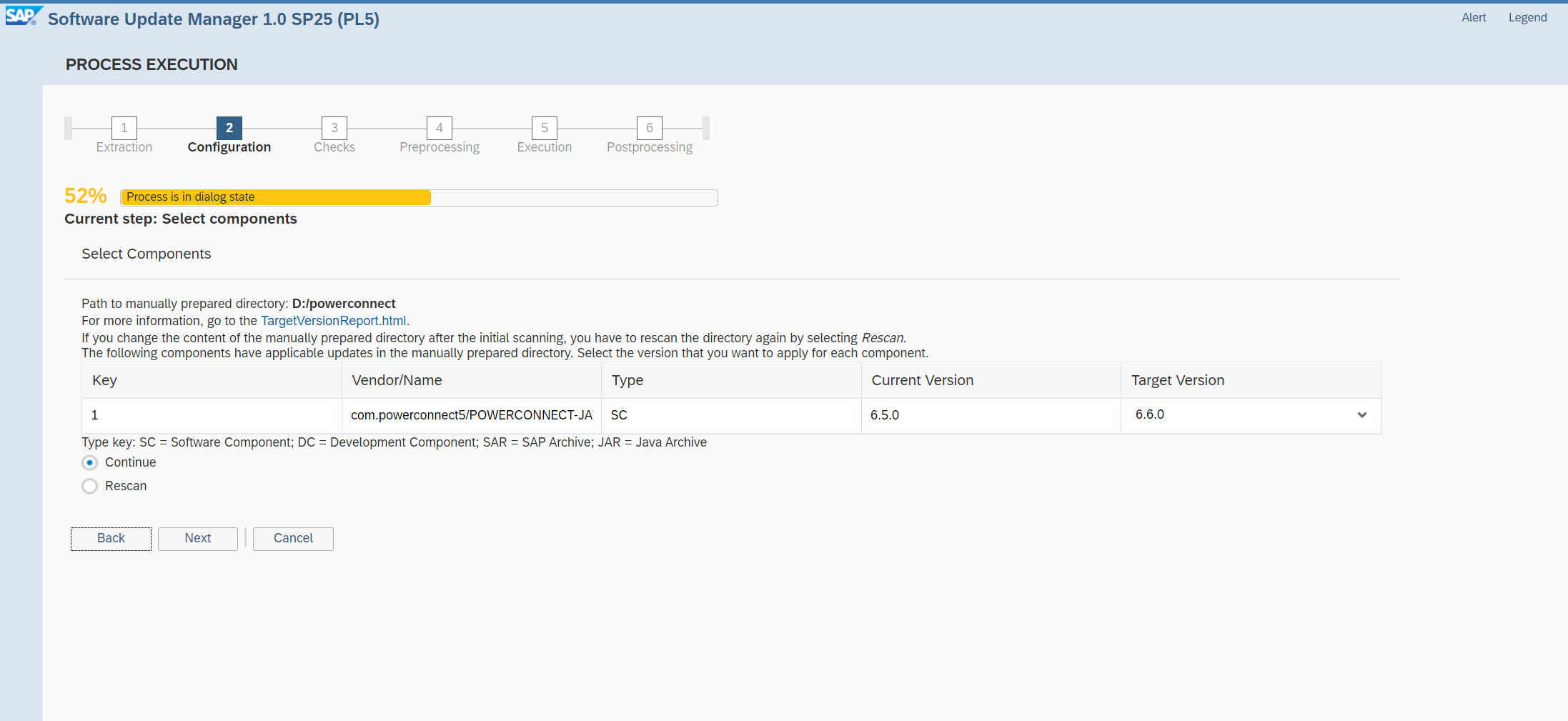
Select “Next”
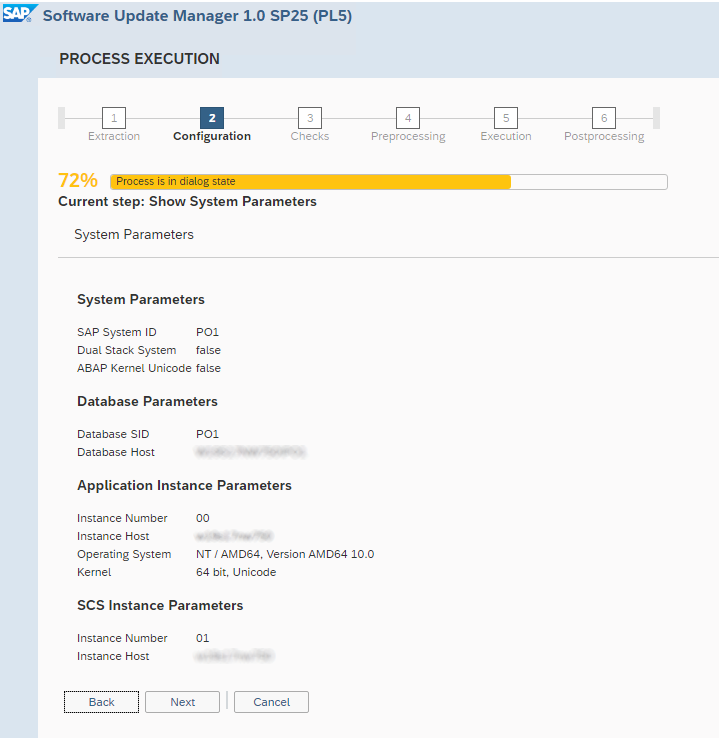
Select “Next”
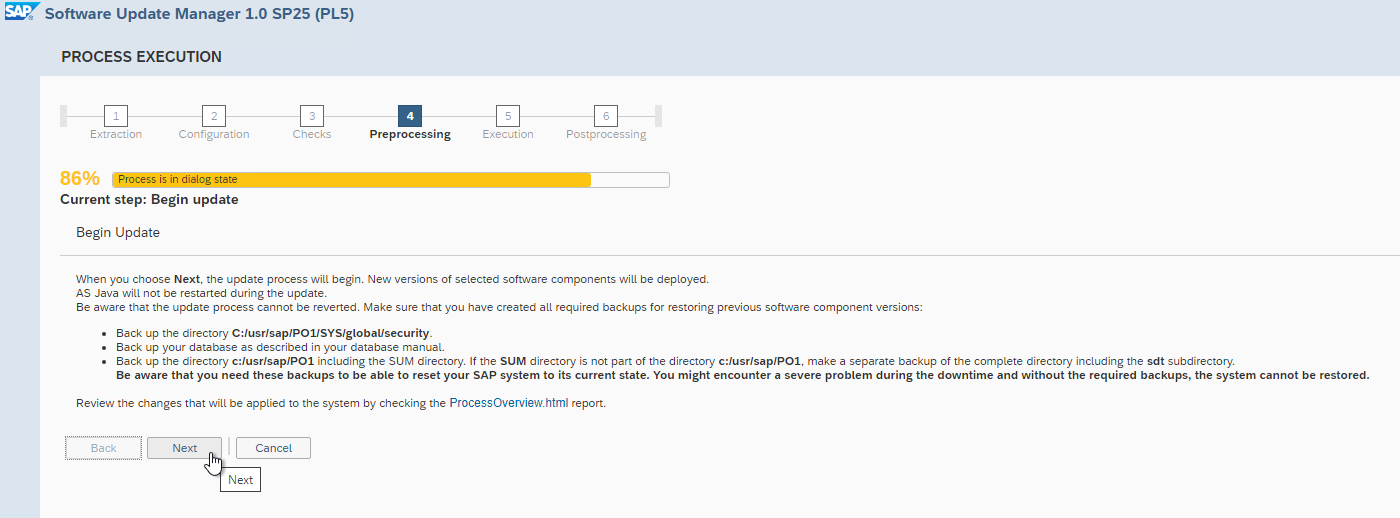
Select “Next”
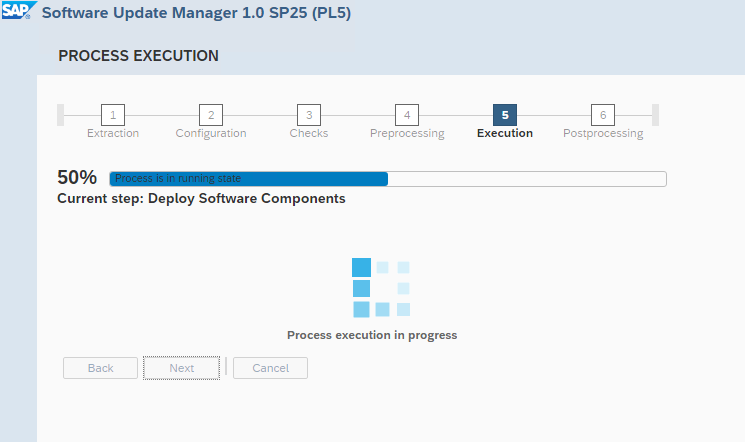
Select “Next”
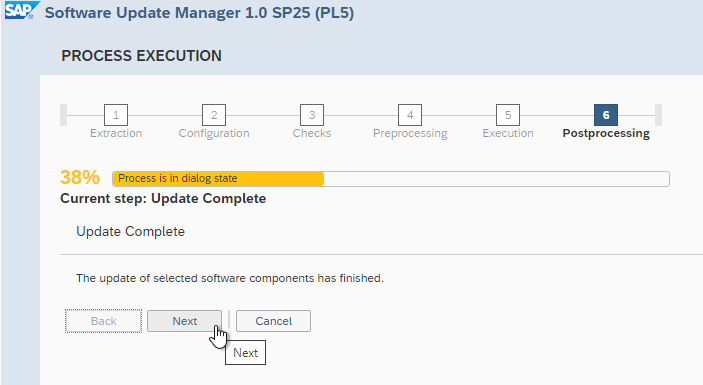
Select “Next”
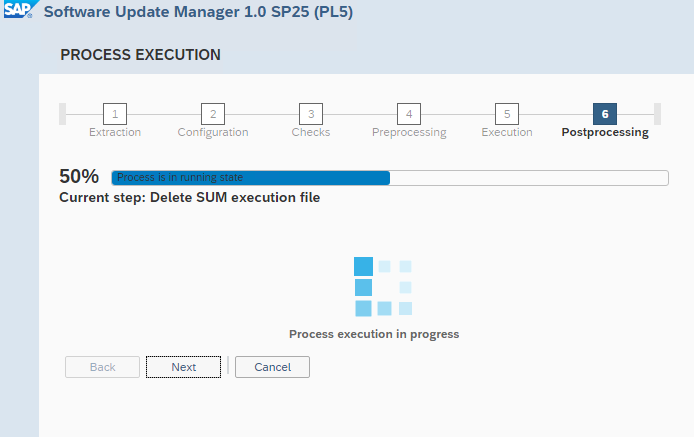
Select “Next”
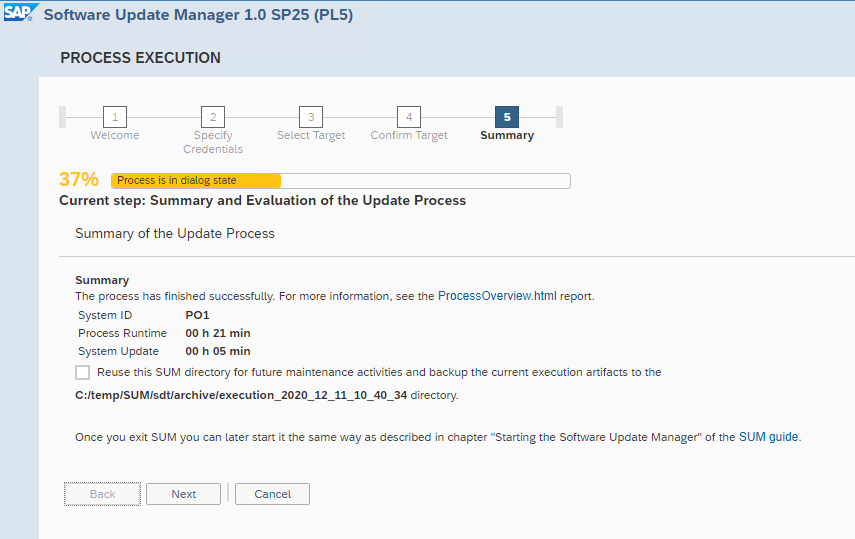
Select “Finish”
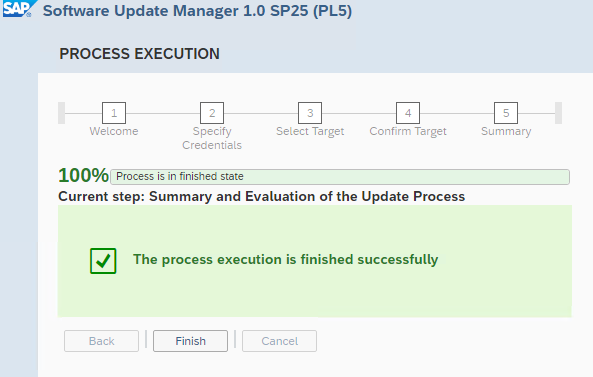
The PowerConnect Java agent has been successfully upgraded. If it fails for any reason please contact PowerConnect support.