

Overview
The SAP S/4HANA Cloud – Public Edition Audit Log Input collects system audit events from the SAP Audit Log Service, providing visibility into security-relevant activities across your cloud tenant. These logs capture authentication attempts, user activity, and internal system events, supporting security monitoring, forensic analysis, and compliance reporting.
This input is particularly valuable for tracking user logons, identifying support or system access, and correlating activity across time, systems, and users. By normalizing and enriching the logs, the data becomes ready for integration with the target SIEM or observability platform.
Data Collected
|
Field |
Description |
|---|---|
|
|
Audit event type (e.g. |
|
|
Timestamp of the event (in UTC). |
|
|
Client ID (Mandant) within the SAP system. |
|
|
System ID of the S/4HANA Cloud tenant. |
|
|
Internal counter (typically |
|
|
Terminal name or IP address where the event originated. |
|
|
Full name of the user performing the action (may include service user descriptions). |
|
|
Unique ID of the user. |
|
|
Alternate user alias, if available. |
|
|
User's email address (if provided in the audit log source). |
|
|
Additional user information, often used for service accounts or support roles. |
|
|
Parameters related to the action, often indicating logon type, method, or client context. |
|
|
Program or transaction name that triggered the event (e.g., |
|
|
Transaction code or log group classification, if available. |
|
|
Human-readable description of the event (e.g., “Logon successful (type = B, method = A)”). |
Configuration
Importing the Client Certificate
-
Login to the PowerConnect Cloud web UI
-
Click on the Configuration tab
-
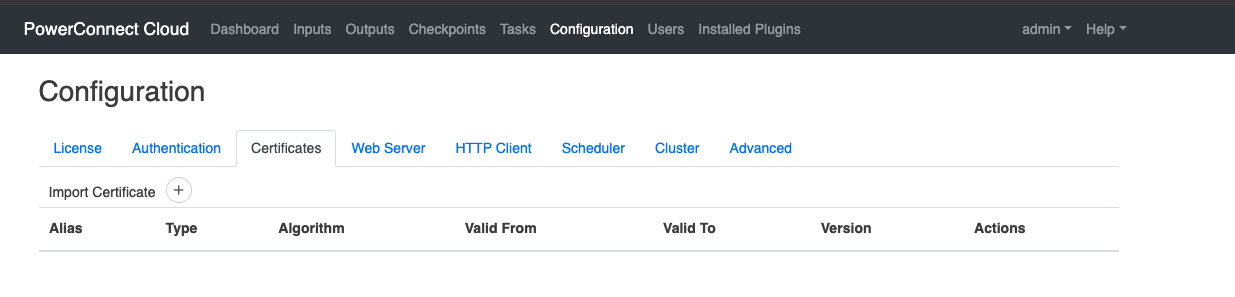
Click Certificates then Import Certificate
-
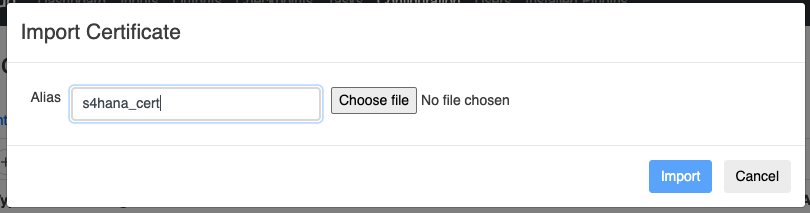
Enter an alias name then click Choose file and upload the client certificate file
-
Click Import
-
The certificate is now imported and ready to use
Adding an Audit Log Input to PowerConnect Cloud
-
Login to the PowerConnect Cloud web UI
-
-
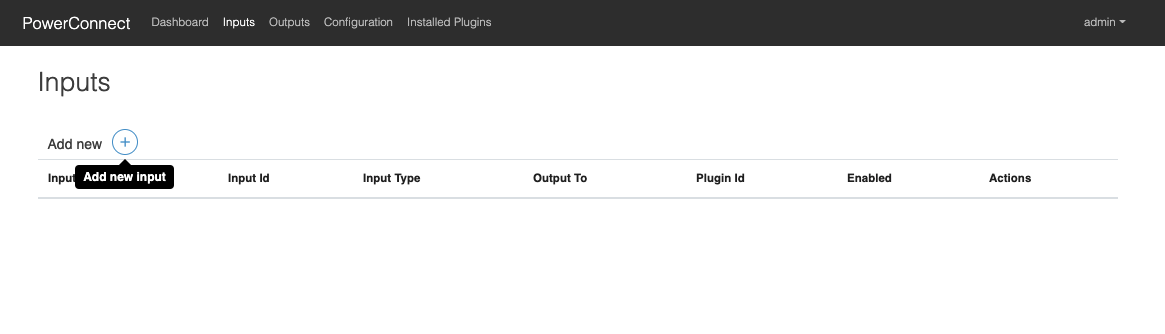
Click on the Inputs link in the menu bar
-
Click the + button to add a new Input
-
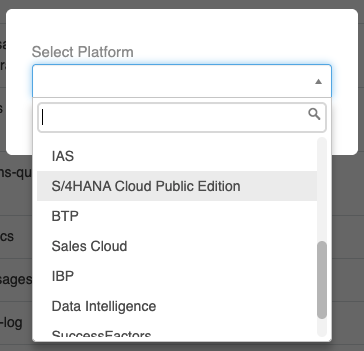
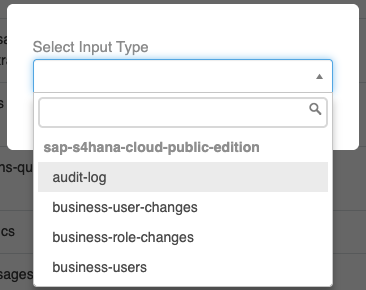
Under Platform choose S/4HANA Cloud Public Edition
-
Then choose audit-log
-
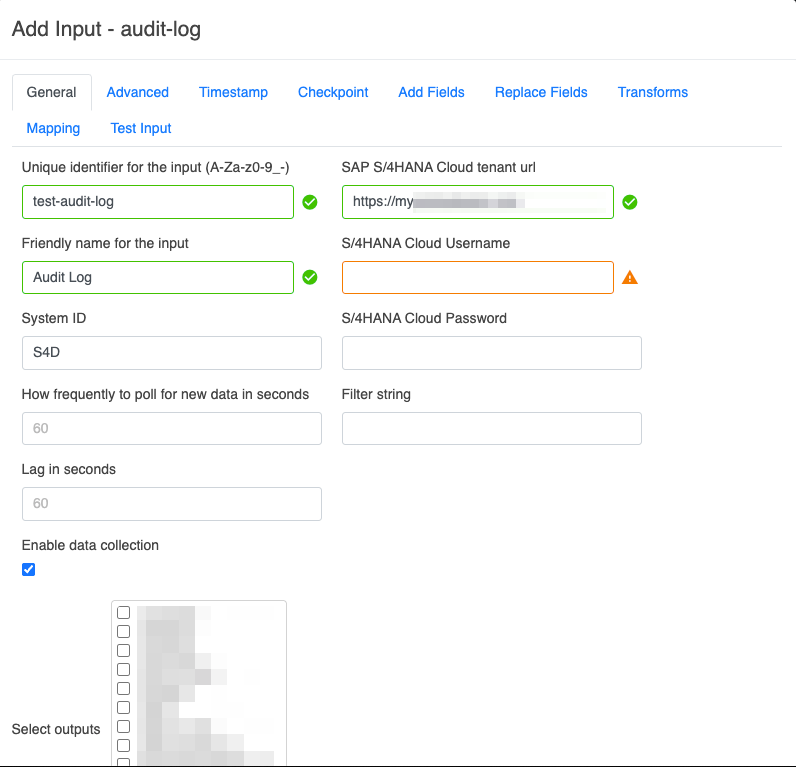
Fill in the details previously obtained from creating the API user
-
Choose the output for the target platform
-
The input is now created