

Overview
The PowerConnect Cloud agent can be run in a cluster. Hazelcast is used as the clustering technology. The agents in a cluster communicate and share configuration and scheduling information through a distributed shared memory grid. If an agent in the cluster becomes unavailable due to a failure or planned downtime, other agents in the cluster can assume the workload and continue to collect and process existing events and metrics.
Clustering the PowerConnect Cloud agent allows for:
-
High availability - if one of the PowerConnect Cloud agents fails, the others in the cluster can continue to collect and process events and metrics
-
Scalability - the PowerConnect Cloud agents in the cluster can share the workload to allow for high volume event and metric collection
Network Requirements
-
Allow inbound TCP 5701 on each PowerConnect agent host from the other agent hosts only. Every node both connects to and accepts connections from the others, so open it in both directions. Block it from everywhere else. No other ports are needed for clustering.
Configuration
To configure the PowerConnect Cloud agent as part of a cluster do the following:
-
Install the PowerConnect Cloud Agent as per the installation instructions
-
On each host where the PowerConnect Cloud agent is installed:
-
Set the environment variable POWERCONNECT_MEMBERS to a comma separated list of ip addresses and ports where the PowerConnect Agents will/are running. For example if you have two PowerConnect Cloud agents running on hosts with ip addresses 192.168.1.20 and 192.168.1.21 and port 5701 you would set the POWERCONNECT_MEMBERS variable as follows:
export POWERCONNECT_MEMBERS=192.168.1.20:5701,192.168.1.21:5701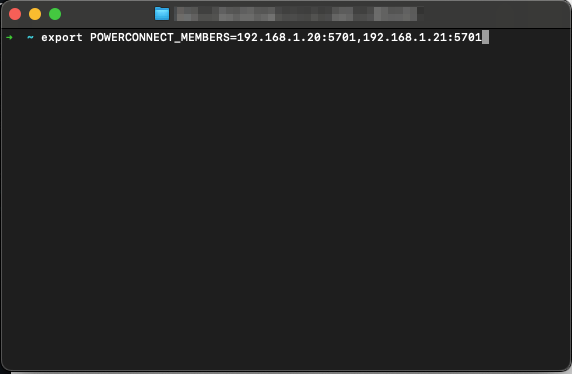
-
Optionally set the CIDR_BLOCK (supported on 9.2.1 onwards) environment variable to the network the cluster nodes use to reach each other. When set, PowerConnect listens for cluster traffic only on the network interface whose address matches it. When not set, it listens on all interfaces. Use a single IPv4 address pattern, with * as a wildcard or - for a range in any part of the address:
-
|
Example |
Matches |
|---|---|
|
|
10.130.0.0 - 10.130.0.255 |
|
|
10.130.0.0 - 10.130.255.255 |
|
|
10.130.0.10 - 10.130.0.20 |
-
-
CIDR notation (10.130.0.0/20) and comma-separated lists are not supported. If no interface on the host matches, PowerConnect will not start. The addresses in POWERCONNECT_MEMBERS should be in the same network, for example:
CIDR_BLOCK=10.130.0.*
POWERCONNECT_MEMBERS=10.130.0.2,10.130.0.3 -
Ensure the that POWERCONNECT_SECRET variable value is the same on each member
-
Restart the PowerConnect Cloud Agent on each host:
/opt/powerconnect/bin/powerconnect.sh restart -
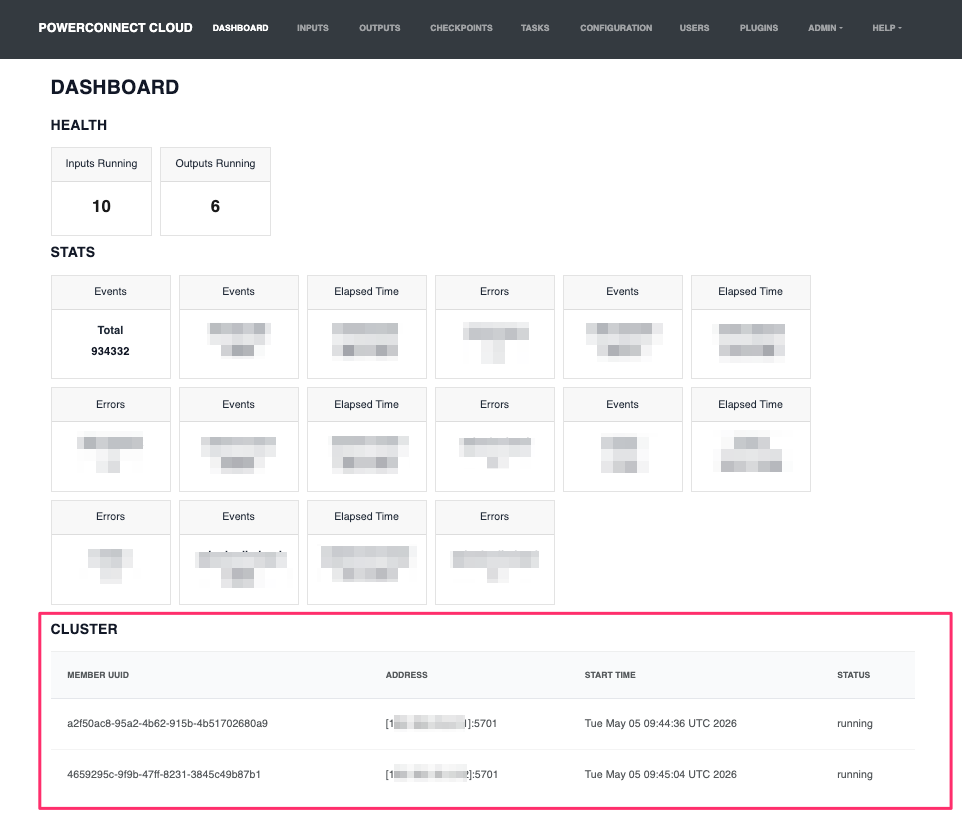
Login to the PowerConnect Cloud Agent web UI and you will see each member of the cluster in the Dashboard under the Cluster section e.g:
-
-
The first PowerConnect Cloud Agent to start (i.e. the oldest) is the primary cluster member. All members will sync their configuration from this host.
-
If the primary node goes down, another member in the cluster will take over the role