

To be able to send the HANA Audit logs to splunk, you need to first enable the auditing by following the steps below:
-
Ensure that the user SAPABAP1 has the AUDIT READ system privilage
-
In the SAP HANA Studio expand the system on which you would like to enable auditing
-
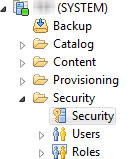
Expand the ‘Security’ folder
-
Double click on ‘Security' option
-
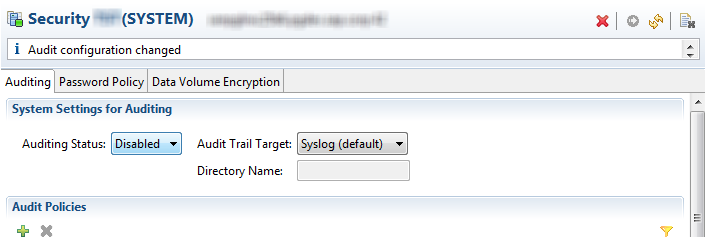
Click on the Auditing Status drop down menu; by default it will be ‘Disabled.’
-
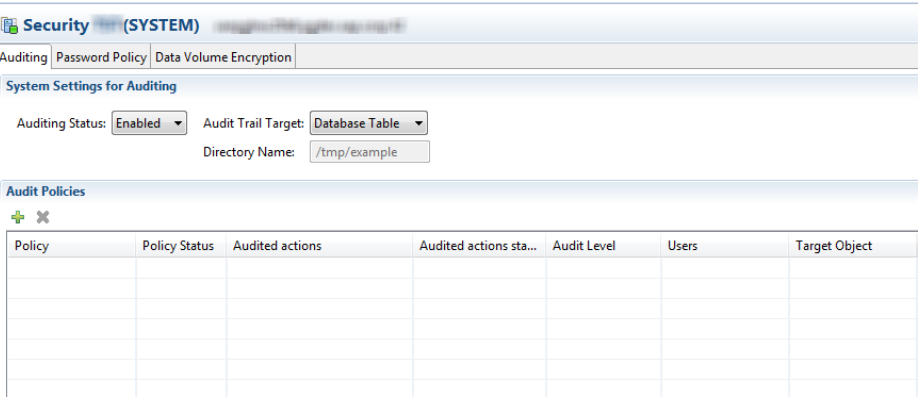
Select ‘Enabled.’
-
Ensure that the “Audit Trail Target” is set to “Database Table“ and hit “Deploy”
-
Create the necessary Audit policy. This is the data that will eventually be splunked
Once these changes are done, login to the SAP system and ensure that the metric HDB_DBCC_AUDIT is enabled by following the steps below:
-
Goto /n/bnwvs/main transaction
-
Choose Adminsitrator → Setup Group Def from the menu
-
Ensure that the extractor is stopped and hit enter on the key board
-
Ensure that the checkmark in the column “Active” is selected for Group Definition ”HDB_DBCC_AUDIT”

With these actions you will see that HANA audit information in Splunk and ensure that the data is onboarded by running the SPL “EVENTYPE :: HDB_DBCC_AUDIT“ in Splunk.