

KB 89 (Splunk): Splunk KV Extraction Limit
|
Category: Information |
Priority: Normal |
|---|---|
|
Platform: Splunk |
Version: 1 from 23.03.2021 |
Description
If the data in your Splunk instance may have an event size greater than 10240 characters then Splunk won’t auto-extract kv-pairs after 10240 characters. So there are two ways of overcoming this problem:
-
Using props.conf (Note: This method only works if you have data in the form of JSON)
-
Using limits.conf
Using props.conf
-
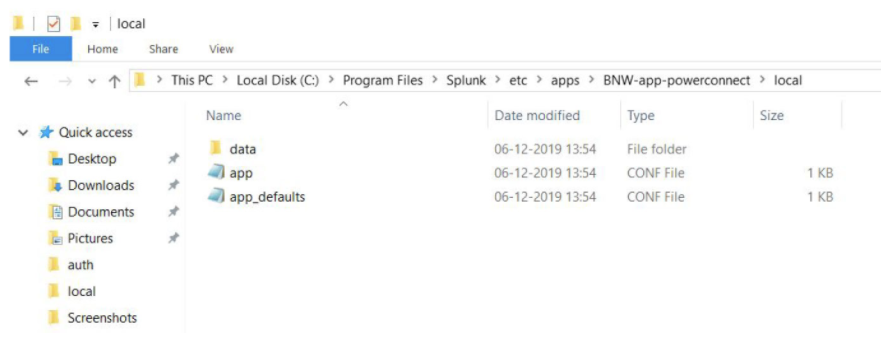
Go to $SPLUNK_HOME$/etc/apps/BNW-app-powerconnect/local/ directory.
-
If there exist a file named props.conf then edit and if it doesn’t exist create one.
-
There are two ways you can apply the settings:
-
For specific sourcetype or host or source (preferred way)
-
Globally apply settings
-
For a specific sourcetype. host, or source:
For a specific sourcetype:
Let’s say you want to apply for sourcetype=sap:java

For a specific source:
Let’s say you want to apply for source=N71

For a specific host:
Let’s say you want to apply for host=SAPN71D

Important Note: Restart Splunk for the changes to take effect
Globally apply settings:
Note: If there are same settings applied for any specific sourcetype, host or source then these settings won’t override them.
Add the following content to your props.conf file.
Important Note: Restart Splunk for the changes to take effect
Using limits.conf
-
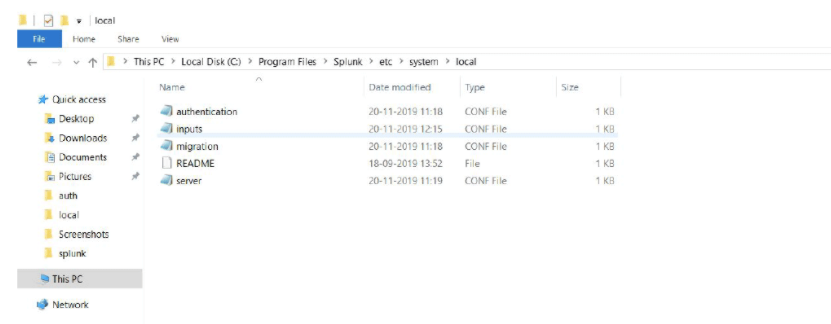
Go to $SPLUNK_HOME$/etc/system/local/ directory.
-
If there exist a file named limits.conf then edit and if it doesn’t exist create one.
-
Add the following content to the file:
Note: You can specify the character limit as per your requirement.

If the file already has [kv] stanza then just add the maxchars = 2500000 line in that stanza to increase the character limit to 2500000 characters.
Important Note: Restart Splunk to make these changes into effect.