

Create a role in Splunk that allows you to access the SAP-specific index previously created.
-
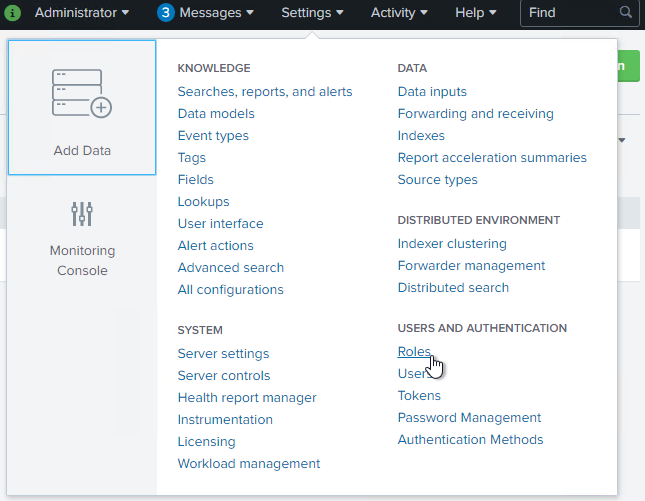
Click on “Settings” and on “Roles”.
-
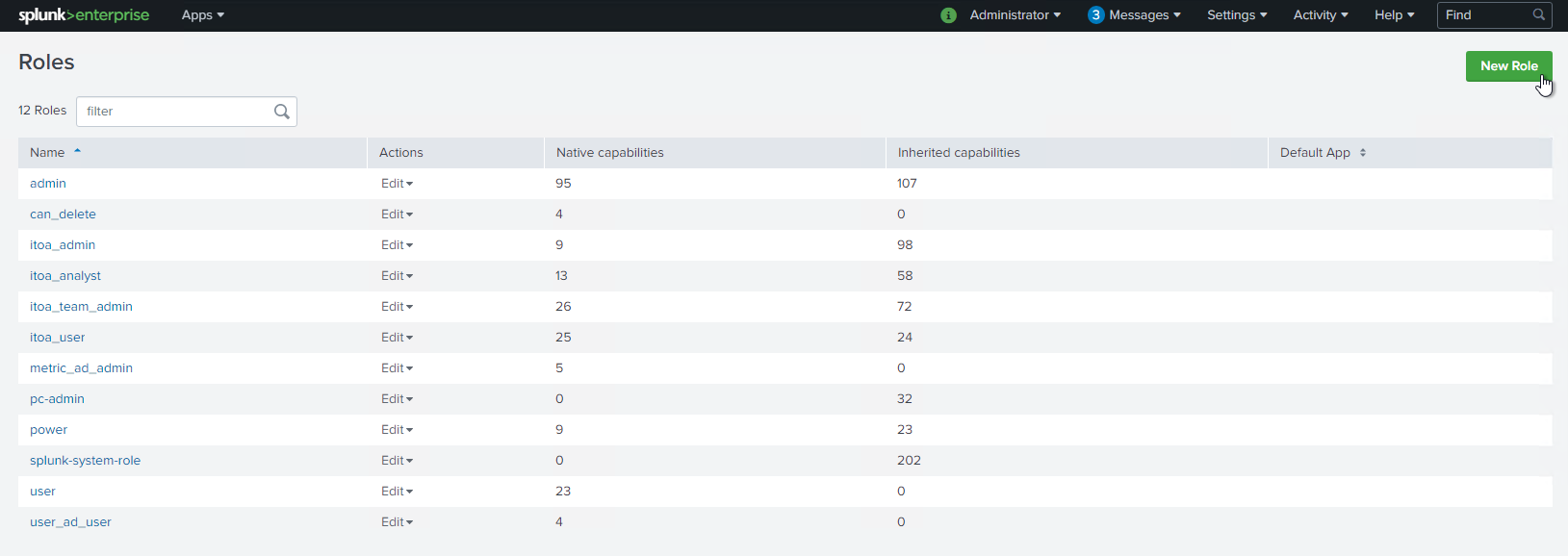
Create a new role by clicking on “New Role”.
-
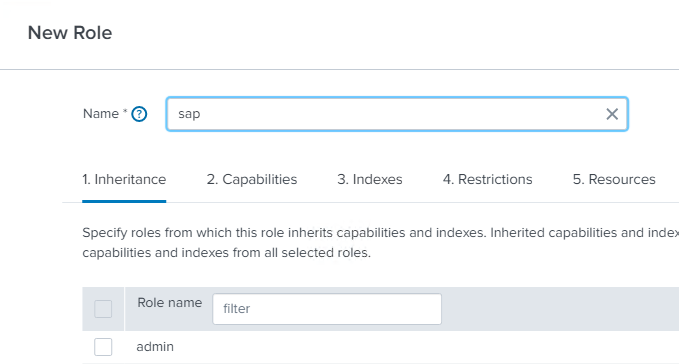
Provide a name that fits to its usage, in this case we chose “sap”.
-
In the following sections leave the default settings.
-
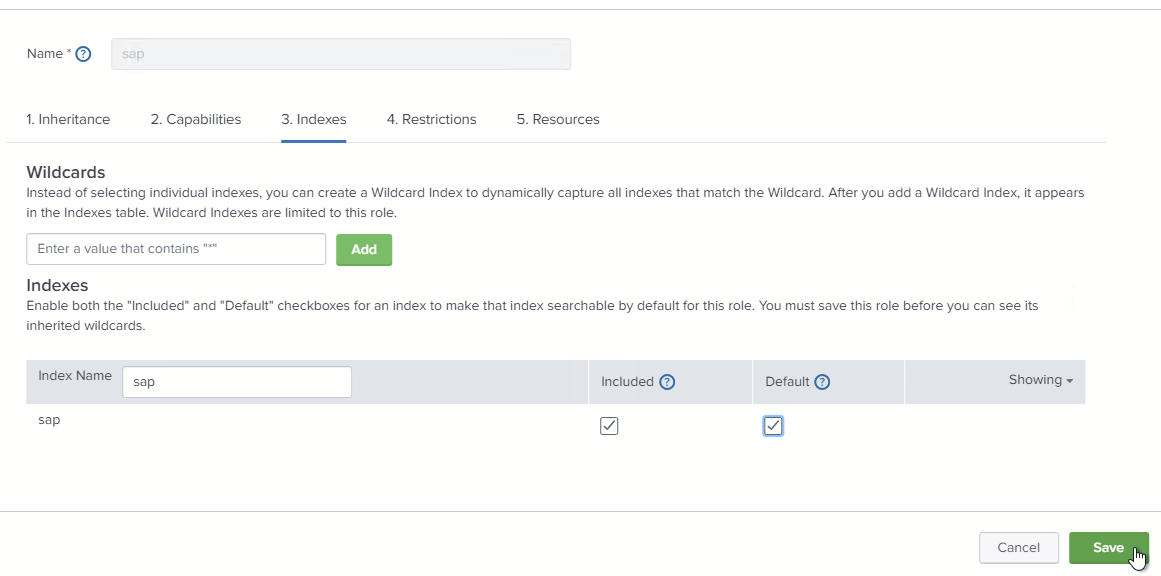
Assign the index created before.
-
Make the role “included” and “default”.
-
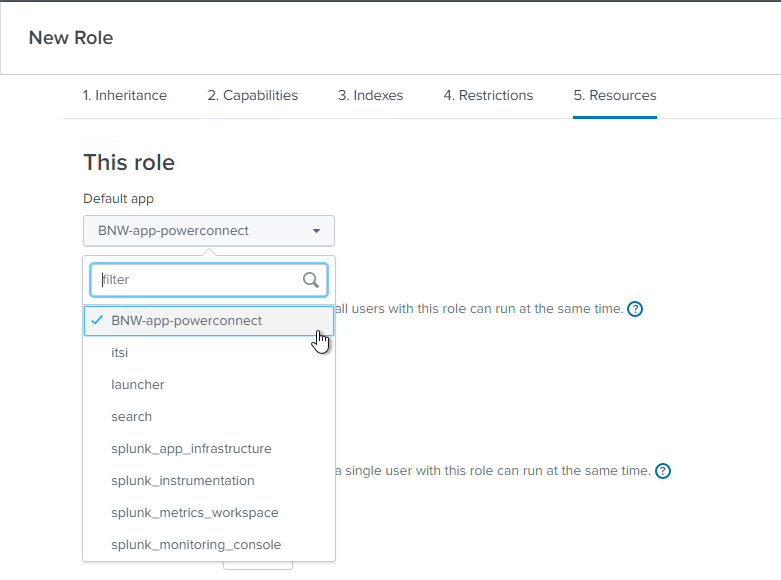
Assign the role to the PowerConnect App.
-
“Save” the role.
Next step would be to create an access user which makes use of the role created. If you already have a user that can inherit the role, you can skip this step and continue with installing the PowerConnect program in SAP AS ABAP or S/4HANA or SAP AS Java.