

PowerConnect’s Splunk app requires the following dedicated indexes:
-
At least one event index for log data
-
At least one metric index
-
One event index for summary data
To create an index…
-
Connect to Splunk management interface using an administrator account.
-
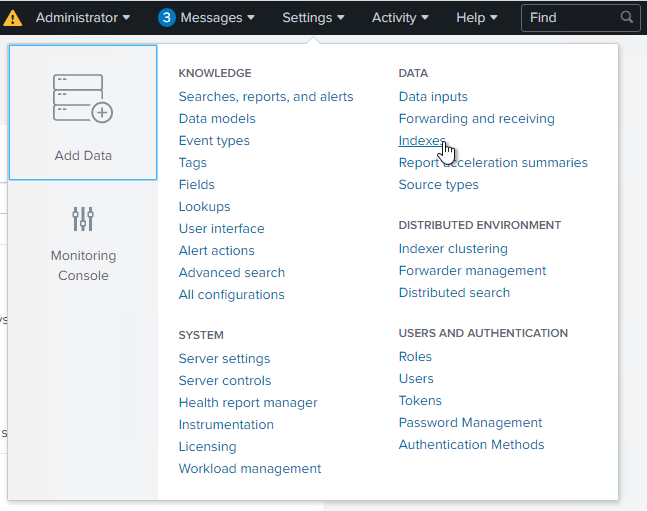
Once logged-in, on the top, right hand side, click on “Settings” and then in “Indexes”. A list of all indexes currently defined appears.
-
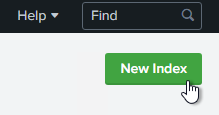
Create a new index in accordance with your organization’s naming policies; for example, with the name “sap”. Please note the name for future reference, as this index needs to be selected on the app’s configuration page for explicit use in built-in searches.
-
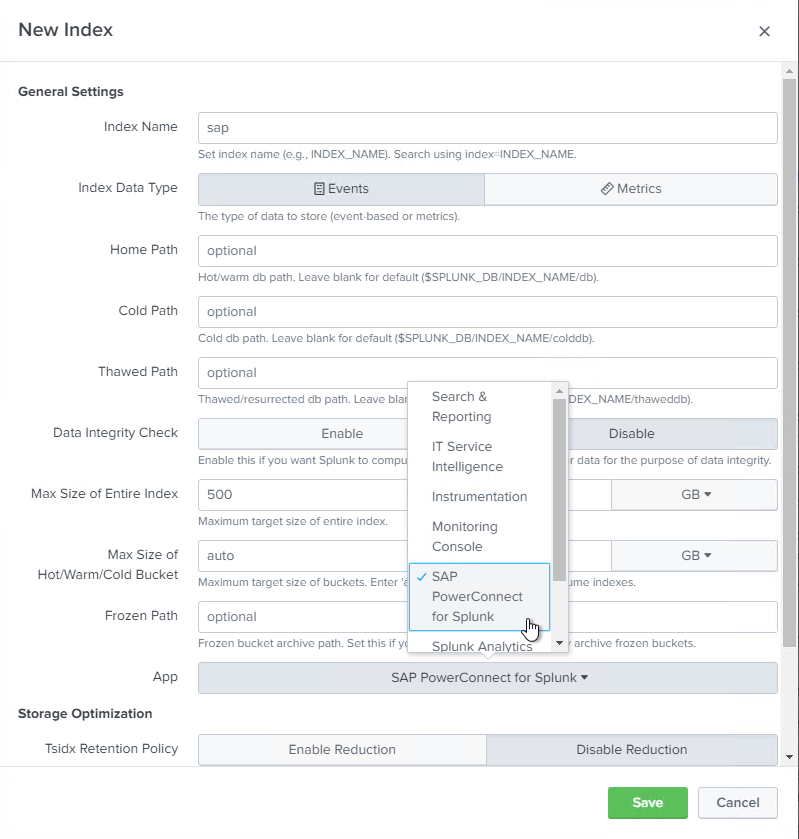
Use default values with the exception of the following settings:
-
When creating an index for PowerConnect SAP metrics, please switch the Index Data Type to “Metrics.” Otherwise, keep the Index Data Type as “Events” for PowerConnect logs.
-
For Splunk Enterprise, set the maximum size of the index based on your available space. The default is 500GB, but this number may change based on the size of your SAP landscape or available storage. For Splunk Cloud, set a maximum retention period with the “Searchable time (days)” based on your Splunk Cloud subscription.
-
Change the “App” value to “PowerConnect for SAP Solutions”.
-
-
“Save” the new index.
-
The new index now appears in the list.

Next step is to create an HTTP Event Collector (HEC) which actually is a prerequisite for establishing a connection between SAP and Splunk.