

Important: Please note that an installation of PowerConnect Splunkbase version 7.0.+ will require a restart of the search head where the app is installed. Therefore, the installation needs to be scheduled within your organization’s maintenance windows because the search head will temporarily be unavailable.
-
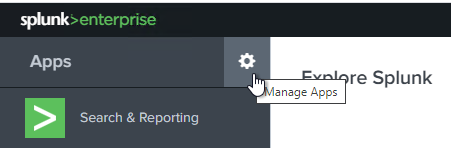
After log-on, click on the gear wheel or go to “Apps” -> “ManageApps” to open Splunk app management.
-
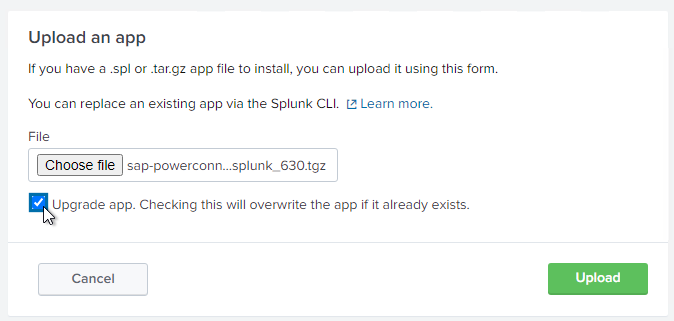
For manual installation (Splunk Enterprise only), click on “Install app from file”.

-
Browse the file system and choose the PowerConnect archive file provided to you by your implementation partner.
-
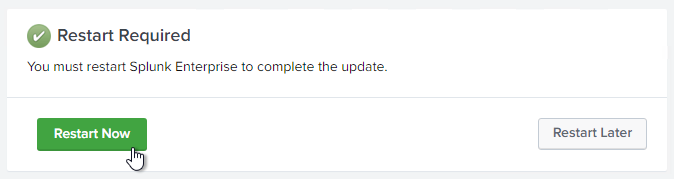
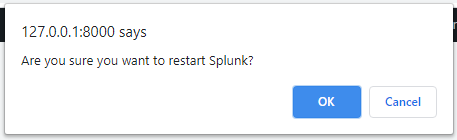
In order to proceed with the configuration of the app, Splunk needs to be restarted. This again can take a while.
-
After restart, the web view refreshes itself when finished.
-
For a Splunkbase installation (Splunk Cloud or Splunk Enterprise), click “Browse more apps.”
-
Search for the “SAP PowerConnect for Splunk” app.
-
Click install and enter Splunk credentials to install the app.
-
Your Splunk account needs to be an approved downloader to install the app directly from Splunkbase. Please contact PowerConnect support if your organization does not have an approved downloader.
-
-
To proceed with the configuration of the app, Splunk needs to be restarted. This can take a while. After restart, the web view refreshes itself.
-
The PowerConnect Splunk App is installed. Now you need to do some necessary configuration work in Splunk, to be able to connect SAP systems to it.