

KB 104 (Splunk): PowerConnect Splunk App – Setup Page Guide – 6.3.0
|
Category: Information |
Priority: Normal |
|---|---|
|
Platform: Splunk |
Version: 1 from 23.03.2021 |
Description
The setup page is used to configure the SAP PowerConnect App for Splunk and to configure the setup page, following steps have to be undertaken:
-
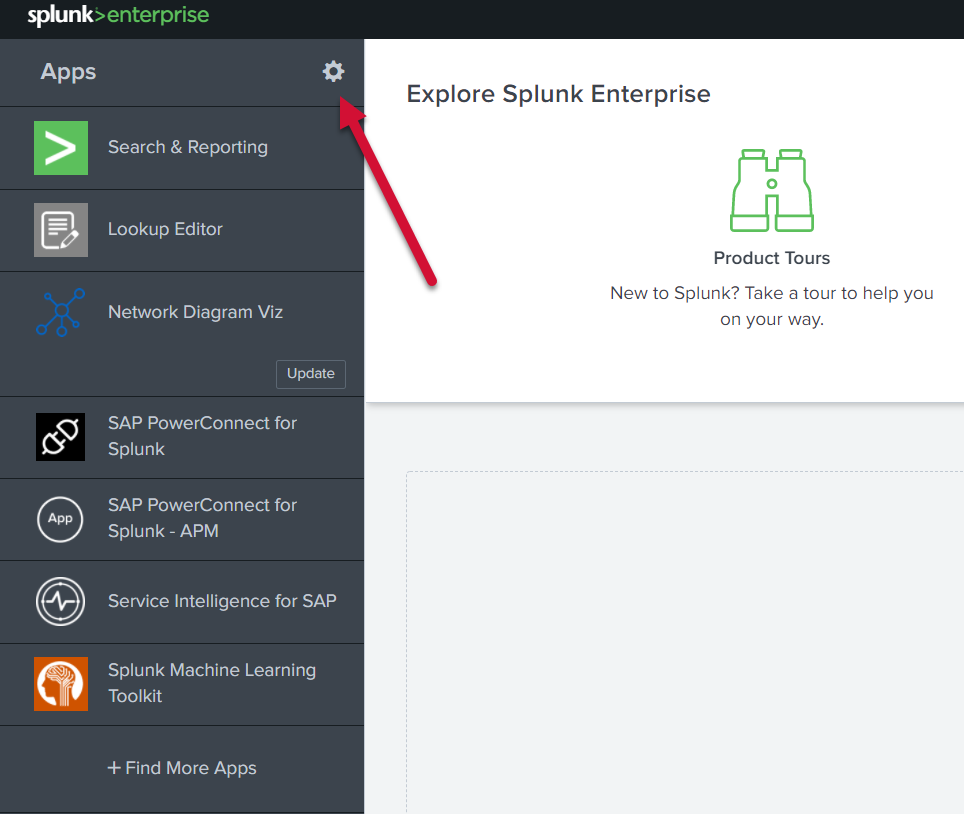
On Splunk’s menu bar, Click on Apps -> Manage Apps, alternatively navigate to Splunk Home page and click on the gear icon beside Apps.
-
Click on “Set up” link in the the Actions column to navigate to the configuration page.

-
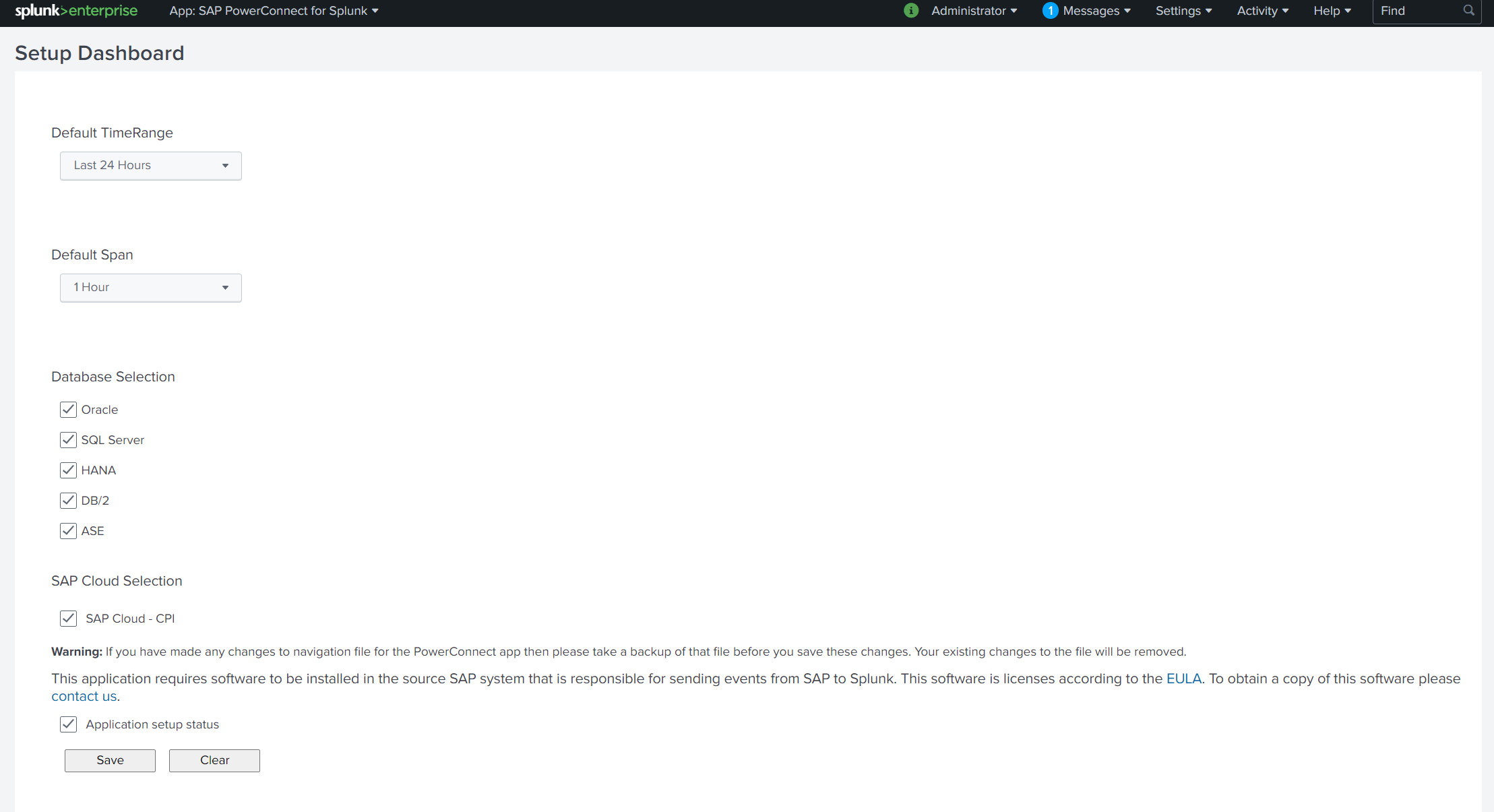
The setup page would consist of the following fields:
-
Default Time Range : This field is used to set the default value of Time Picker filter across all dashboards.
-
Default Span : This field is used to set the default value of Span filter in the dashboards where the filter is present.
-
Database Selection : This field is used to display only the selected databases dashboards in the “Database” menu of the app.
-
SAP Cloud Selection : This field is used to display only the selected SAP Cloud Products dashboards in the “SAP Cloud” menu of the app.
-
Application Setup Status : To record the configuration status of the app.
-
-
After configuration, click “Save” to apply the changes and the page will redirect to “System Overview” dashboard.
-
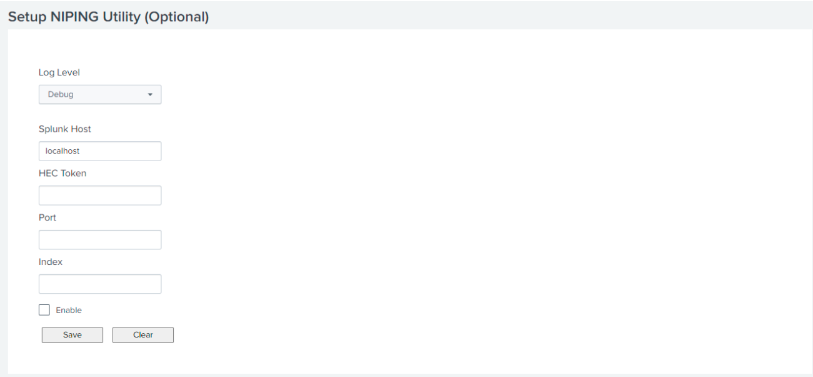
After configuration of the NIPING utility, click on “Save” to apply the changes and the page will redirect to System Overview (7.x) dashboard.
Product version
|
Product |
From |
To |
|
PowerConnect [NW,S4HANA,S4HANA Cloud] |
[Affected version from] |
[Affected version to] |