

KB 241 (ABAP): PowerConnect System Landscape Management (SLM)
|
Category: Information |
Priority: Normal |
|---|---|
|
Platform: ABAP |
Version: 1 from 05.08.2026 |
1. Introduction
System Landscape Management (SLM) is the PowerConnect component that lets you manage a landscape of PowerConnect installations from one place. You designate one SAP system as the central (managing) system; every other SAP system running PowerConnect is registered in the central system as a managed system, connected through an RFC destination.
From the central system, SLM lets you:
-
Organize managed systems into system groups and monitor them at a glance (RFC connectivity plus the status of the PowerConnect Check, Collector, and Uploader jobs on each system).
-
Synchronize PowerConnect configuration from the central system to managed systems, either on a schedule or on demand. Only PowerConnect's own configuration tables are distributed — no SAP business data is touched.
-
Send remote commands to managed systems: start or stop the PowerConnect jobs, or change the application log level.
-
Track every activity in the SLM Action Log.
1.1 Key concepts
|
Term |
Meaning |
|---|---|
|
System group |
A folder that organizes managed systems in the landscape tree. Groups can be activated or deactivated as a whole. |
|
Managed system |
An SAP system running PowerConnect, registered in SLM with a system ID and an RFC destination. |
|
SLM service |
A background activity that SLM runs periodically against subscribed systems. The delivered service is CONFIG_SYNC (configuration synchronization). The framework is extensible: a service is defined by a name, a run interval, and an implementing class. |
|
Subscription |
The assignment of a service to a specific managed system. Only active subscriptions on active systems are processed. |
|
Sync profile |
A named selection of PowerConnect configuration areas (data-model groups) to be synchronized. Each system's CONFIG_SYNC subscription can point to its own profile via the |
|
Action |
One executed unit of work against one system (for example, one synchronization run). Every action receives a GUID and is recorded in the action log with status Started, Completed, or Error. |
|
Client role |
A flag on the managed system ( |
2. Accessing SLM
SLM is part of the PowerConnect cockpit. There is no separate transaction code.
-
Start transaction
/BNWVS/MAIN(use/n/BNWVS/MAINfrom another screen). -
Open the Landscape Management menu. It contains:
-
SLM Control Panel – opens the SLM Systems Cockpit (the main landscape screen).
-
SLM Global Config – opens the SLM Global Parameters dialog.
-
SLM Sync Logs (client) – displays synchronization logs on a system that receives configuration (client side).
-
📷 Screenshot placeholder:
/BNWVS/MAINwith the Landscape Management menu expanded.
Editing lock. The cockpit allows only one editor at a time. When you open it while another user holds the edit lock, it opens in display mode: the tree toolbar is reduced to Display, checkboxes are not editable, and all settings dialogs open read-only.
Authorizations. See section 8 for the authorization objects required on the central and the managed systems.
3. The SLM Systems Cockpit
Title: PowerConnect Landscape Management. The screen is split into two panes.
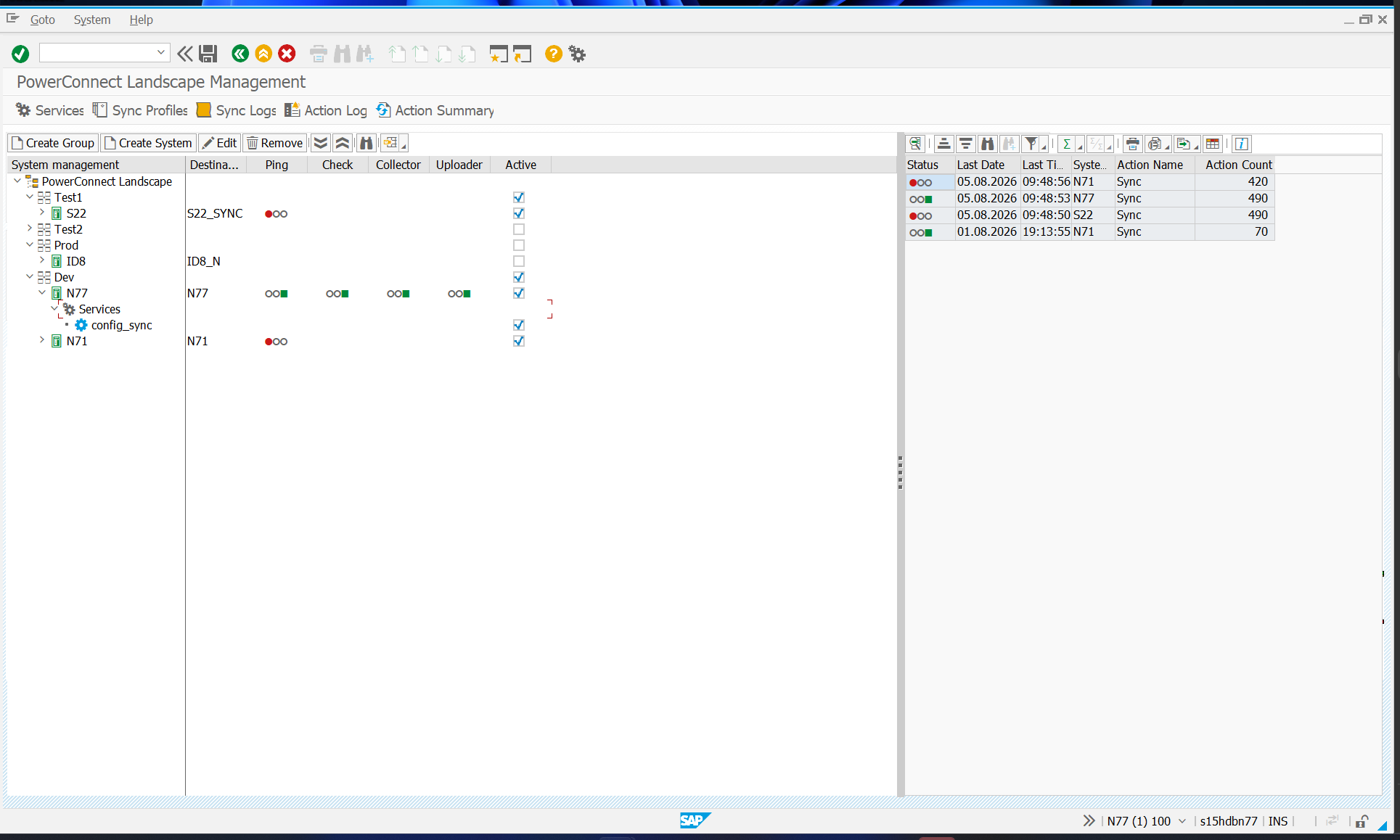
3.1 Landscape tree (left pane)
The tree, headed System management, shows the landscape hierarchy:
PowerConnect Landscape (root)
├── <ungrouped systems>
└── System group
└── System
└── Services
└── Service (e.g. CONFIG_SYNC)
Columns displayed for each row:
|
Column |
Shown for |
Meaning |
|---|---|---|
|
Active |
Groups, systems, services |
Checkbox. Deactivating a group implicitly deactivates all of its systems for processing. Editable only in edit mode; changes take effect when you save. |
|
Destination |
Systems |
The RFC destination used to reach the managed system. |
|
Ping |
Systems |
RFC connectivity test result. |
|
Check |
Systems |
Status of the PowerConnect Check (watchdog) job on the managed system. |
|
Collector |
Systems |
Status of the PowerConnect Collector (extractor) job on the managed system. |
|
Uploader |
Systems |
Status of the PowerConnect Uploader (sender) job on the managed system. |
Status icons: green light = OK / job running, red light = error / job not running, light out = not checked. The job columns are only evaluated when the ping succeeds, and only for systems whose system and group are both active.
By default the cockpit pings every active system while the screen loads (global parameter slm.ui.ping_on_startup, delivered as active). In large landscapes you can switch this off to speed up screen startup — see section 7.1.
Other tree behavior:
-
Double-click a group, system, or service to open its settings dialog.
-
Drag & drop a system onto a group (or onto the root) to reassign it. The change is saved with Save.

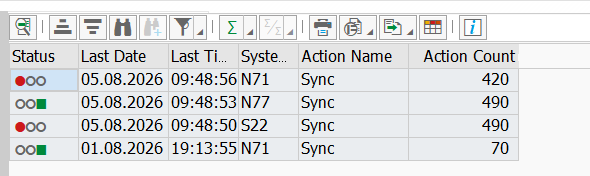
3.2 Action summary (right pane)
A read-only list summarizing completed and failed actions per system and action type, newest first.
|
Column |
Meaning |
|---|---|
|
Status |
Green = completed, red = error |
|
Last Date / Last Time |
When the most recent action of this kind finished |
|
System ID |
The managed system |
|
Action |
Action name (for example Sync) |
|
Action Count |
Number of actions aggregated into the row |
Use Refresh Summary in the toolbar to re-read it.
3.3 Toolbar and menu functions
Tree toolbar (edit mode):
|
Function |
Description |
|---|---|
|
Create Group |
Opens the System Group settings dialog to add a group. |
|
Create System |
Opens the System settings dialog to register a managed system. The new system is placed in the currently selected group. |
|
Edit |
Opens the settings dialog for the selected node in change mode. |
|
Remove |
Deletes the selected group or system after confirmation. Deleting a group also deletes all systems it contains. |
In display mode the toolbar offers Display only.
Application toolbar / menu:
|
Function |
Description |
|---|---|
|
Save |
Writes all pending tree changes to the database. Every change is also recorded in the PowerConnect audit log. |
|
SLM Services |
Opens SLM Service Management — the global service catalog (section 5.3). |
|
Sync Profiles |
Opens synchronization profile maintenance. If you have unsaved changes, you are prompted to save first. |
|
SLM Global Config |
Opens the SLM Global Parameters dialog (section 7.1). |
|
Sync Logs (server) |
Runs the server-side synchronization log report. |
|
Display Action Log |
Runs the SLM Action Logs report (section 6.5). |
|
Refresh Summary |
Refreshes the action summary pane. |
|
Back / Exit / Cancel |
Leaves the cockpit. With unsaved changes you are asked whether to save. |
3.4 Context menu (right-click on a group or system)
|
Entry |
Available on |
Description |
|---|---|---|
|
Refresh system status |
Group, system |
Re-runs the ping and re-reads the remote job statuses. On a group, this refreshes every system in the group. |
|
Commands → Start Jobs |
System |
Prompts for a batch user, then starts the PowerConnect Check, Collector, and Uploader jobs on the managed system (section 6.6). |
|
Commands → Stop Jobs |
System |
Stops the PowerConnect jobs on the managed system. |
|
Commands → Set Log Level |
System |
Reads the current application log level of the managed system and lets you set a new one. |
|
Run Synchronization |
System |
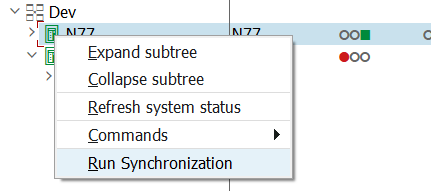
Schedules an immediate background synchronization job for this system (section 6.3). Requires saved landscape data and change authorization. |
📷 Screenshot placeholder: Context menu on a system node showing Commands submenu and Run Synchronization.
4. Setting up the landscape
4.1 Prerequisites for a managed system
Before registering a system, make sure that:
-
PowerConnect is installed on it at the same release as the central system. Synchronization refuses to run on a version mismatch.
-
An RFC destination of type 3 (ABAP connection) to the system exists (transaction SM59) on the central system. Only type-3 destinations are accepted.
-
The RFC user in that destination has the SLM authorizations on the target system (section 8).
-
If the system should receive configuration synchronization: the global parameter
slm.services.sync.has_client_roleis set toXon the managed system (see section 7.1). Without it, the system rejects sync sessions with "System has not been switched to client mode".
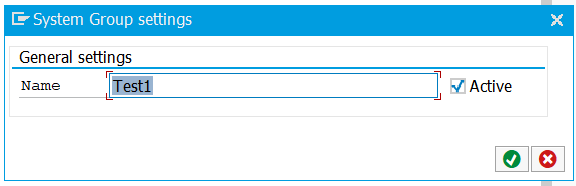
4.2 Creating a system group
-
In the cockpit (edit mode), choose Create Group.
-
Enter the group name and set the Active checkbox as needed. Group names must be unique and must not contain the wildcard characters
*or+. -
Confirm with OK, then Save.
4.3 Registering a managed system
-
Select the target group in the tree and choose Create System.
-
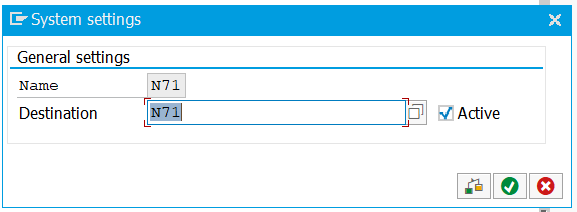
In the System settings dialog, enter:
-
System ID – the SID of the managed system (letters A–Z and digits only, must be unique). The system ID cannot be changed after creation.
-
RFC destination – must exist in SM59 as an ABAP (type 3) connection and must not already be assigned to another SLM system.
-
Active – whether the system participates in SLM processing.
-
-
Choose Check to test the connection. The check pings the destination, verifies that the remote system's SID matches the System ID you entered, and warns if the remote PowerConnect version differs from the local one.
-
Confirm with OK. A Services folder containing all defined SLM services (initially inactive) is added beneath the new system.
-
Choose Save.
Removing a system. Remove marks the system as deleted (it disappears from the landscape) and removes its service subscriptions and parameters. Groups are deleted outright, together with the systems they contain — a confirmation prompt is shown in both cases.
4.4 Subscribing a system to a service
-
Expand the system's Services folder.
-
Tick the Active checkbox on the service row (for example CONFIG_SYNC).
-
For CONFIG_SYNC, double-click the service row to open Sync service settings and pick the Sync Profile the system should use (F4 help lists all profiles). The chosen profile is stored in the service's
PROFILE_IDparameter; if none is assigned, the default profile is used. -
Choose Save.
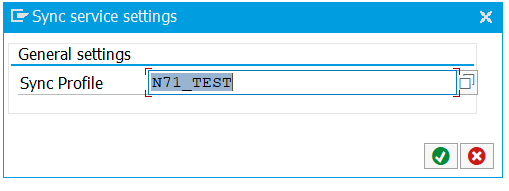
For any other (custom) service, double-clicking the service row opens a generic Service settings dialog listing the service's parameters (parameter ID and editable value). Parameters flagged as constant by the service definition are read-only.
5. Synchronization
5.1 What is synchronized
CONFIG_SYNC distributes PowerConnect configuration tables only — global settings, license keys, upload/metric configuration, connection targets, field filters and rules, extension schedules, and the per-extractor filter tables (roughly 70 /BNWVS/* customizing tables). Which of these areas are included for a given system is controlled by the sync profile assigned to its subscription. No SAP business or master data is transferred.
5.2 How it works
Synchronization is a push from the central system to the managed system.
5.3 Scheduled synchronization
The service scheduler works as follows:
-
The PowerConnect Check job on the central system starts the job
/BNWVS/BC_SLM_SERVICESwhenever at least one SLM service is due and the landscape contains active systems. -
When the service runs, it processes every active system with an active CONFIG_SYNC subscription (systems in inactive groups are skipped). Each system is one action; a failure on one system is logged and does not stop the others.
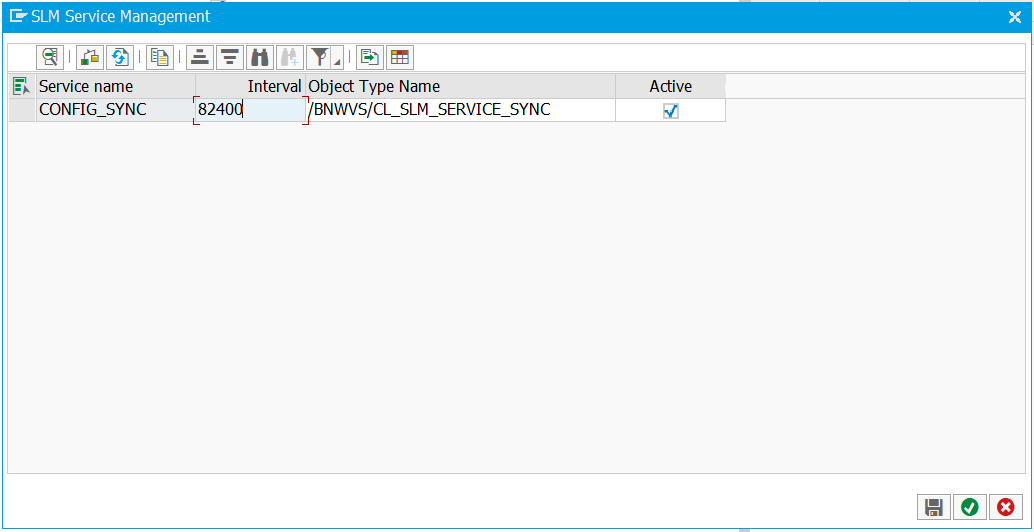
To manage services, choose SLM Services in the cockpit. The SLM Service Management dialog lists every service with:
|
Column |
Editable |
Meaning |
|---|---|---|
|
Service Name |
No |
Technical service name (e.g. CONFIG_SYNC) |
|
Run Interval |
Yes |
Seconds between scheduled runs |
|
Class Name |
Yes |
Implementing ABAP class (validated for existence) |
|
Active |
Yes |
Whether the scheduler considers the service at all |
Changes in this dialog are saved immediately when you confirm — they are global for the whole landscape.
5.4 Manual synchronization
To trigger a sync for a single system:
-
From the cockpit: right-click the system → Run Synchronization. You are asked for a batch user; SLM then releases a background job named
/BNWVS/SLM_SYNC_MANUAL_<SID>and confirms with "Sync job … released – track progress in Action Logs". If a sync job for that system is already running, the request is refused. Unsaved cockpit changes must be saved first.
Manual runs are recorded in the action log with an empty service name, which distinguishes them from scheduled runs; they do not affect the service's schedule.
5.5 Monitoring: SLM Action Logs
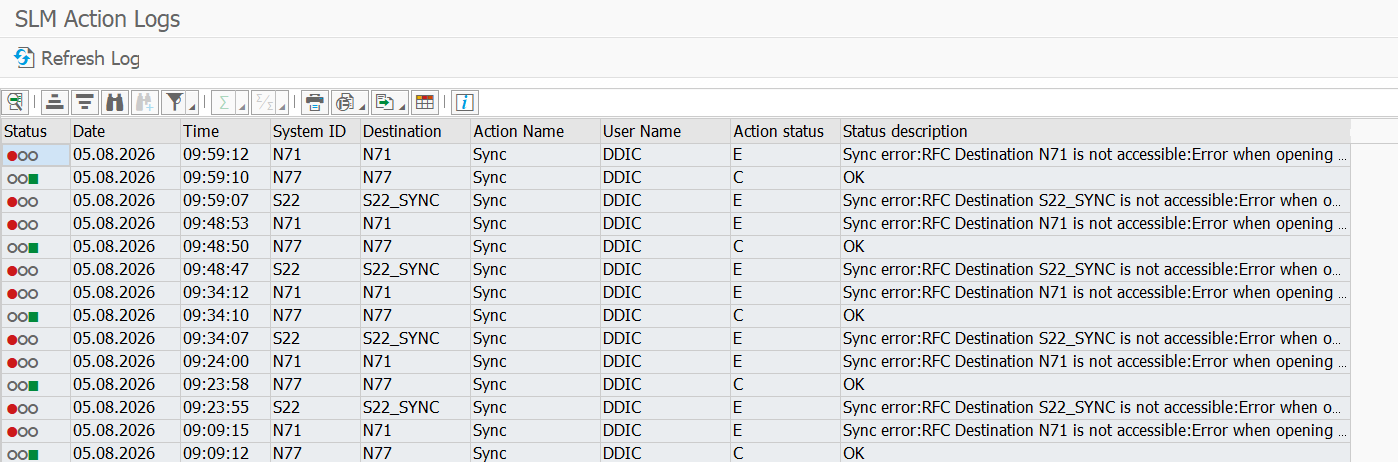
Open with Display Action Log in the cockpit. Selection: date range (defaults to today) and system ID. The list shows one row per action:
|
Column |
Meaning |
|---|---|
|
Status icon |
Green = started/completed, red = error |
|
Date / Time |
Action start (time shown in local time) |
|
System ID / RFC destination |
Target system |
|
Action |
Action name (e.g. Sync; empty service name = manual run) |
|
User |
User who ran the action |
|
Status / Status text |
|
The only interactive function is Refresh; there is no drill-down to detail messages in this release. Failed synchronizations are not retried automatically — fix the cause and wait for the next scheduled run.
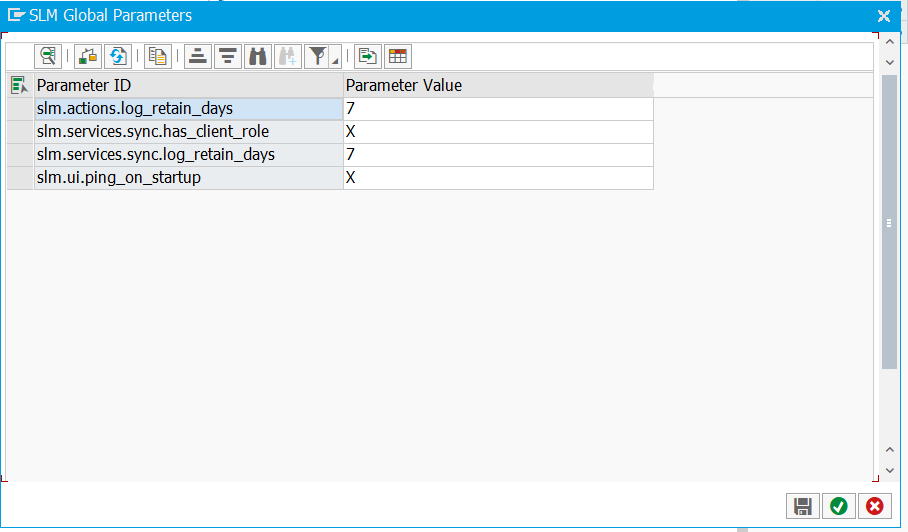
Action log entries are purged automatically after the number of days set in slm.actions.log_retain_days (delivered: 7). Sync logs are purged per slm.services.sync.log_retain_days (delivered: 7).
Additional log views: Sync Logs (server) in the cockpit shows the server-side synchronization details; SLM Sync Logs (client) in the /BNWVS/MAIN menu shows what a receiving system applied.
5.6 Remote commands
The Commands context menu executes an operation on the managed system over RFC:
|
Command |
Effect on the managed system |
|---|---|
|
Start Jobs |
Starts the PowerConnect Check, Collector, and Uploader jobs. You must supply a batch user that exists on the target system, is not locked, and is a valid job user. |
|
Stop Jobs |
Stops the Collector, Uploader, and Check jobs. |
|
Set Log Level |
Changes the PowerConnect application log level. The dialog shows the current remote level first. |
The result of every command (success or error message from the remote system) is displayed immediately and requires change authorization on both sides.
6. Configuration
6.1 SLM Global Parameters
Open with SLM Global Config (from the cockpit or the /BNWVS/MAIN menu). The dialog shows a two-column grid — parameter ID and value. You can change values of existing parameters but not add or delete rows. Changes are written to the customer configuration table and recorded in the PowerConnect audit log with old and new value.
Delivered parameters:
|
Parameter |
Delivered value |
Meaning |
|---|---|---|
|
|
|
Ping every active system (and read its job statuses) while the cockpit loads. Switch off to speed up cockpit startup in large landscapes; use Refresh system status on demand instead. |
|
|
|
Days to keep SLM action log entries before the archive job purges them. |
|
|
|
Days to keep synchronization logs before purging. |
|
|
(empty) |
Set to |
6.2 Background jobs used by SLM
|
Job / report |
Runs on |
Purpose |
Scheduling |
|---|---|---|---|
|
|
Central system |
Executes all due SLM services (e.g. CONFIG_SYNC) |
Started automatically by the PowerConnect Check job; do not schedule manually |
|
|
Central system |
One manual synchronization for one system |
Created by Run Synchronization or the manual sync report |
|
|
Managed system |
Applies a received sync session to the local configuration |
Started automatically by the local Check job when a pending session exists |
7. Authorizations
SLM uses the PowerConnect authorization objects (object class ZBNW):
|
Object |
Field / value |
Grants |
|---|---|---|
|
|
ACTVT |
SLM read access — required for the RFC status/version queries a central system makes against a managed system (assign to the RFC user on managed systems) and for displaying SLM data. |
|
|
ACTVT |
SLM change access — required to run manual synchronization and to execute remote commands (checked on both the central and the managed system). |
|
|
ACTVT |
Read / write access to synchronization data — write access is required on the managed system to receive sync sessions. |
|
|
ACTVT |
General PowerConnect change access — accepted as an alternative to |
Practical minimum for the RFC user on each managed system: /BNWVS/SLM with ACTVT 33 (status queries), plus /BNWVS/SLM ACTVT 34 and /BNWVS/SYN ACTVT 34 if the system should accept remote commands and configuration synchronization.
Product version
|
Product |
From |
To |
|
PowerConnect |
8.03 |
9.20 |