

Data Description
The Scheduled Jobs event is used in SAP to monitor scheduled background job execution in SAP NetWeaver Java systems.
Scheduled jobs are commonly used by SAP Java applications and system services to perform recurring processing tasks, such as data collection, cleanup, synchronization, reporting, and internal maintenance activities.
This event provides visibility into scheduled job executions, including job status, execution time, duration, failures, and scheduling behaviour.
Potential Use Cases
This event could be used in the following scenarios:
-
Alert when a critical scheduled job fails.
-
Alert when a scheduled job has not run within its expected interval.
-
Track recurring job failures by application, component, or system.
-
Correlate scheduled job failures with application errors, performance issues, or system outages.
-
Monitor job execution across clustered SAP NetWeaver Java nodes.
-
Visualize scheduled job reliability and execution trends over time.
SAP Netweaver Administrator Console Configuration
To allow the PowerConnect Java agent to retrieve SAP NetWeaver Java scheduled job monitoring data, you need to configure the Java eXternal Batch Processing interface. This is usually referred to as JXBP.
JXBP exposes the SAP NetWeaver Java Scheduler to an external scheduler or monitoring tool. Once configured, PowerConnect can use this external scheduler interface to retrieve job monitoring information from SAP NetWeaver Java.
Follow these steps:
-
Open the SAP NetWeaver Administrator URL in a browser
-
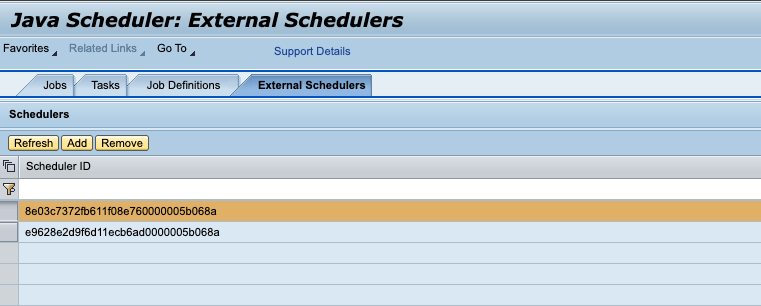
Navigate to External Scheduler Configuration
-
Operations → Jobs → Java Scheduler → External Schedulers
-
-
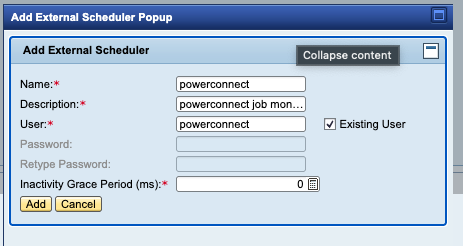
Choose Add.
-
Create or register the user that will be used by the external scheduler interface e.g. powerconnect
-
You can either check “Existing User” and use the existing PowerConnect user or create a new user and password
-
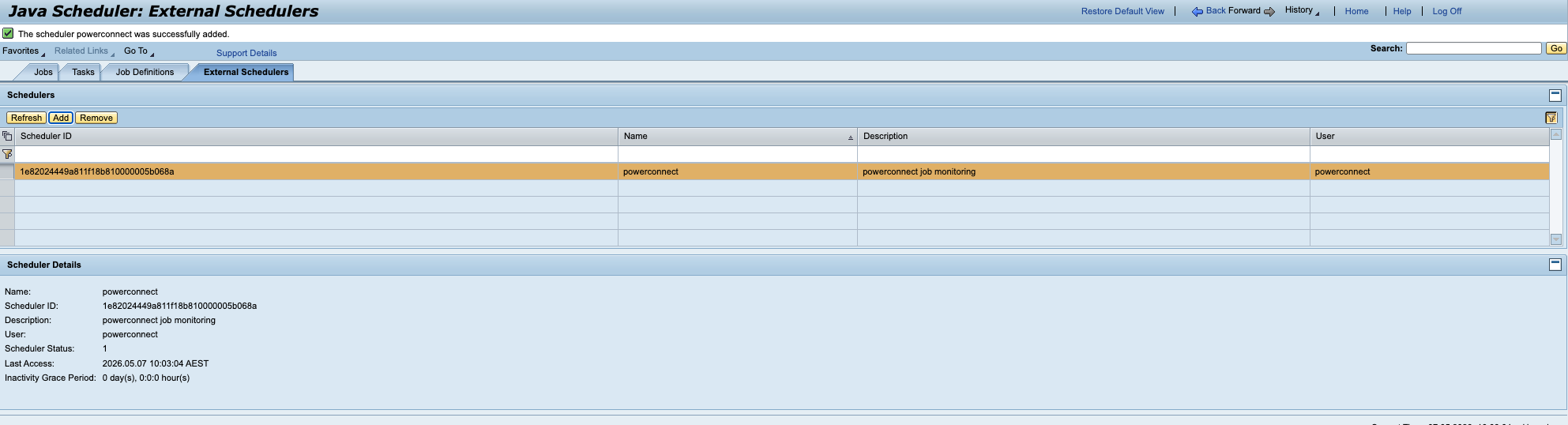
The external scheduler will now appear in the table
PowerConnect Administrative Console Configuration
-
Open the PowerConnect Java admin UI at http(s)://<sapsystem>:<port>/powerconnect-java/index.html
-
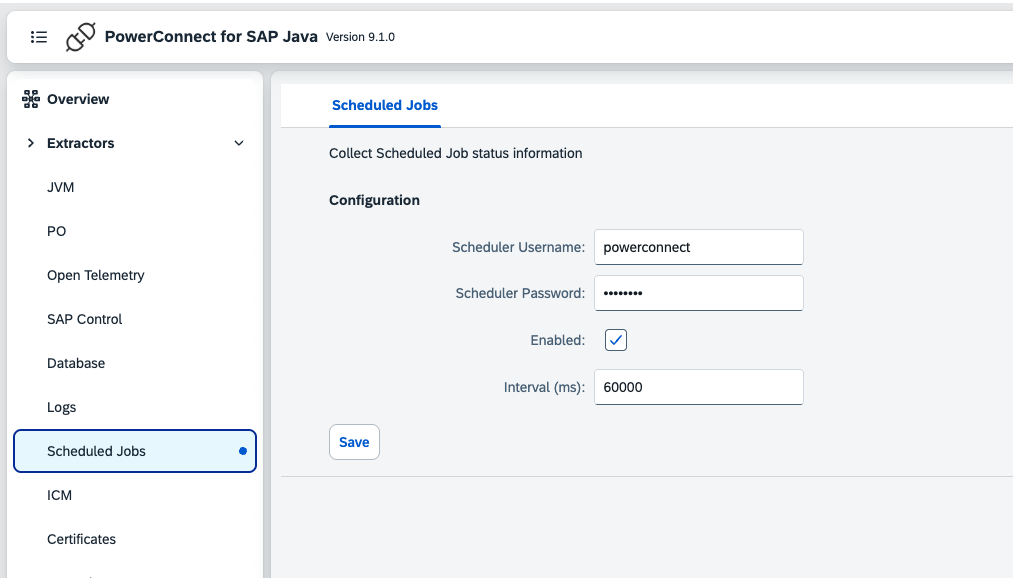
Click on Scheduled Jobs under the Extractors menu on the left
-
Fill in the scheduler username and password you just created above
-
Tick Enabled
-
Click Save
-
The configuration update will be replicated across the Java cluster within 5 minutes, after which scheduled job data will start being collected from each node
-
The event_type is scheduled_job