

If you like to have better control on how we install and configure the OpenPipeline and Buckets or Group Sharing you can always select the advanced OAuth option on the onboarding and follow the process normally.
To create this OAuth Client, you’ll need to go to the Account Management → Identity & Access management → OAuth clients
Next click on “Create client”, add your email and select the permission under Account called “View users and groups” and the permissions under Settings Service called “View settings objects for schema” and “Create settings objects for schema”
If you want to use a Service User, assign it to the OAuth client and make sure the Service User has the required App permissions and also the “View and manage users and groups” role applied. Make sure to not have any prior PowerConnect OpenPipeline installed when migrating to a Service User.
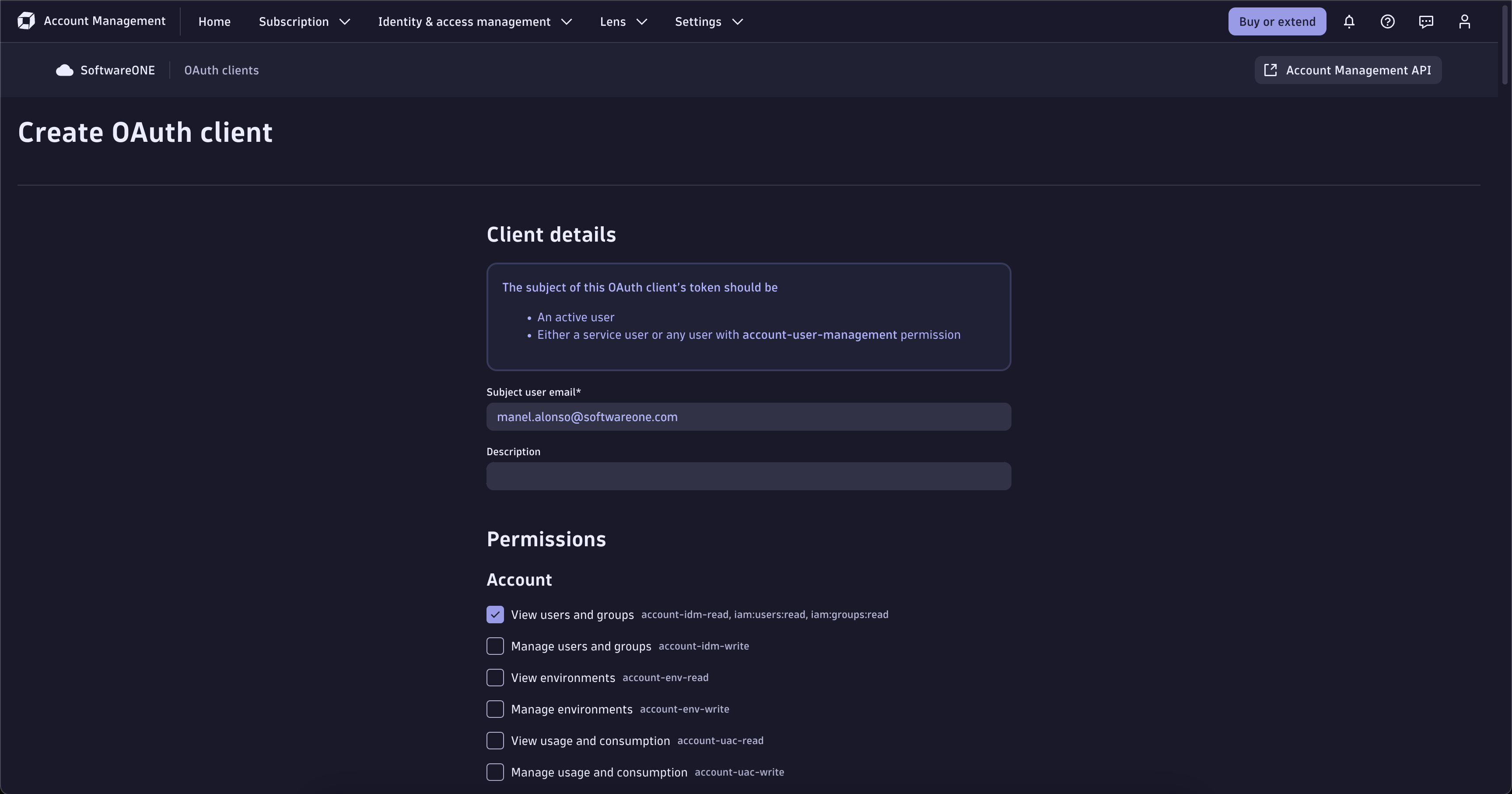
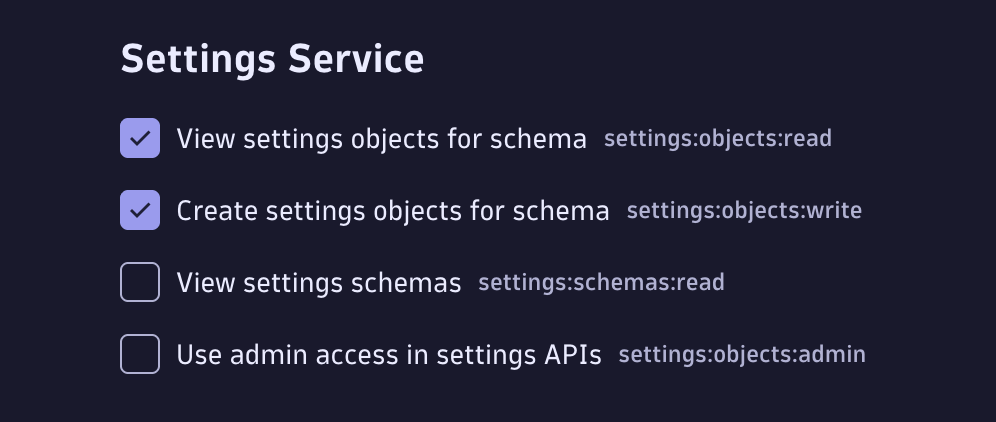
Finally you’ll be able to see some credentials, store them somewhere secure as we will use them right away in the PowerConnect APP.
Once you have the credentials, go back to the PowerConnect APP inside Dynatrace and use the credentials you just stored to fill up the first step by selecting the “Use an OAuth client” option.
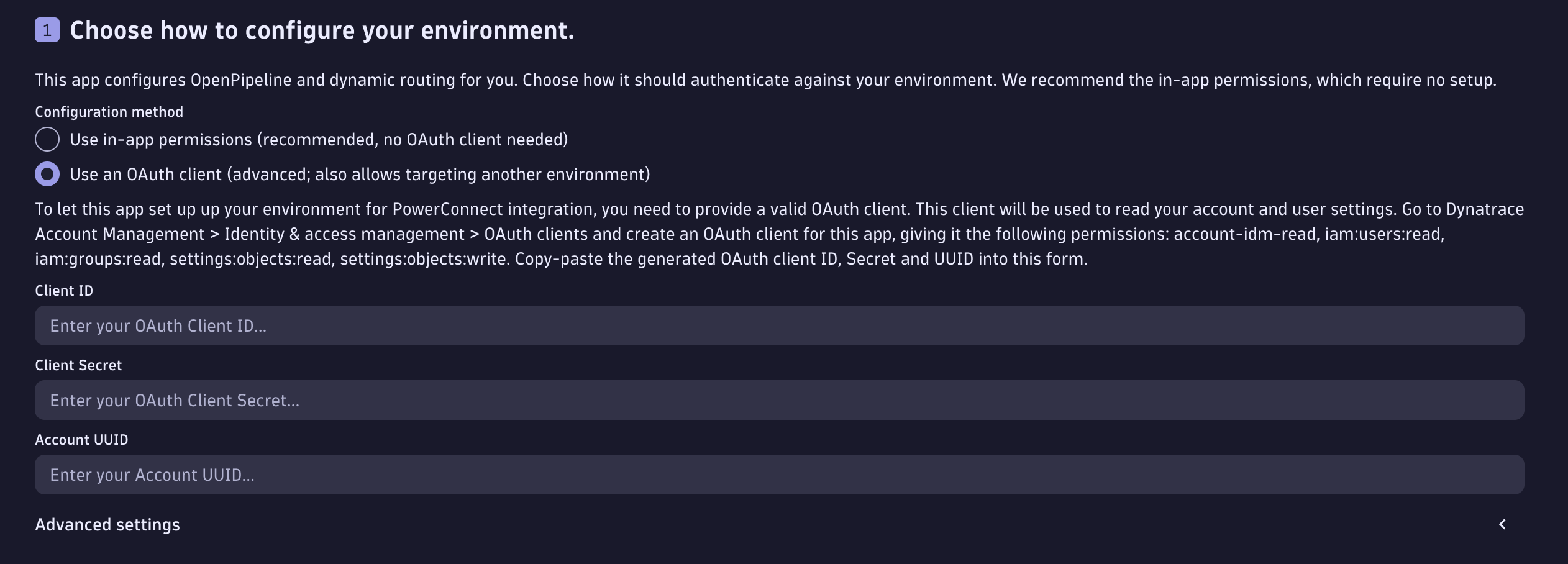
There’s also some Advanced settings in case you need to point to other API urls.
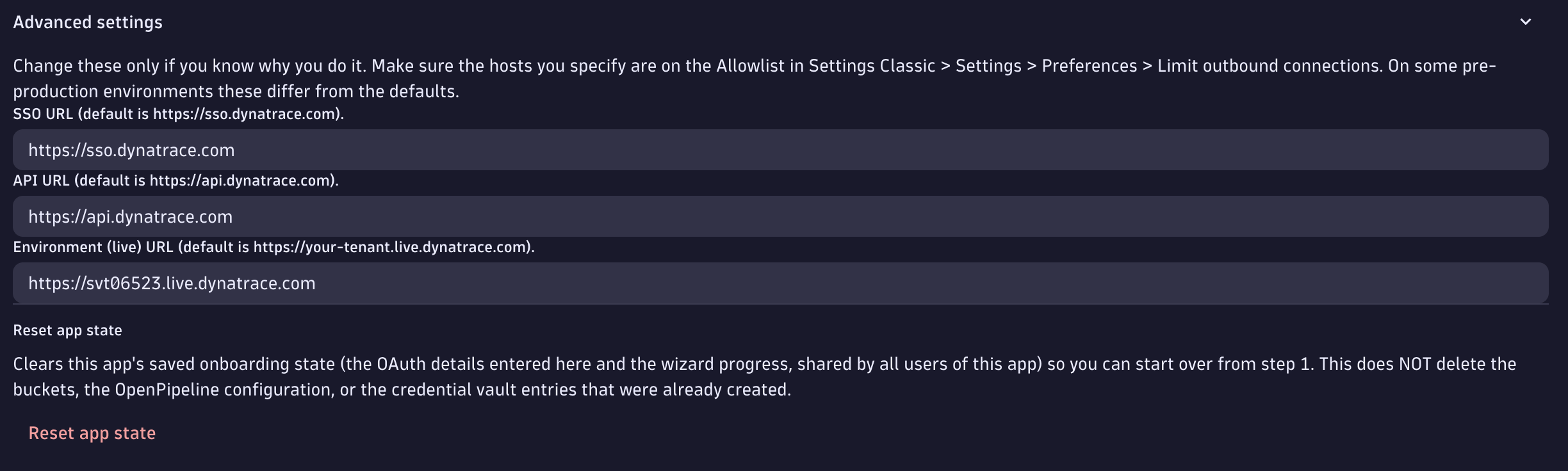
Click on “Continue” and the app will validate that the credentials work properly, in case you see that there’s an error, it means that the credentials you used are wrong or that the OAuth Client was not created properly.
Follow the Onboarding process regularly.